Category Archives: WED Blog

Copilot Assisted RAPR Analysis

Yesterday, I found myself revising a story for ComputerWorld. The topic: cleaning up Windows driver bloat using DriverStore Explorer, aka RAPR.exe. Along the way I found myself wanting to count the drivers in that store, and to identify duplicates for possible removal. Performing what I’m calling Copilot assisted RAPR analysis, I had it craft some Powershell for me. Came in really handy, so I’ll explain and illustrate what I used…

Enumerating Copilot Assisted RAPR Analysis Items

I used two one-liner PowerShell commands, plus one script, to do the following:

  • Provide a count for the number of drivers in the store (found in C:\Windows\System32\DriverStore\FileRepository)
  • Display the total file size of the store’s contents (same place)
  • Enumerate and identify the duplicates in the store (script)

These items are helpful because running the first two one-liners let me quickly count items and obtain their overall file size. Handy for before and after comparisons. The script was useful because it let me identify duplicates in the store, which RAPR does not always remove when you use the “Select (Old Drivers)” and “Delete Driver(s)” buttons for clean-up purposes.

If you look at the lead-in screenshot it shows the one-liners for making a count and getting size verbatim, and calls a script named dupdrv.ps1. The results also appear as well. These all represent post-cleanup results, FWIW.

PowerShell Details: One-Liners and Script

To obtain the count, PowerShell runs through all instances of signed PnP drivers in the store, and tots them up:

(Get-CimInstance Win32_PnPSignedDriver).Count

To get the size of the overall DriverStore, PowerShell examines each file, gets its size, adds it to a growing sum, then shows it in GB units:

(Get-ChildItem "C:\Windows\System32\DriverStore\FileRepository" -Recurse -File | Measure-Object -Property Length -Sum).Sum / 1GB

The script is longer and a little more complicated. Basically, it iterates through all files in the DriverStore, builds a table of unique entries by name, and counts all instances it finds. It reports only on instances that have counts of 2 or more (indicating duplicates).


pnputil /enum-drivers |
Select-String "Published Name","Original Name","Provider Name","Driver Version" |
ForEach-Object {
if ($_.ToString() -match "Published Name\s*:\s*(.*)") { $pub = $matches[1] }
if ($_.ToString() -match "Original Name\s*:\s*(.*)") { $inf = $matches[1] }
if ($_.ToString() -match "Driver Version\s*:\s*(.*)") { $ver = $matches[1] }
if ($pub -and $inf -and $ver) {
[PSCustomObject]@{
PublishedName = $pub
InfName = $inf
Version = $ver
}
$pub = $inf = $ver = $null
}
} |
Group-Object InfName |
Where-Object { $_.Count -gt 1 } |
Select-Object Name, Count, @{n="Versions";e={$_.Group.Version}}

These tools come in nice and handy when using RAPR to clean up a driver store. Indeed, they even extend its capabilities beyond finding old and obsolete drivers. They also identify duplicates as well. Sometimes, those too can be cleaned up. Good thing that trying to delete a driver in actual use in RAPR won’t succeed unless the “Force Deletion” option is checked. I don’t recommend using that unless you know you must for some good reason. I certainly didn’t need that here.

Benefiting from Copilot Assist

For updating this story, Copilot made it faster, easier and more convenient for me to do what I needed to anyway. That’s good. But it also let me step beyond what I’d been able to do by way of driver debloating in the past, and tackle duplicate elements as well. That’s about as good as things ever get, here in Windows-World. I’m jazzed!

Facebooklinkedin
Facebooklinkedin

More Spurious Win 11 Reclaimables

Don’t ask me why. But every now and then, MS drops a couple of old, outmoded, and obsolete packages into its Windows 11 updates. They also show up should you perform an in-place upgrade repair (“Reinstall now” via Settings > System > Recovery). Ditto for a clean install. I call them spurious reclaimables because they shows up in DISM … /cleanup-image if you run /analyzecomponentstore. Well, they showed back up on my Lenovo ThinkStation P3 Ultra yesterday. With more spurious Win 11 reclaimables to clean up, that’s just what I did. Here’s how…

Handling More Spurious Win 11 Reclaimables

Through repeated exposure to this phenomenon, and repeated prior cleanups, I’ve learned the names of the packages involved. I’ll also note they come in both AMD64 and ARM64 flavors. If you look at the lead-in graphic you can suss those names out. I repeat them here for readability:


Package_for_RollupFix~31bf3856ad364e35~amd64~~26100.1742.1.10
Microsoft-Windows-FodMetadataServicing-Desktop-Metadata-Package~31bf3856ad364e35~amd64~~10.0.26100.1742

These go into the following DISM command for easy removal (if they’re not present, the command will fail gracefully with no damage to a Windows image):

dism /online /remove-package /packagename:

Paste the package name right after the colon at the end of the string (no spaces). For ARM64 installations change the “amd” in “amd64” in the preceding package names to “arm” (e.g. “arm64”). That’ll do it.

Why Do These Spurious Reclaimables Occasionally Come Back from Oblivion?

Copilot explains this as something that’s a “known defect baked directly into the original Windows 11 24H2 installation media.” Apparently this means they will come back in 24H2 and 25H2 images from time to time. When updates that include them are applied, it’s like the movie Poltergeist: “They’re heeeeeere!”

When that happens you can leave them alone. Or, if you tend toward OCD in seeking clean Windows images, you can use DISM to return them to the oblivion they so richly deserve. That’s the way things go occasionally, here in Windows-World. I enjoy such things, in case you can’t tell…

Note: I’ve written on this topic repeatedly. Run this Google search if you’d care to scan some of my other musings on these little zombies.

Facebooklinkedin
Facebooklinkedin

Notification Reveals RDP Recall Gotcha

Here at Chez Tittel, there are 9 PCs in my office (6 laptops, 3 desktops). I tend to remote into 8 of those 9, working from my primary desktop. It’s running an Asrock B550 Extreme 4 with AMD Ryzen 7 5800X CPU, 128GB RAM, and an NVIDIA 3070Ti GPU. When I remoted into the ASUS Zenbook A14 this morning, a seemingly innocuous notification popped up in the RDP window, lower right. That notification reveals RDP Recall Gotcha that reads “Recall: Sign-in with Windows Hello to resume, no snapshots are being saved.”

When Notification Reveals RDP Recall Gotcha , Then What?

I followed the notification’s instruction: Walked up to the laptop, and let the camera log me in locally via facial recognition. When I fired up the RDP session again, there was no such notification showing. So, I checked Windows Hello status, and it shows that facial recognition is enabled and working for my phiz.

Then I checked Recall settings. It shows two interesting facets to what is apparently a real and present RDP gotcha:

1. For RDP to work, it’s necessary to turn off “Require Windows Hello login” in Sign-in Settings (aka “enhanced sign-in security”). For Recall to work this must be enabled.

2. Lack of enhanced sign-in security apparently makes the RDP session behave as if Windows Hello is neither enabled nor defined on this system.

Can you say “Catch-22?” Looks like if you want to use Recall on a Copilot+ PC, you can only do so through a local login. At least for me, it doesn’t work through RDP. Good to know! Though I can’t say I like this much, it is important to understand the limitations of Recall for users who might wish to take advantage of its capabilities.

Looks like Recall requires local operation. My conclusion: To use Recall (and I presume other AI features) go local, or go home. It’s always something, here in Windows-World.


Facebooklinkedin
Facebooklinkedin

Manual Store Update Clears Ongoing Errors

Here’s an interesting one. I just took a look at Reliability Monitor on one of my Canary channel test PCs (the venerable ThinkPad X12 Hybrid Tablet). As you can see in the lead-in graphic, it shows 14 days’ worth of “Warnings.” All of them mention Windows Terminal and YourPhone with a “Failed Windows Update” summary. But a manual Store update clears ongoing errors, and everything is hunky-dory now. Let me explain…

Why Manual Store Update Clears Ongoing Errors

I’m in the habit of leaving Windows Terminal open on many of my PCs. That’s because I run WinGet and other CLI utilities on them on a near-daily basis. But although this strategy is convenient, it sometimes means that Store updates won’t complete successfully because they don’t want to affect a running and related process.

Running a manual store update (Click Upates & downloads in the left column, then click the “Check for updates” button at upper right) forces the Store to interrupt things and start with a clean slate (Copilot calls this a “clean install path”). That means it restarts the Store install service, flushes any stale metadata, closes the running Terminal processes, pulls dependencies in the necessary order and forces a high-priority update job.

Thus, what’s stuck inside the automated daily update tasks that Store handles in the background is stuck no longer. The update goes through and the program shows itself running the latest version — namely, 1.23.13503.0 — without issues. And indeed, the same thing applies to Microsoft.YourPhone (showing the same error over the same period — it runs in the background automatically).

Not All Automatic Updates Always Succeed

This heading is the “moral of the story.” It emphasizes that occasional manual intervention may be needed, especially for processes that run in the background by themselves. But hey — that’s the way things go here in Windows-World sometimes. Happy New Year!

Facebooklinkedin
Facebooklinkedin

OCuLink versus Thunderbolt

I just learned something new (to me, anyway). In reading about a mini-PC at Neowin today, I ran across mention of an OCuLink port. It looks alot like DisplayPort (full-sized) but it’s not. As Sydney Butler at How-to Geek explains things “OCuLink…[is] short for ‘Optical-Copper Link,’ [and] is a peripheral connection standard that allows you to connect PCIe devices using an external cable rather than an internal slot.” Thus, it uses raw PCIe signaling instead of protocol based channel communications, which makes it faster and cheaper than Thunderbolt 4 (but not 5. where it’s cheaper but slower).

Why Compare OCuLink versus Thunderbolt?

OCuLink can do many of the same things that Thunderbolt does — notably make fast NVMe and eGPU connections — often more cheaply. It can handle external GPUs (eGPUs) faster than TB4 (not TB5), and at lower cost.

OCuLink is not as widely used in laptops, however, and depends on a PCIe (X4 or X8 usually) adapter to make such ports available for use. A new standard, called CopperLink, is on the way to support PCIe 5.0 and 6.0 (and compete directly with TB5). Indeed you can even buy an OCuLink eGPU dock with dual OCuLink and TB5 ports, an M.2 NVMe SSD slot, 2.5Gbe (RJ-45), and even dual USB 3.0 Gen 2 (10 Gbps) ports for US$240. That’s about half the price of a TB5 dock (e.g. CalDigit, Anker, Lenovo, etc.) nowadays…

Does Slow Thunderbolt Uptake Open a Door?

A good TB4 enclosure costs upward of US$60 these days, and includes a cable. A good TB5 enclosures costs upward of US$150 and includes a cable. A decent OCuLink enclosure costs US$40 or so, but needs a US$20-40 cable to work. It runs faster than TB4 but slower than TB5. The same general scenario applies to running external GPUs: here again, OCuLink falls between TB4 and TB5.

For desktop and mini-PC users with access to open PCIe X4 slots, OCuLink is worth considering. Laptop and tablet owners will probably opt for TB4 because that’s what the majority of OEMs support nowadays. In the future, it’ll be interesting to see if CopperLink gains traction at the expense of TB5. It’s an Open Standard, so OEMs don’t have to pay to license the technology for inclusion in their devices. On such small factors big decisions sometimes rest here in Windows-World. Let’s see what happens!


Facebooklinkedin
Facebooklinkedin

Windows 10’s Long Goodbye

Officially, it’s been “out of service” since October 14. And indeed, Windows 10 market share has been falling for some time now, with 11 ascendant. But, in unwinding Windows 10’s long goodbye from the desktop OS scene, there’s no sign yet of a spiraling vortex as the old OS goes down the drain. Remember, too, that older OSes — inlcuding 7,  XP and 8.x versions all show up in a range from just under 3% (7) to under 0.3% (XP, 8, and 8.1). Apparently old OSes never fade away completely…

Unwinding Windows 10’s Long Goodbye via 7

As I think about what’s going on here, I can’t help but use Windows 7 as a lens through which to view Windows 10’s upcoming decline. This actually shows itself quite nicely in a Copilot-generated desktop share graph (source: Wikipedia’s summary of StatCounter data 2015-2025).

2015, of course, was the year in which Windows 10 made its debut. It was also the same year in which Windows 7 transitioned from “mainstream support” to “extended support.” That’s what Windows 10 did this year, in slightly different terms.

Notice the shape of the curve imposes modest steps until the midpoint. It shows more serious declines since then. My gut feel is that Windows 10 will experience a similar fall-off. That said, I also believe the curve will drop more precipitously. That’s because MS has long sworn to limit extended support for 10 to 3 years, whereas it didn’t end ESU for 7 until the 5-year mark (2020) came along.

That would put the half-way mark three rather than 5 years out, with faster dropoffs after that. That said, with RAM and GPU prices currently on a steep rise, the impetus to buy new hardware to meet Windows 11 requirements may have hit a steep wall. Here in Windows-World the path from A to B (or 2025 to the New Year and beyond) isn’t always straight or simple. Let’s see what happens, shall we?

Facebooklinkedin
Facebooklinkedin

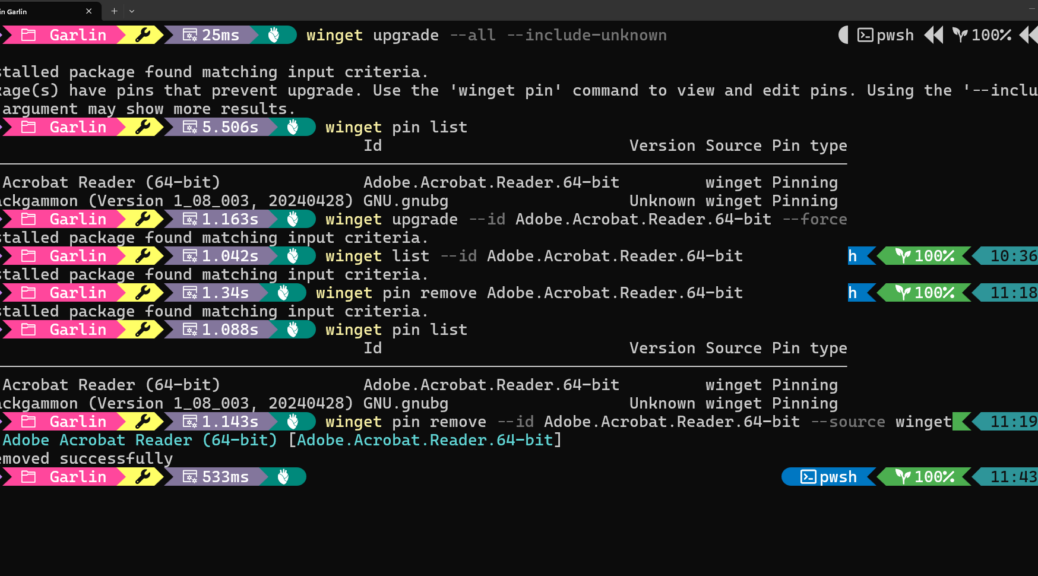
Notepad++ Update Stalls WinGet

Ha! I just learned something new. Because Notepad++ uses a Win32 installer, when WinGet tries to update the app, it will hang if Notepad++ is open. That’s how a Notepad++ update stalls WinGet. Fortunately, I was able to get over that hump pretty easily. Let me explain…

Why Say: Notepad++ Update Stalls WinGet?

WinGet stayed on the first update until I realized the program was open. Then I closed it, and about 30 seconds later, progress resumed. According to Copilot, Notepad++ uses a “classic Win32 installer” that’s downloaded and run silently. That installer tries to replace files in C:\Porgram Files\Notepad++, including notepad++.exe. If the file is running, Windows won’t let the installer overwrite that file.

So it waits a while (30, 60 and 90 seconds, according to Copilot) and retries after each interval expires. When the third try fails, the installer reports failure and closes. I was able to close the app before the second try, and then that attempt succeeded, which is how it took a while to complete the update process.

Moral of the story: when certain apps pop up in response to WinGet ugprade it’s a good idea to make sure they’re closed. Indeed, if such updates fail, they’ll most likely succeed if you close them before a retry. And man, isn’t that just the way things work here in Windows-World? Some of the time, at least…

Another Stall, Another Reason…

I ran WinGet again on another PC and once again it hung. But Notepad++ wasn’t open on that PC. So I went digging into the log file named WinGet-2025-12-29-11-42-19.224.log. There, I found a long sequence of the following two information lines (I skipped the timestamp info for brevity:

[REPO] Attempting to open pinning database: C:\Users\ed\AppData\Local\Packages\Microsoft.DesktopAppInstaller_8wekyb3d8bbwe\LocalState\pinning.db
[CLI ] Terminating context: 0x8a15002b at C:\__w\1\s\external\pkg\src\AppInstallerCLICore\Workflows\UpdateFlow.cpp:be

This started at 11:42:22.609 and ended at 11:42:22.929 (0.320 seconds) and repeated every .002 seconds (160 times). It seems that, for some reason, WinGet couldn’t access its pinning database during that time period. Thus, WinGet stalls until that condition is addressed. Another stall, but another reason, too. Cheers.

Facebooklinkedin
Facebooklinkedin

Thunderbolt 5 Status Approaching 2026

I’ve been thinking about new technologies lately, and the hurdles that OEMs face bringing them to market. Consider that only 2% of global PC sales are Copilot+ capable (which includes TB4). In that light, it’s not surprising that the market presence of TB5 is easily summarized as “slim to none.” Even so, I wanted to report on Thunderbolt 5 status approaching 2026, and share which laptops and mobos sport this latest, greatest iteration. Here goes…

What’s Thunderbolt 5 Status Approaching 2026?

There is a small number of laptops and motherboards currently available that include (or enable) TB5 support. Thus, for example, one must purchase an ASUS mobo with a TB5-capable header AND an ASUS Thunderbolt EX expansion card, to provide TB5 ports on a desktop PC.

Tasked with finding laptops with TB5 ports, Copilot produces a list of 12 models from 7 OEMs (MSI [3], Gigabyte [1], ASUS [1], Alienware (Dell) [1], Razer [1], Lenovo [1], Dell (Business) [1], and HP [1]). All come with MSRPs that exceed US$2,000. For motherboards, there’s one — and only one — source: ASUS for Z790 and Z890 (Intel) and X670E (AMD) and a hybrid (ProArt Creator). All seem to need the aforementioned expansion card to complete the connection.

Why Is TB5 Uptake Miniscule?

First off, the Intel Barlow Ridge controller is required for TB 5. Apparently, it is ill-suited for use in smaller, lighter laptops because of its space and power requirements. Second, TB5 comes with demanding power requirements (up to 240W passthrough) which requires beefier batteries and power leads to accommodate.

Finally, TB5 delivery issues from demand. And despite its formidable capabilities (120 Gbps video, PCIe 4.0 x4 host interface, DisplayPort 2.1, and up to 240W USB-PD passthrough) there’s apparently insufficient demand to drive it into lots of desktop and laptop designs. Over time, this will change. But for the moment, TB5 looks very much like a killer design looking for market uptake and support.


Facebooklinkedin
Facebooklinkedin

Undisappearing X13 Gen 6 PING

I’m getting ready to return the sweet little review unit Lenovo sent me six weeks ago. It’s a ThinkPad X13 Gen 6 (see First Look from November 7). It’s endowed with an Intel Core Ultra 7 255U, 16GB RAM, and an 0.5 GB NVMe SSD. For size and heft, it’s a nominal 13″ ultra-portable (933g/2.05 lbs) that’s easy to pack up and take with you wherever you go. As I was preparing a final once-over, I found myself faced with undisappearing X13 Gen 6 PING. Let me explain…

Why I’m Undisappearing  X13 Gen 6 PING

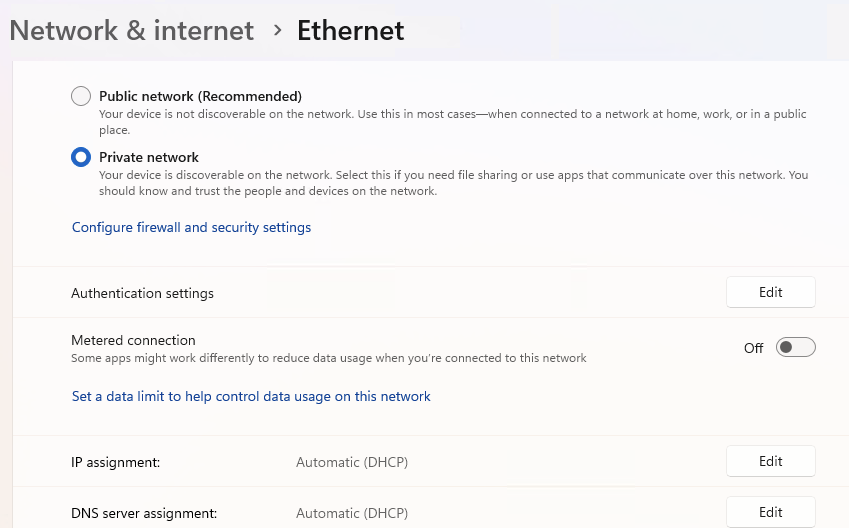
For some odd reason, Lenovo instituted firewall rules on this eval unit that I’ve never run into before. You can see them in the lead-in graphic where they show — in brief — that for both Private and Domain LAN namespaces, inbound PING is disabled for both IPv4 and IPv6. That means this PC won’t respond to incoming PING requests from the LAN. Sigh.

That’s how Advanced IP Scanner finds PCs (among other techniques). It also explains why IPconfig on the X13 Gen 6 happily reported itself at a private IP address, but didn’t show up in the scans that tool made on my desktop. Sigh again.

This is easily fixed by changing those firewall rules to enable (YES) them, instead of disabling (NO) same. But I wonder: why did Lenovo do this? I can see this applying to boundary devices (e.g. firewalls) and servers, but haven’t really run into it much on end-user PCs. They’s usually safe behind one or more layers of external protection (2 in my case), and don’t get external PINGs. Maybe it’s a “coffee shop” scenario…? But PING is disabled on Public networks anyway. Go figure!

Closing Thoughts on the X13 Gen 6 ThinkPad

As I get ready to box this unit up, and ship it off, I’ve come to some conclusions. On the plus side, it’s light, compact and reasonably capable. I’d be inclined to upgrade the 0.5 GB SSD to 1.0 GB or bigger (with budget 2.0 GB units selling for under US$100 right now, that’s not a big stretch). Otherwise, it’s more than acceptable as-is.

On the minus side, the X13 is a little behind the curve technology wise. Alas,  this model is NOT Copilot+ capable. With its price now over US$1,500 (+US$8.45 at Best Buy, +US$138.22 at Staples) it’s nowhere near as good a deal as a lightweight Snapdragon X-equipped model in that general price range (e.g. Lenovo ThinkPad 7X or Asus Zenbook A14).

Such models usually come equipped with 1 TB SSDs from the get-go, offer better battery life (12+ hours for SnapdragonX models vs. 7-10 hours for the X13), and are on par or better for performance and capability. That said, ARM PCs still have their Windows quirks and limitations, too. Here in Windows-World choosing a laptop always involves certain trade-offs, eh? I’ve come down on the Copilot+ side of things, and remain amazed that less than 2% of new PC purchased globally qualify as such. Given MS’s emphasis on AI, why buy anything else?

Facebooklinkedin
Facebooklinkedin

WinGet Foils MTPW Sneaky Update

MTPW is the mostly excellent MiniTool Partition Wizard, which I’ve used and recommended for managing disk layouts on Windows for years. I just got bitten for MTPW v13.5 by what I call a “sneaky update” — a move from v13.0 to v13.5 that includes the company’s companion ShadowMaker image backup tool along with MTPW unless you read its update screens closely and carefully. When I followed the update on one laptop (X380) with another (X12Hybrid), I observed that WinGet foils MTPW sneaky update. Let me explain…

Why I  Say: WinGet Foils MTPW Sneaky Update

After I ran the app-based MTPW update, I found it had installed ShadowMake as well as MTPW itself. You can see the “Trial” screen came up with 0 days remaining for use, which makes it:

  • worthless for those who want to try the program out for free
  • require immediately purchase of a Pro version to use
  • earn my ire by installing itself as part of a different update
  • force me to delete an app I never wanted in the first place

Immediately after I’d been bitten by this sneaky update, I saw MTPW pop up in WinGet on  the X12Hybrid. “Hmmm,” I wondered to myself, “Will this also try to sneak MTSM onto this machine?” Nope! It did what it said it would do: updated only MTPW. That’s why I’m glad I tried it on that other machine, and can now warn readers that if they’re using MTPW, they need to use the built-in update carefully to avoid MTSM. Or, like me, they can use WinGet instead and skip all the drama.

Yeah, I know. I should’ve read the install screens more carefully when running the in-app upgrade utility. My rejoinder: MiniTool shouldn’t make it so easy for MTWM to appear on my machine as part of its MTPW update. It’s neither what I expected nor wanted. ‘Nuff said!

Facebooklinkedin
Facebooklinkedin