Category Archives: Updates

Manual Store Update Clears Ongoing Errors

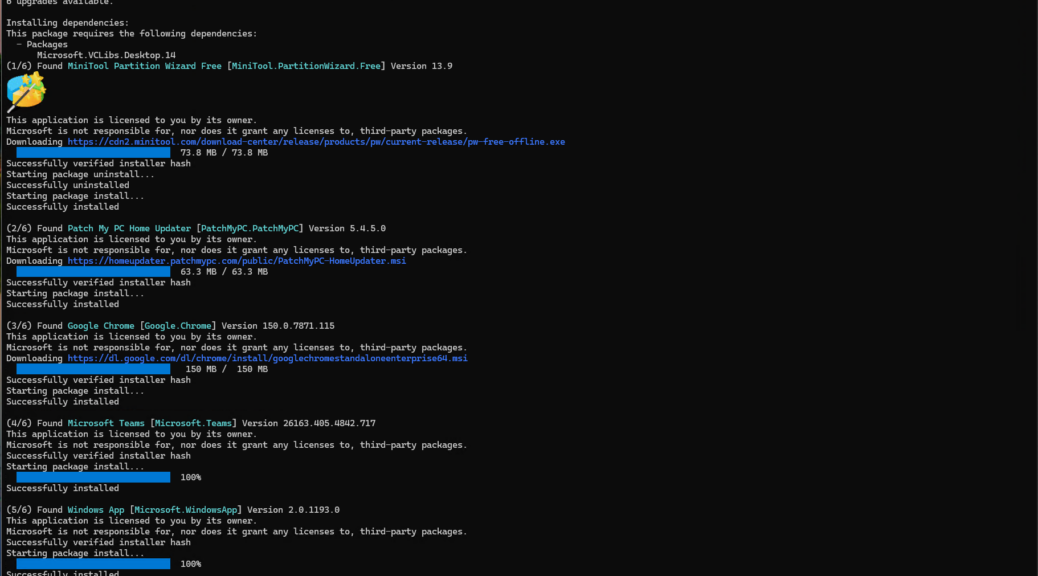
Here’s an interesting one. I just took a look at Reliability Monitor on one of my Canary channel test PCs (the venerable ThinkPad X12 Hybrid Tablet). As you can see in the lead-in graphic, it shows 14 days’ worth of “Warnings.” All of them mention Windows Terminal and YourPhone with a “Failed Windows Update” summary. But a manual Store update clears ongoing errors, and everything is hunky-dory now. Let me explain…

Why Manual Store Update Clears Ongoing Errors

I’m in the habit of leaving Windows Terminal open on many of my PCs. That’s because I run WinGet and other CLI utilities on them on a near-daily basis. But although this strategy is convenient, it sometimes means that Store updates won’t complete successfully because they don’t want to affect a running and related process.

Running a manual store update (Click Upates & downloads in the left column, then click the “Check for updates” button at upper right) forces the Store to interrupt things and start with a clean slate (Copilot calls this a “clean install path”). That means it restarts the Store install service, flushes any stale metadata, closes the running Terminal processes, pulls dependencies in the necessary order and forces a high-priority update job.

Thus, what’s stuck inside the automated daily update tasks that Store handles in the background is stuck no longer. The update goes through and the program shows itself running the latest version — namely, 1.23.13503.0 — without issues. And indeed, the same thing applies to Microsoft.YourPhone (showing the same error over the same period — it runs in the background automatically).

Not All Automatic Updates Always Succeed

This heading is the “moral of the story.” It emphasizes that occasional manual intervention may be needed, especially for processes that run in the background by themselves. But hey — that’s the way things go here in Windows-World sometimes. Happy New Year!

Facebooklinkedin
Facebooklinkedin

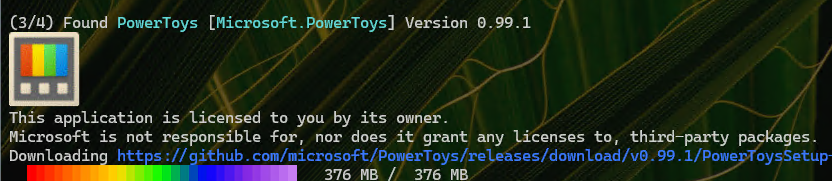
Notepad++ Update Stalls WinGet

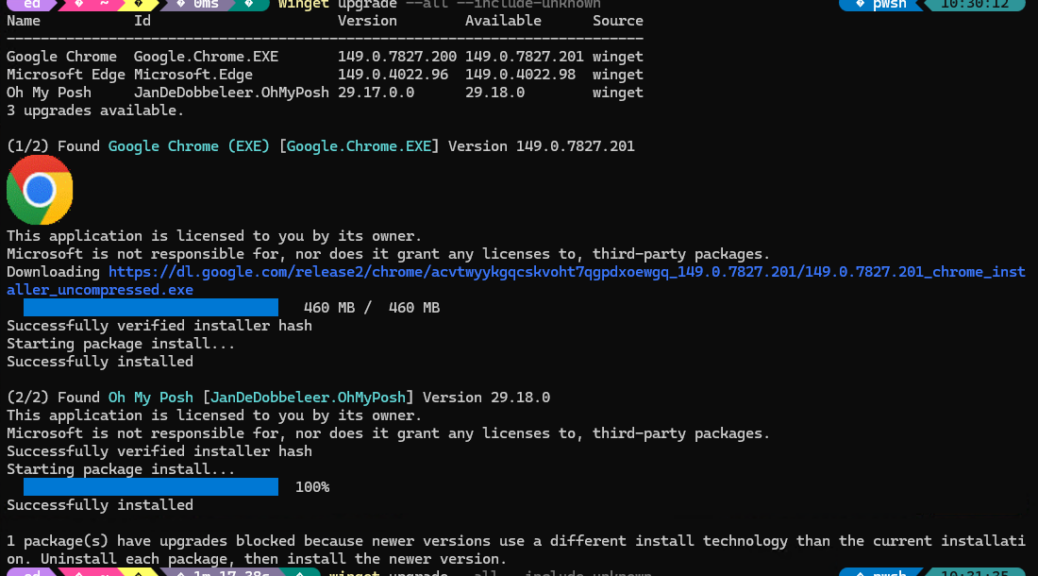
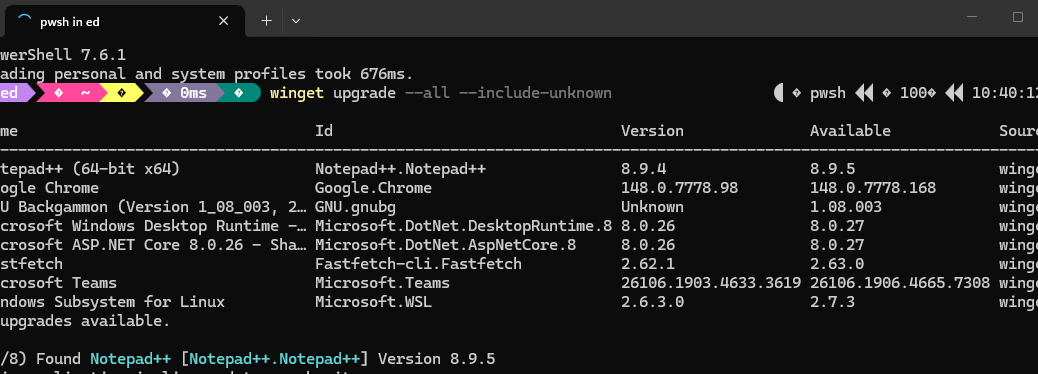
Ha! I just learned something new. Because Notepad++ uses a Win32 installer, when WinGet tries to update the app, it will hang if Notepad++ is open. That’s how a Notepad++ update stalls WinGet. Fortunately, I was able to get over that hump pretty easily. Let me explain…

Why Say: Notepad++ Update Stalls WinGet?

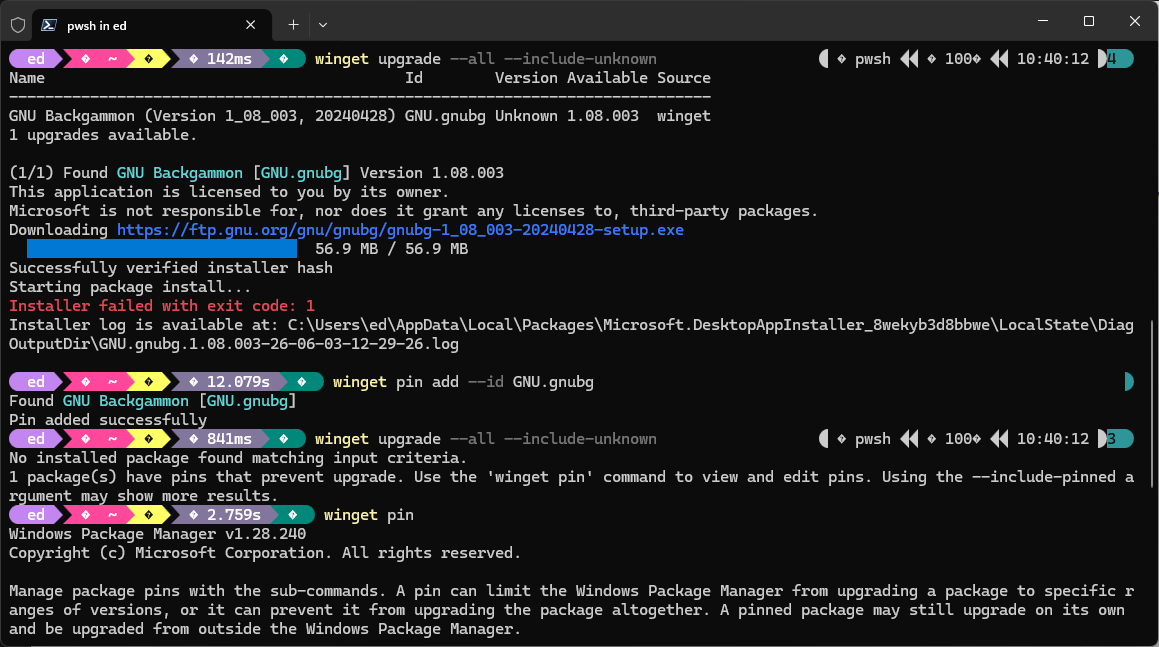
WinGet stayed on the first update until I realized the program was open. Then I closed it, and about 30 seconds later, progress resumed. According to Copilot, Notepad++ uses a “classic Win32 installer” that’s downloaded and run silently. That installer tries to replace files in C:\Porgram Files\Notepad++, including notepad++.exe. If the file is running, Windows won’t let the installer overwrite that file.

So it waits a while (30, 60 and 90 seconds, according to Copilot) and retries after each interval expires. When the third try fails, the installer reports failure and closes. I was able to close the app before the second try, and then that attempt succeeded, which is how it took a while to complete the update process.

Moral of the story: when certain apps pop up in response to WinGet ugprade it’s a good idea to make sure they’re closed. Indeed, if such updates fail, they’ll most likely succeed if you close them before a retry. And man, isn’t that just the way things work here in Windows-World? Some of the time, at least…

Another Stall, Another Reason…

I ran WinGet again on another PC and once again it hung. But Notepad++ wasn’t open on that PC. So I went digging into the log file named WinGet-2025-12-29-11-42-19.224.log. There, I found a long sequence of the following two information lines (I skipped the timestamp info for brevity:

[REPO] Attempting to open pinning database: C:\Users\ed\AppData\Local\Packages\Microsoft.DesktopAppInstaller_8wekyb3d8bbwe\LocalState\pinning.db
[CLI ] Terminating context: 0x8a15002b at C:\__w\1\s\external\pkg\src\AppInstallerCLICore\Workflows\UpdateFlow.cpp:be

This started at 11:42:22.609 and ended at 11:42:22.929 (0.320 seconds) and repeated every .002 seconds (160 times). It seems that, for some reason, WinGet couldn’t access its pinning database during that time period. Thus, WinGet stalls until that condition is addressed. Another stall, but another reason, too. Cheers.

Facebooklinkedin
Facebooklinkedin

Settings vs Store App Updates

Recent Beta and Dev Insider Preview builds have brought a new entry to Settings > Apps (e.g. 26220.7271). As you can see in the lead-in graphic it’s labeled “App Updates.” Quite naturally, this led me to wonder how differs from “Updates & Downloads” in the MS Store app itself. Comparing and contrasting Settings vs Store App Updates turns out to be more nuanced than I’d hoped. Indeed, the lead-in graphic also shows Settings reports all apps up-to-date at the same time as the Store is downloading an update to itself.

Digging into Settings vs. Store App Updates

Last May, MS Product Manager Angie Chen posted a blog on this topic. Entitled Introducing a unified future for app updates on Windows, it lays out new alternatives coming to  purely Store-based updates. But it wasn’t until I could see and try out the Settings alternative to the Store-based baseline that I could see some differences.

Indeed as Sergey Tkachenko puts it at WinAero: “…you can manage updates for certain Store apps that can receive new versions via Windows Update” (bold emphasis mine). As you can see in the intro screencap, the Store will happily update itself, while Apps> Update Apps apparently will not.

The Key: “Other” Update Channels Rule

The intro language in the May 27 blog post linked above states:

If you are already getting apps through the Microsoft Store (our recommended approach), there is no action needed—you will get the benefits described here by continuing to use that method.

Among other things, this means that store-managed apps — including the Store itself — continue to update through the Store Updates & Download faciliity, not through Settings > Apps > Update Apps. That showed itself immediately as soon as I went to check things out. Indeed careful reading of that blog post shows that developers must explicitly build apps to hook into Windows Update (ditto for management tools such as Intune or Autopilot) to make use of this capability.

In fact, nobody really knows how much this will change the way things work right now. As with other possible futures in Windows-World, those who build apps will have to take up this new update path before mere users — like your humble author — can walk down it. Right now, it seems limited to MS tools that don’t fall under the Store umbrella (e.g. PowerShell and Windows Terminal). So far, it looks more like a future possibility than a real, current alternative.

I’ll keep an eye on this, and let you know what happens…Stay tuned!

Facebooklinkedin
Facebooklinkedin

Beta 25H2 Jump Brings Unexpected Side Effect

When I saw the news, I had to try it. A couple of weeks back, MS announced that 24H2 users for all versions of Windows 11 except the Dev and Canary Channel could move up to 25H2. So I used the Installation Assistant, and did that very thing for my X380 Yoga install. But, as I’m learning, that Beta 25H2 jump brings unexpected side effect. Namely, as MS drops new Beta Builds (e.g. 26120.6982), my jumped-up Yoga doesn’t partake of such updates. It’s on a higher track.

Why Beta 25H2 Jump Brings Unexpected Side Effect

The base build number for 24H2 Beta versions remains 26120. For Beta installs jumped to 25H2, that base build number advances to 26200, as you can see in the lead-in graphic. Thus, for my Beta Channel test PC the unexpected side effect of the jump-up is to exclude it from updates and new versions that target 24H2 instead. I should have known, but found out when I saw last week’s announcement of Build 26120.6982, visited WU, and didn’t get anything in response to clicking the “Check for updates” button.

Only slowly did it dawn on me that my install is on a different track right now. I’m not exactly sure when I’ll see the next update for this track. I’m guessing I may have put myself on the Patch Tuesday schedule with this change, along with occasional OOB updates and 4th Tuesday items as they sometimes appear.

Here in Windows-World, it can be easy to change tracks, or even to get onto the wrong track. I know I’ve done the former, and time will tell me if I’ve also done the latter. In the meantime, I’ll just keep chugging along.

One More Thing [Added 6 hrs later]

I just ran DISM /online /analyzecomponentstore on this updated PC and guess what? the 25H2 eKB restored the spurious reclaimables that I’d hand-deleted from the 24H2 image. (See this March 21 post for details.) It worked this time, too, just as recited in that earlier post (and again, thanks to ElevenForum user @Bree for figuring this out in the first place).

Facebooklinkedin
Facebooklinkedin

Windows Store Auto-Update Policy Change

Once upon a time — and until pretty recently — Windows users could defer Windows Store updates indefinitely. No more. Starting with version 22309.1401.x which began rolling out in early September 2025, users can only pause updates for a period of 1 to 5 weeks. By the end of that month, this change had reached most Windows users. Why this Windows Store Auto-Update Policy change? Good question! Answers follow, but first check out the lead-in graphic. It shows the Pause updates control in Store Settings, and the permissible intervals (though the 5 week option is obscured, it’s there, I promise).

Why Make a Windows Store Auto-Update Policy Change?

According to Copilot MS instituted this change for 3 primary reasons (my paraphrasis follows):

  • To lower security risks outdated apps can pose.
  • To synch up Store update behavior with the WU pause model that’s long been in effect.
  • To keep users from skipping critical app patches or updates.

Note: enterprise-managed Windows devices (e.g via GPOs or Intune) aren’t affected by this change. Their app update policies work differently, and they continue to exercise full control.

There’s even an MS Support Note to cover this change. It’s entitled Keep apps and games up to date with the Microsoft Store (last updated 9/4/2025). For more details and administrivia, check it out.

Here in Windows World you can duck updates for a while, but you can’t avoid them completely — at least, not without using third-party tools like those mentioned in this WindowsClub roundup story. But that’s a topic for another post, should I find the “round tuit” necessary to bring it up!

Facebooklinkedin
Facebooklinkedin

Version Dev Gets No 25H2

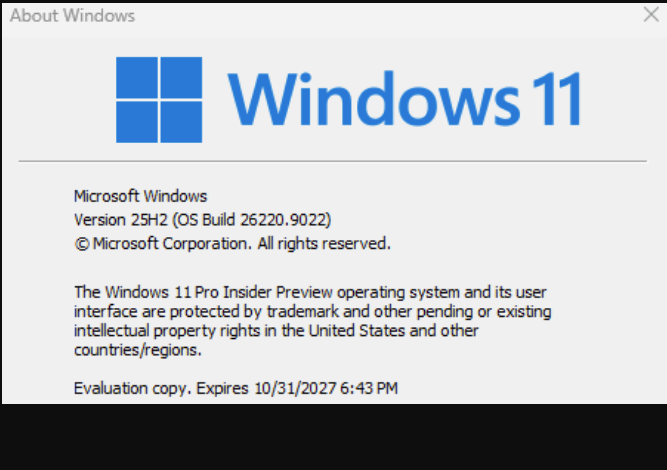
On the last day of September, the Windows Experience blog announced “the availability of the Windows 11 2025 Update (aka Windows 11, version 25H2).” A little careful perusal of this info, and some checking from your humble author shows that availability not only includes production versions. It also includes Insider Preview versions in the Release Preview and Beta Channels as well. By extension that means Dev and Canary Channel fall outside this umbrella. That’s what I mean when I say “Version Dev Gets No 25H2,” as you can see in the lead in-graphic (shows an ambiguous “Version Dev” instead).

Version Dev Gets No 25H2 Means More Than It Says

On my Canary test PC (the stalwart, still kicking 2020 vintage Lenovo ThinkPad X12 Hybrid Tablet) the version line from winver.exe gives things away. It reads “Version Dev” instead of 24H2 or 25H2. Both Dev and Canary Channels fall outside the Windows 11 versions that can upgrade to 25H2 at present. That’s because they belong to a different Windows 11 Build branch, with higher build numbers that bypass 25H2 entirely. That’s probably why MS forgoes 24H2/25H2 nomenclature in identifying the version as shown in the lead-in screencap.

OTOH, I was able to use the Installation Assistant yesterday to upgrade my Beta Channel test PC to 25H2. It shows the latest build status in Settings > Windows Update > Windows Insider Program, as you can see here

But it also shows up as 25H2 in Winver, and up-to-date in WU, as you can see here:It’s all a matter of how close the bits come to matching the currrent production version of Windows 11. Because Canary and Dev Channels are further out, they’re not able to show a 25H2 base. That’s by design.

Interesting that Beta and Insider Preview Channels can move on up to 25H2 though, while Canary and Dev remain in the 24H2 zone. This will be interesting to watch in the months to come. I wonder if Canary will get its own version, or stay lumped in with Dev? We’ll see!

Facebooklinkedin
Facebooklinkedin

Database Mixup Prompts Bogus Update

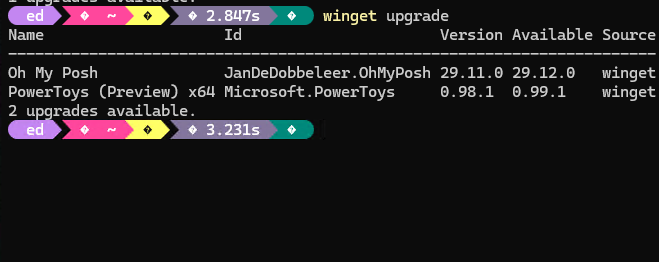
There’s always something interesting going on with WinGet, the MS package manager for installing and updating Windows stuff. Yesterday, a database mixup prompts bogus update orders for Visual Studio 2022. Let’s look at what happened, so I can explain the nit-picky little details involved.

But first: there really is no update involved. In fact, the Visual Studio version numbers are identical: 17.14.6, as you can see in the lead-in graphic. Note that the same version number appears in the columns for both “Version” and “Available.”

Fixing Database Mixup Prompts Bogus Update

The devil for these particular details lies in the difference between the two strings. The info from the “Version” column comes from the local copy of the WinGet source. It includes the parenthetical phrase after the version number — “(June 2025).” The “Available” version info does not include that string. Thus, there’s a mismatch, even though they’re the same base version number.

Simply put, because the version numbers don’t match, WinGet blithely assumes they’re different. Technically, they are. But they differ because somebody erred in creating one version string or the other.

Who’s on the Hook for a Fix?

Why Microsoft, of course, because Visual Studio is their product. Thus, they’re responsible for the package data in the WinGet database. As you can see in the following screenshot, in fact, that fix is already in. It depicts this morning’s WinGet show  and WinGet list data for Microsoft.VisualStudio.2022.Enterprise. Note that the version number info now agrees completely. Fixed!

The previous discrepancy is gone. [Click image to view full-sized.]

For further proof, I ran WinGet upgrade –all –include-unknown. It shows that CrystalDiskMark and Edge need updates, but Visual Studio no longer appears. The mismatch is corrected, so it’s no longer incorrectly flagged for update.

I’m a huge fan of WinGet, not least because the team at MS that works on its software and data is on top of things. Good stuff!

Facebooklinkedin
Facebooklinkedin

Interesting UniGetUI Update Shenanigans

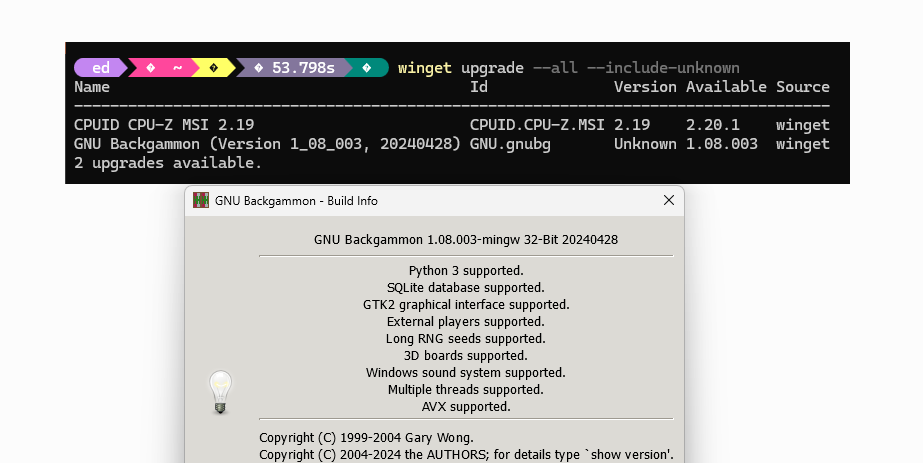
I have to laugh. I read yesterday on NeoWin that UniGetUI — Marti Climent’s excellent UI skin for WinGet, Scoop, Chocolatey and other package managers — had gotten a big update. So naturally, I wanted to try it out. Instead, I got tangled up in some  interesting UniGetUI update shenanigans. They were almost entirely of my own making, but worth explaining. Here goes…

Revealing Interesting UniGetUI Update Shenanigans

I’ve actually had UniGetUI installed on my PC since the days when it was named WinGetUI. And indeed, I’d gone through several beta versions of UniGetUI. Amusingly, some launched from the old name (WinGetUI) but showed up with the new one (UniGetUI).

Somewhere in that skein of releases, the package names or IDs got tangled up. When I ran the new version of UniGetUI, it showed me an older beta version needed updating. Thus, I used the newest UniGetUI to uninstall that same older beta. Imagine my surprise when the PC came back with no version(s) of either WinGetUI or UniGetUI installed. Somehow, the beta uninstaller ended up doing away with everything WinGet or UniGet UI related on that PC and I was left with nothing.

Sometimes, Nothing Is Good

Neither Settings > Apps > Installed apps, nor Revo Uninstaller showed me anything related to WinGetUI or UniGetUI on my PC. So at least, I had a clean slate left behind. That made my job easy: I went to the Latest Release (v3.2.0) on the UniGetUI GitHub page, downloaded UniGetUIInstaller.exe and had at it.

Everything is now working, and the newest version — as you can see from the About info in the lead-in graphic — is working. It even managed to update TeamViewer for me, despite the older WinGetUI failing at that task before I started this adventure.

Sure enough, it’s always something, here in Windows-World. I’m just glad when a fix or workaround presents itself to me with little effort. This was one of those rare and happy times … I’m grateful.


Facebooklinkedin
Facebooklinkedin

Extirpating WinGetUI Requires Registry Cleanup

Here’s an odd one. A few months back, I tried out a pre-release version of UniGetUI that still fell under the WinGetUI umbrella. The package info involved — as you can see in the lead-in graphic — was ID=MartiCliment.UniGetUI.Pre-Release Version=1.5.2. I thought I’d deleted same, and it showed up in none of Programs and Features, Settings > Apps, or Revo Uninstaller. Yet it kept showing up in WinGet‘s upgrade and list commands anyway. TLDR; extirpating WinGetUI requires registry cleanup to “make it go away.” Sigh.

Why Extirpating WinGetUI Requires Registry Cleanup

Apparently, adding packages to Windows leaves all kinds of traces in the file structure, as well as settings and pointers that get instantiated in the registry. Furthermore, it looks like WinGet relies what it finds in the registry to create its view of what’s installed on a Windows PC. Thus, I had to remove all registry entries that included the string “WinGetUI” and/or “UniGetUI” (except for stuff not related to the application or its package info, such as pointers to Word files I’d written about those tools).

And indeed, that did the trick. Neither WinGet Upgrade nor WinGet List Marti.Climent.UniGetUI,Pre-Release posits pointers to something I know isn’t there. The next screengrab provides visual proof. Good-oh!

After removing all WinGetUI references in the registry, WinGet no longer sees the older package.

It just goes to show that some uninstall facilities work better than others. For all its good features, it appears that WinGetUI/UniGetUI does not clean the registry upon uninstall deeply enough to tell WinGet that it’s gone, gone, gone. You’d think that wouldn’t happen with a WinGet-related and -focused follow-on tool. But here’s a counter-example that says otherwise.

That’s the way things go here in Windows-World, where not all is as it seems, not always works exactly the way it should. Sigh. When that happens, we clean up manually and keep on truckin’…

Facebooklinkedin
Facebooklinkedin

Installing Build 27802 Throws Memory Error

Here’s a new one on me. Last Friday, as I was installing the latest Canary Channel upgrade, the installer threw an error code that I’d not seen before. That code is 0x8007000e; its output from the Microsoft Error Lookup Tool (err_6.4.5.exe) appears as the lead-in graphic above. That error occurred during the GUI portion of the install. And it occurs to me that while installing Build 27802 throws memory error, it might have been because I was running WinGet in parallel, installing other stuff at the same time. I’m guessing was a self-inflicted thing…let me explain.

Self-Inflicted: Installing Build 27802 Throws Memory Error

The recommendation that comes with this error, is to restart the PC and try again. As soon as I did that — without added activity on the side — the upgrade installed successfully with no further errors along the way. As I look back on what got updated during my first botched attempt, I see that some fairly intense items were involved. Most notably, it included Visual Studio, for which a typical install is usually around 50GB in size. I can see where trying to juggle both on a 2021 vintage laptop (Lenovo ThinkPad X12 Detachable Tablet with 16GB RAM) might cause resource issues.

Anyway, the proof’s in the observation that a second attempt worked. That’s probably because I didn’t try to multi-task while the GUI install was underway. The only reason I haven’t done this to myself before is that you can’t do anything to the PC except let the installer run, during the post-GUI phase!

27802 Takes a While to Complete, Too

I couldn’t help but notice — because I perforce went through the process twice on the X12 — that the upgrade process to this latest build takes some time to complete. Normally, a Canary Channel upgrade finishes in under half an hour. This time around, the whole process — including download, GUI install, and post-GUI install — took about 75 minutes to complete from desktop to desktop.

At least I now know I should leave my PCs (mostly) alone while the GUI phase of a Windows upgrade is underway. I wonder what my next creative abuse of the runtime and installer will teach me? There’s always something new and interesting to learn, here in Windows -World!


Facebooklinkedin
Facebooklinkedin