Category Archives: Device drivers

Figuring Out Intel Arc Iris Xe Drivers

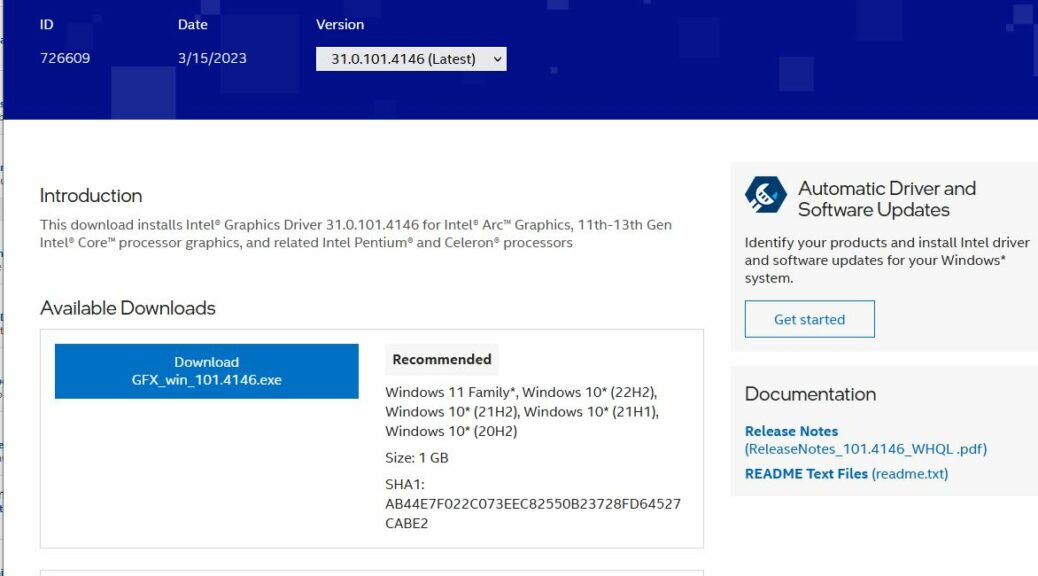
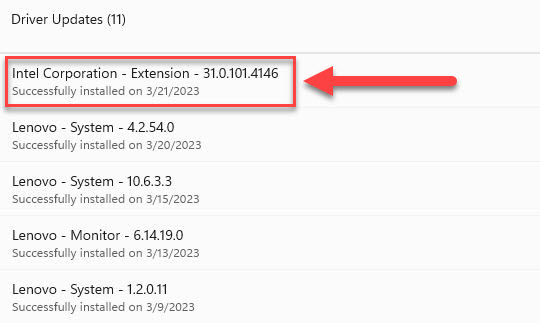
For a long, long time Intel has made newer drivers available for its various integrated graphics circuitry. I’m talking older stuff like its UHD graphics, as well as newer Arc and Iris Xe graphics. Until last year, laptop operators were warned off these drivers because they could overwrite OEM extensions and customizations. I’ve been installing and figuring out Intel Arc Iris Xe drivers lately because that warn-off has been modified.

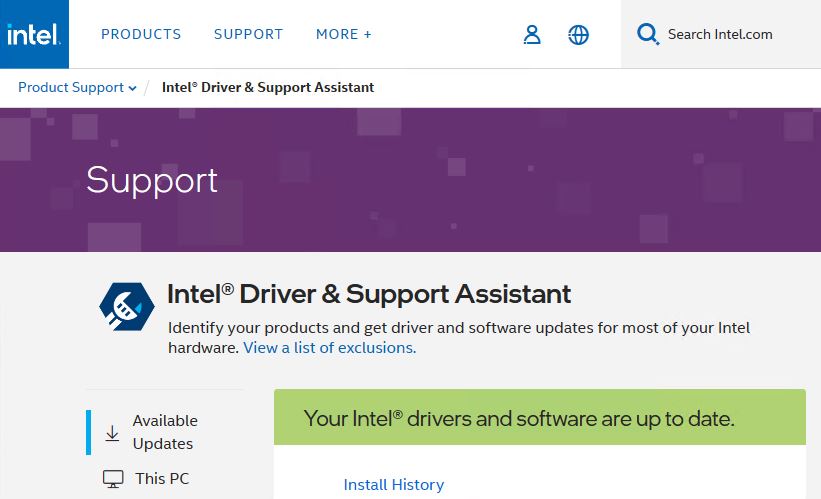
Here’s an “exception” of sorts that now appears in the Intel Driver & Support Assistant‘s cover language for the Intel Arc & Iris Xe Windows Drivers:

If you have a 6th Generation Intel® processor or higher, your computer manufacturer’s customizations will remain intact after upgrading to this graphics driver. To identify your Intel® Processor generation, see How to Find the Generation of Intel® Core™ Processors.

For the record, my test PC is a Lenovo ThinkPad X12 Hybrid Tablet. It runs an 11th Gen Intel CPU (i7-1180G7), with onboard Irix Xe graphics.

What Figuring Out Intel Arc Iris Xe Drivers Buys

Much of the Arc and Iris capability in the Intel ARC Control app is oriented to games, especially its “Studio” functions, designed to let an ARC device broadcast, capture, share highlights, or set up and use a virtual camera, all within the game-play context. Because I’m not a gamer (and have no actual ARC GPUs only on-CPU graphics subsystems) this doesn’t really signify much for me. I did, however, learn that ARC was looking out of the camera on the back of my X12 Hybrid at my desktop cubbyholes. I promptly turned that off.

What I’m concerned about is usability, stability, and everyday performance. By this I mean that the new driver doesn’t impact usability or stability. I also mean that it has no negative impact on performance, either.

The Verdict So Far

In working with my test system locally and remotely, I’ve noticed nothing different or unusual about the graphics driver. Usability, stability and performance all seem the same.

Reliability Monitor tells a different story, though. Over the past 6 days, it shows 3 APPCRASH events all aimed at “ArcControlAssist.exe.” Each seems to fall around when I open or update the ARC Control Assist app.

Thankfully, the everyday behavior of the system remains rock solid. I’m guessing there may be some teething pains involved here. I’ll say that the new drivers are worth testing, but don’t seem entirely ready for production at this time. At this point, I’m more inclined to blame flaky software (the Intel ARC Control Center app itself) rather than a flaky driver (no other behavior to indicate problems). I’ll keep an eye on this stuff, and let you know how it plays out. Stay tuned!


Facebooklinkedin
Facebooklinkedin

16 Month Pause Between Audio Updates

Whoa! I finally hit paydirt yesterday. I’ve been checking for updated drivers for my Realtek® Audio (UAD) device for some time now. As I’ve just calculated, there’s been a 16 month pause between audio updates on my production PC. Undoubtedly that’s because it’s an i7 Skylake (Intel Gen 6) CPU that made its debut in 2016. Could this be another sign that it’s time to retire this PC? Probably!

Why a 16 Month Pause Between Audio Updates?

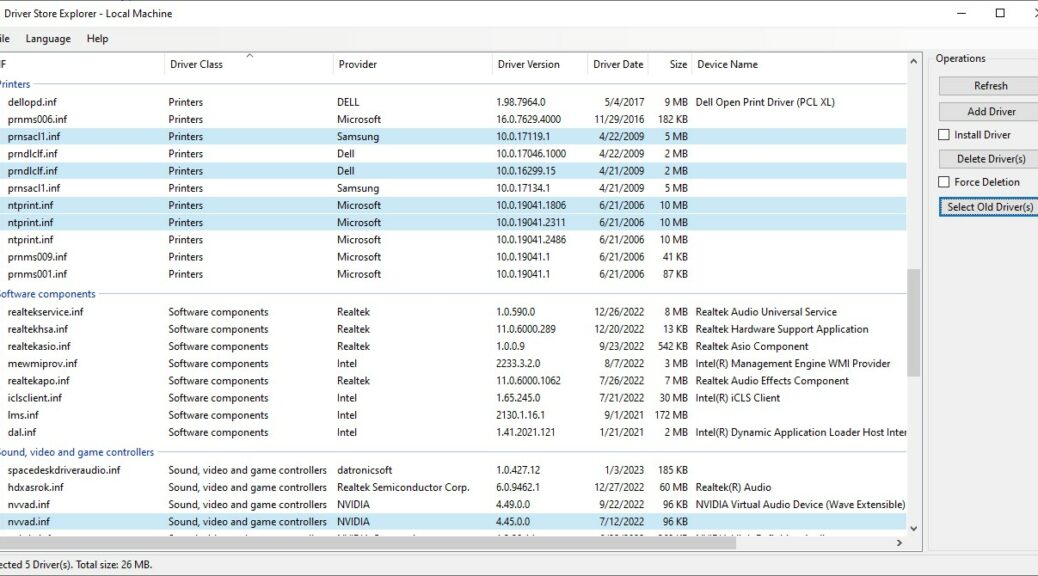
Please look at the intro graphic. Because I just updated the ASRock Realktek audio driver yesterday, you can see two versions of the corresponding setup information (INF) file, hdxasrok.inf. Note the dates: the newer one reads 12/27/2022 while the older reads 8/3/2021. Do the math, and that’s 16 months plus over 3 weeks. Wow!

I’d been visiting the ASRock Support website and my favorite alternate driver source — namely station-drivers.com— for a long, long time before I finally struck gold. Before I dug into this ZIP file and realized it covered my audio chipset, the vast majority of recent updates were for Nahimic audio chips, not the plain-vanilla Realtek chips in my now-aging motherboard.

Frankly, I don’t know why it took so long to find a newer version. My best guess is that older motherboards (and chipsets) don’t get the same love and attention that newer ones do. I have to guess that’s because driver updates require time and effort to create, and older stuff is less likely to be in demand than newer stuff. The just the way of Windows-World: older hardware eventually gets no love at all. Mine is pushing that envelope, clearly.

Thanks Again, RAPR!

The Driver Store Explorer (aka RAPR.exe) once again comes in handy for inspecting driver status on my Windows 10 production PC. It’s the source of the screencap at the head of this story. It does a stellar job of showing Windows drivers, including their number and status on targeted PCs. This search proved an excellent stimulus for me to update RAPR itself, too. Thus, I’m now running v0.11.92 (uploaded to GitHub on 1/6/2023). Previously, I’d been running v0.10.58 (internal file date: 4/10/2020).

Thus, the need to upgrade one thing (the Realtek driver) also reminded me to upgrade another (RAPR). Now, I’ll need to distribute this around my entire PC fleet. Good stuff!


Facebooklinkedin
Facebooklinkedin

Obvious Fix Addresses 0xC1900101 Install Error

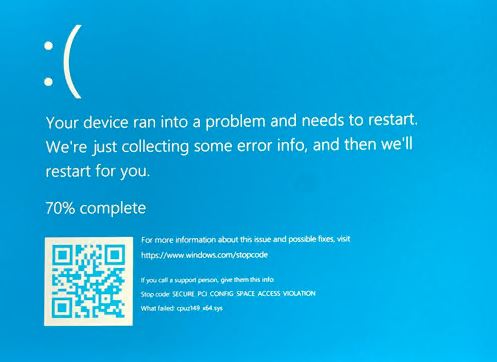
I run two Dev Channel test PCs. Yesterday, the Lenovo ThinkPad X12 Hybrid failed to upgrade to Build 25284. And it threw a familiar error code — one I’d just written about on ElevenForum just two days ago. Fortunately, the obvious fix addresses 0xC1900101 install error, as I will explain. But gosh! What a coincidence to have dispensed advice about this error only to experience it myself shortly afterward.

What Obvious Fix Addresses 0xC1900101 Install Error?

First let me share the text from my ElevenForum post (from which a screencap appears above):

Check out this MS Learn article: it asserts that an incompatible driver is present when this error code presents: https://learn.microsoft.com/en-us/troubleshoot/windows-client/deployment/windows-10-upgrade-resolution-procedures

So what I did next was to review all of the device drivers on the problem PC, and to upgrade those that weren’t current. To that end, I used a 3rd-party tool from IObit called Driver Booster (available in both free and for-a-fee versions). It found over 20 drivers in need of updating, and I updated all of them.

Long story short: two reboots later (one from the drivers the program found, another from a Lenovo Vantage update) I retried the 25254 install. And this time it completed successfully, sans the driver-related error. As I poke around online, I also see this is a fairly common install error where the obvious repair strategy is most often effective.

Shoot! It’s nice when things work the way they’re supposed to. Luckily, that does happen here in Windows-World from time to time.

Facebooklinkedin
Facebooklinkedin

Intel Drops iGPU OEM Warning

Once upon a time, the Intel Driver & Support Assistant (IDSA) used to warn laptop owners about its built-in GPU driver updates. There’s even an Intel Support Note on this topic. It reads in part “Installing this graphics driver from Intel may overwrite customizations from your … OEM.” Recently, Intel drops iGPU OEM warning. Why? Because it’s been reworked NOT to overwrite customizations. No more need, no more warning, I guess.

When Intel Drops iGPU OEM Warning, Then What?

If you look at the latest finding inside the IDSA in the graphic up top, you’ll see the warnings are gone. Nothing loath, I tried it out on my Lenovo ThinkPad X380 Yoga Dev Channel test laptop. It spun away for a bit before throwing up a “Begin installation” pane from the installer.

Intel Drops iGPU OEM Warning.begin

Next, it displayed the phases it would walk through, starting with a huge honkin license agreement to which installers must accede before the process gets underway. Click “I agree” to continue, as I just did.

Intel Drops iGPU OEM Warning.agree

Setup says it will install a driver and a graphics command center, after which one clicks start. Install shows progress bars for said driver and command center, with an option to “Show details” (lists changes as they’re made including registry entries, installing files, and so forth). Driver install takes several minutes to complete.

A reboot is required for changes to take effect. Once I had done so, I didn’t find the Intel Graphics Command Center (IGCC) installed. Thus, I visited the Microsoft Store to download and install same. It had me uninstall the apparently now-unnecessary Intel Graphics Control Panel.

Post Reboot, Things Get Interesting…

Once the PC restarted, the unit booted normally (the shut-down phase, when it was presumably writing new driver stuff did take a bit longer than usual). After the reboot the graphics look and work enough like the preceding iteration that I can’t see or tell anything different.

But when I tried to open the IGCC, it hung in “loading mode” (a line of balls moving from left to right at the bottom of the window). It never went anywhere. Turns out running two user sessions, each trying to start up IGCC isn’t a good idea. As soon as I killed one, the other started working. From there I was able to explore and play with the IGCC without further difficulty. Looks like I’ll have fun digging in and learning more. Stay tuned: I’ll report back.

Facebooklinkedin
Facebooklinkedin

Windows 11 Power Options Oddity

OK, here’s one for the “Stranger Things” file. I was checking Power Options on a test laptop yesterday. In fact, it’s one of a pair of nearly identical machines: both are Lenovo ThinkPad X380 Yogas that differ only in SSD brand and OS variant (this one runs Beta Channel, the other one Dev). Yet this machine will show only two power plans under Power Options (see lead-in graphic). The other one shows all default items just as it should, and then some (see below) .

Windows 11 Power Options Oddity.devchannelx380

The Dev Channel X380 lets me view or hide additional plans; the Beta Channel X380 does not. What gives?
[Click image for full-sized view.]

Working Around Windows 11 Power Options Oddity

To attempt to fix the issue, I worked my way through the various — and terrific — Power Options tutorials over at ElevenForum.com. These include the following items:

Of those items, the first put the X380 in a state where I could restore missing power plans. The GUIDs for other plans remained available, but I couldn’t get the utility to offer an “Unhide” option so it would only show two Power Plans at any given moment. That said, having made other Power Plans accessible that workaround proved good enough for me.

Even the Master Remains Baffled

I exchanged a series of private messages with Shawn Brink, fellow WIMVP and a primary operator and tutorial writer at Eleven Forum on this mystery. We ended up concluding that a Lenovo OEM power management driver might be impacting the built-in Power Options control panel widget. I found and installed a new (Nov 29, 2022) Lenovo Power Management Driver for Windows 11.

At first, it made no difference in Power Options behavior. Following a reboot, though, while I still could not unhide other power plans in the initial Power Options pane shown as the lead-in graphic, when I click “Create a power plan,” it now shows all three default items correctly — namely Balanced, Power Saver and High Performance.

Windows 11 Power Options Oddity.partial fix

Here’s progress, of a sort. All the defaults show up when creating a custom plan. [Click image for full-sized view.]

I still have to work around the lack of an unhide capability to access invisible power plans using PowerShell. But at least I can now access and use all  such power plans. This time, close enough is also good enough. Sigh. And that’s how things sometimes go, here in Windows-World.

Note Added January 23

I built an ISO to match the currently running beta image (22623.1180) from UUPDump.net. Then, I performed an in-place repair upgrade. I’d hoped this would fix the Power Options oddities. No dice: apparently, this is among the few problems that a prair install won’t fix. Sigh again.

Facebooklinkedin
Facebooklinkedin

Remote Wi-Fi Driver Update Magic

I remember the networking wars of the late 1980s. That was when Token Ring, ARCnet, LocalTalk and other physical media vied with Ethernet for market- and mindshare. Indeed, I’ve worked with versions of Ethernet all the way back to 10Base2 and 10Base5. Thus, I successfully upgraded the Wi-Fi drivers on my 2018 vintage Lenovo ThinkPad X1 Extreme (running Windows 11) with bemusement and appreciation minutes ago. Based on how earlier Windows versions worked, there was surely some remote Wi-Fi driver update magic involved.

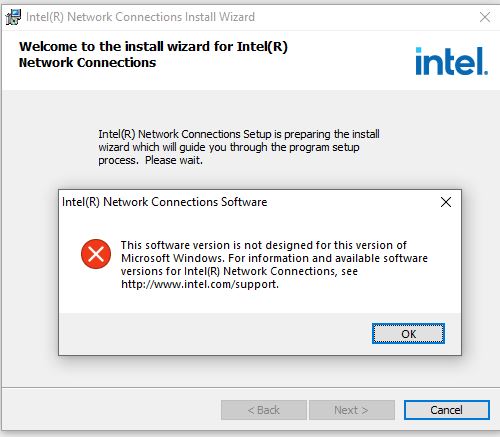
The lead-in graphic is the Intel installer pane that announces a successful Wi-Fi driver install. What’s interesting about this? It’s inside a Wi-Fi based RDP session. I’m working on my production PC via Remote Desktop Connection to the X1 Extreme. It restored itself automatically once the driver install finished. It came back up, even though the connection dropped as that update occurred. No working driver means no Wi-Fi during the switchover from old to new.

What Makes Remote Wi-Fi Driver Update Magic Happen?

Good question! RDP apparently recognizes enough about the dropped session to bring it back to life. And FWIW, that occurs during the first “retry” — by default, RDP attempts resuscitation up to 5 times — without undue muss or fuss.

What makes this noteworthy? I can remember that even Windows 7 could not restore RDP sessions dropped during driver updates. Windows 8 (and 8.1) were hit or miss. It’s only since Windows 10 came along in 2015 (General Availability: 7/29/2015) that this capability has been both mainstream and dependable.

Once upon a time, Wi-Fi driver updates meant the end of open RDP sessions. Recovery was impossible: the only way back in was to fire Remote Desktop Connection up, and start afresh. It’s a small thing, really, but one I’ve learned to appreciate in modern Windows versions.

Thanks IEEE!

Modern Wi-Fi testifies to robust and practiced driver design. Indeed, it keeps working in the face of many predictable difficulties. Replacing drivers is a case in point, but Wi-Fi just keeps on chugging along. And that’s despite various source of interference, occasional hiccups with power, wireless gateways, and more. Having followed the technology as it’s grown and sped up I’m grateful it works well.

Facebooklinkedin
Facebooklinkedin

Transient Mysterious GeForce Experience Error

It’s great that I love a good mystery, because I have one on my hands. Yesterday (November 30) I ran GeForce Experience to update the Lenovo P16 Mobile Workstation’s Quadro RTX A5500 GPU. An odd error message showed up at the tail end of the process. It read “Unable to install driver” but didn’t identify which one. Immediately thereafter, GeForce Experience announced a successful driver update (see lead-in graphic). I can only describe this phenom as a transient mysterious GeForce Experience error. As usual running things down means learning and figuring more things out.

Chasing A Transient Mysterious GeForce Experience Error

I did some searching around to see where GeForce Experience keeps its installer logs. It’s a long file-spec, like so:

C:\Users\<acct-name>\AppData\Local\NVIDIA Corporation\NVIDIA GeForce Experience

My source for this insight came from an Nvidia Support article entitled “How to enable NVIDIA Graphics Driver and GeForce Experience installer logging.” The log files, obviously enough, end in the “.log” extension. There were plenty of them to look through, too:

Transient Mysterious GeForce Experience Error.logs

Four different readable log files, no joy in any of them.

I couldn’t find any errors in any of those logs, though, which is why I’m calling this a transient mystery. If I read the afore-cited NVIDIA Support note correctly, I probably needed to enable logging before installing the latest GeForce driver. But it’s kind of a Catch-22: I didn’t know I had an error until the error already happened. If I really, really wanted to get to the bottom of this, I’d roll back to my preceding OS image, enable installer logging, and then reinstall the driver. But because it’s working as it should be and is throwing no errors I can see (Event Viewer and Reliability Monitor) I’ll live with the status quo.

But that’s the way things go sometimes, here in Windows World. I’m just glad things are working as they should be.

Facebooklinkedin
Facebooklinkedin

Samsung Printer Is Now HP

Boy! The interesting things one can learn when updating drivers are legion. Case in point: I learned I needed an update for the Samsung Easy Printer Manager program. Upon searching for same, I found myself directed to HP (!) Customer Support. Indeed, that’s where the latest version of said utility now resides. You can see a screencap of that download page at the head of this story. Looks like my Samsung printer is now HP,  in name and in fact.

If Samsung Printer Is Now HP Then What?

HP is the former division of Hewlett Packard that now sells PCs and printers, as well as peripherals. To give you an idea of how long this has been going on, this press release bears a November 1, 2017 date. Whoa: talk about missing that bus by a mile…

When HP closed the deal they did so for US$1.05B. They also acquired a portfolio of 6.5K patents, and “a workforce of nearly 1,300 researchers and engineers with expertise in laser technology, imaging electronics, and supplies and accessories.” I guess that means buying an official laser toner cartridge (I still have a spare in my utility closet) will cost even more than it did the last time I looked. I found the product page, but I can’t find a price (looks like I might have to set up an account). Amazon references an “HP Store” and offers same for US$76, so that’s not too pricey. OK then: it’s all good.

Plus çe Change…

That’s French for a saying that roughly translates: “The more things change, the more they stay the same.” The technology landscape is chock full or mergers, acquisitions, spin-offs and divestitures. I have to laugh about this one, because I’m definitely coming late to that particular party. But at least, I had no trouble finding an updated version of the software I needed. And it works, too!

And that’s the way things go, here in Windows-World, from time to time.

Facebooklinkedin
Facebooklinkedin

KB5018496 Lands Poorly So Far

KB5018496 is out as of October 25. It takes production-level Windows 11 22H2 systems to Build 22621.755 when applied. To be fair, it’s a Preview CU, so not entirely cooked yet. But I observe that KB5018496 lands poorly so far because

(a) I don’t see any of its cool gradual rollout features on any of my PCs (e.g. right-click in Taskbar to launch Task Manager)
(b) When I attempted to explore the new Microsoft Accounts (MSA) capabilities, it crashed when I attempted to open the P16’s camera. I know that works because I use camera-based Hello to log onto that machine and had just done so minutes before. Sigh.
(c) I was unable to verify my identity in Settings → Accounts, because of the camera issue, so also unable to backup my MSA data. Sigh again.

Again: this is a preview release. And I’m qvetching about gradual rollout elements that either haven’t made it to my PCs, or that aren’t yet working as they should be. It’s a kind of “business as usual” thing, I guess.

What KB5018496 Lands Poorly So Far Really Means…

It’s pretty much par for the course that a few rough edges will show up in a preview release. Thus, for example, when I went to Accounts → Windows backup in an RDP session, the PC “knew” it couldn’t use the camera for validation. So I got an email to my MSA address instead. That worked just fine. The relevant screencap appears as the lead-in graphic for this story.

I assume there’s some kind of driver hiccup with the camera when logged in directly. It threw an error code that pointed squarely in that direction. That should be easy to run down and fix, so I’ll report it to Feedback Hub later today.

I’ve been using the right-click access to Task Manager in the taskbar on Insider versions of 22H2 for a while now. Thus, I also know it’s just a matter of time before it, too, shows up in production versions of 22H2.

Self-Inflicted Wounds? Perhaps…

So why do I install previews on production PCs? Because I’m an Insider and it’s my job to take such stuff on, and report what I see and find. I make daily image backups on those PCs, so the worst that can happen is a rollback to the previous image. I don’t generally do real work on those PCs unless I’m on the road. And in that situation, I probably wouldn’t mess with a preview because I wouldn’t want to lose the time (or the work done) since the last backup anyway.

And that’s how things go here in Windows World. Stay tuned for further developments. I’ll qvetch some more another day, for sure!

Facebooklinkedin
Facebooklinkedin

P16 Safeguard Hold Lifted

OK, then. I performed my daily ritual WU check on the P16 Mobile Workstation on Friday (Oct 14) . This time, the P16 safeguard hold lifted, and I was able to update to Windows 11 22H2. As you can see in the lead-in screencap, the 22H2 download was available during capture. Neat-o!

And indeed a quick visit to the 22H2 Known Issues page shows that my hold-up — the Intel SST drivers — appears as “mitigated.” Here’s what that looks like:

P16 Safeguard Hold Lifted.SST-info

The P16 blocking issue is now resolved, thanks to Intel driver updates. These appear in DevMgr under the “Software Components” heading.

With P16 Safeguard Hold Lifted, Upgrade Proceeds

I got a little concerned right after the first reboot (from the GUI-based portion of the install, into the post-GUI phase). The P16 sat at 0% complete on processing updates for what seemed like an eternity (about 4 minutes). But then, it started to chunk through the process and finished in about 20 minutes during that install phase.

I noticed that the update included a raft of driver updates –14 in all — by checking Reliability Monitor later on. The two items of greatest import show up in the software components category where various sound -related items reside.

Whatever the issue might have been, I’m glad to see it resolved. And so far, the P16 is running without apparent issues. I’m connected to it remotely via RDP right now, so that recent bugaboo is not present here, either. Good-oh!

Facebooklinkedin
Facebooklinkedin