There I was on my primary desktop Flo6, running what should have been the most unremarkable task in a Windows admin’s day: mounting a WIM image offline with DISM. The command ran. Nothing blew up dramatically. It just… sat there, and did nothing. No cryptic error code, no helpful message, and zero indication of what went sideways. Welcome to the world of WIMMount driver missing DISM failures — where the tool you depend on vanishes without so much as a farewell note. Hence the question: “Where’s my WIMMount?”
DISM mount failures are maddening precisely because they leave no obvious breadcrumbs. You stare at the console, you re-read the command three times over, and everything looks good. Spoiler: the problem isn’t syntax. It’s something deeper and darker. Let me explain…
“Nowhere” Answers “Where’s my WIMMount?”
WIMMount, aka winmount.sys, is kernel-mode filter driver. Windows uses it to mount WIM (Windows IMaging format) files as virtual volumes. It’s the plumbing behind the scenes that works with DISM to let you mount, unmount and operate on images to inspect them, analyze them, or change them. Indeed the driver does the heavy lifting with images at the file system level.
Without WIMMount, mount operations fail with errors like 0x8007007b (“filename, directory name, or volume label syntax is incorrect”) or 0x80070002 (“system cannot find the file specified”). Neither error message tells you “hey, your kernel driver is gone,” which is half the problem. The driver ships both with the Windows ADK (Assessment and Deployment Kit) and, on most builds, inside Windows itself.
Diagnosing the Problem on Flo6
My first instinct was stale mount points. I’ve been burned by those before. So I ran DISM /Cleanup-Mountpoints from an elevated prompt. No joy — it completed cleanly and changed nothing.
Next stop: component store health. Running DISM /Online /Cleanup-Image /ScanHealth returned errors suggesting corruption in the component store itself. Interesting, but not yet the smoking gun.
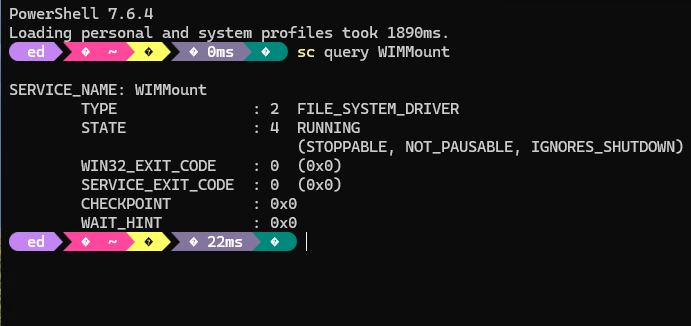
Then I ran the command that cracked the case open: sc query wimmount. The response was interesting: a big fat nothing. Further investigation showed the service existed nowhere. Indeed, the WIMMount driver was entirely absent from Flo6. Not stopped. Not disabled. Gone. A quick peek at HKLM\SYSTEM\CurrentControlSet\Services\WIMMount in the registry confirmed it: the key didn’t exist. No driver, no service, no mount. Mystery illuminated, though the hard work still lay ahead.
Repair Attempts — What I Tried
First, I reinstalled the Windows ADK, hoping that would drop wimmount.sys back into place. Setup completed without complaint. But running sc query wimmount again afterward returned the null response. The binary was still missing from C:\Windows\System32\drivers\.
I got creative and tried manually registering a service entry: sc create wimmount binPath= "C:\Windows\System32\drivers\. The service record was created, but starting it threw error 2 — “The system cannot find the file specified” — because the .sys binary itself was nowhere on disk. You can’t register a ghost.
wimmount.sys" type= kernel
I ran SFC /scannow, which found and repaired a handful of files. DISM was not one of them; wimmount.sys apparently isn’t tracked by Windows File Protection on this build. I then tried DISM /Online /Cleanup-Image /RestoreHealth — it ran to completion but didn’t restore the missing driver either. The conclusion was unavoidable: the driver binary and its registry entries had been removed or never correctly installed, perhaps a casualty of a failed or partial ADK setup, or an aggressive third-party cleanup utility that decided wimmount.sys looked expendable.
Ultima Ratio Regum: Windows Reinstall
At this point the path forward became clear, if a little painful. With the WIMMount binary missing, no repair tool (e.g. ADK reinstall, SFC, or DISM RestoreHealth) would bring it back. The component store itself must have been partially corrupt, which ruled out any confidence in an in-place repair of individual files.
I went with an in-place upgrade repair install to preserve apps and data. I used Settings > System > Recovery > Reinstall Windows. After the reinstall, I ran sc query wimmount immediately — STATE: STOPPED. DISM mount commands worked on the first try (and STATE changed to RUNNING). The entire diagnostic-and-repair saga, start to finish, consumed the better part of a day that a reinstall would have resolved in under an hour.
Lesson learned, yet again: when a kernel-mode driver disappears entirely from the system, a reinstall is almost always faster than hunting down a manual fix. The math rarely favors the manual route.
If your DISM mount commands start failing and you can’t figure out why, make sc query wimmount the second command you run. Like, immediately after the obvious syntax check. Ruling out a missing WIMMount driver takes fifteen seconds and can save you hours of chasing component-store rabbit holes. wimmount.sys is a small but essential cog in the DISM machinery. When it’s gone, DISM mount abilities suffer, too.
Here in Windows-World, the little things sometimes matter a lot. This was one of those times. I’m glad to have survived!

