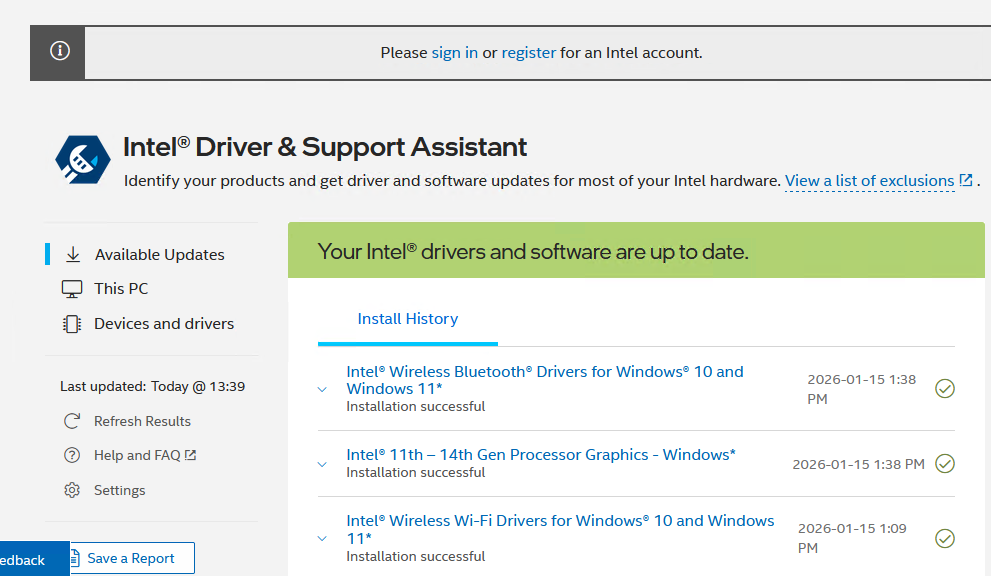
It’s strange. I just got a notification on the Lenovo ThinkPad X12 Hybrid tablet that Intel DSA had 3 updates pending: Bluetooth, Graphics and Wi-Fi. Of the three, BT and Wi-Fi went swimmingly. The graphics update, however, hung in unexpected ways. That’s how I found myself fixing Intel Graphics DSA update weirdness minutes ago. The trick is fortuitous, as I’ll explain…
Overcoming Intel Graphics DSA Update Weirdness
I have kind of a built-in timer when it comes to waiting for Windows installs to finish up. If an installer shows a progress bar, and I see no progress at all for 5 minutes, I start getting antsy. At 10 minutes, I pull the plug and kill the installer to see what happens.
Killing an installer may take varying degrees of effort. The Intel Graphics installer was well-enough behaved to respond to the “close window” controls at its upper right corner. In other, more stubborn cases, I’ve been known to resort to Task Manager, where I’ll find and kill the installer process itself. Sigh.
Imagine my surprise when the DSA installer reported success in installing the new Graphics driver. Seems that their current installer had finished, but simply neglected to update the UI to report said progress.
As Luck Would Have It…
My impatience spurred me into doing exactly the right thing. I’ve had other Windows installers hang, where killing the installer meant I had to start over and install again. In some more extreme cases, I first had to clean up the leftovers from the hung installer before a new install would work. That’s where a tool like Revo Uninstaller (in “Hunter Mode”) can be helpful: if you can find a UI trace left behind –such as the DSA notification tray icon — you can use it to help you clean up.
All I can say is “Thank goodness no cleanup was needed.” Here in Windows-World, when things get messy, they can really suck up some serious time. I ran into that last Monday, when WinGet in my primary MSA got profoundly bollixed. Go figure!

