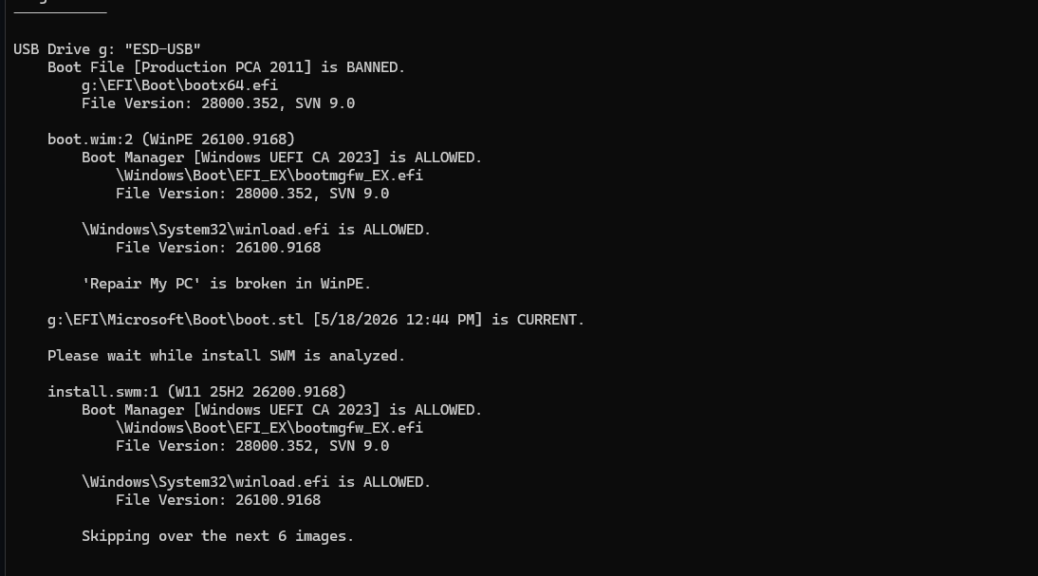
Here’s an interesting one. I tried out the latest Garlin scripts this morning (dated 8/24). The boot media check turned up something new. It reported that a new Windows 11 facility wouldn’t run from my MCT-based Windows installer UFD. And indeed, upon investigation, it turns out that using a FAT32 UFD nixes “Repair my PC” capabilities in WinPE. But that’s for a good and understandable reason, as I’ll explain.
TLDR version: Boot an MCT-generated Windows 11 setup USB and click “Repair your computer.” On many FAT32-formatted drives, including these, nothing happens. That option is simply broken. Here is why, and what you can do about it.
Why FAT32 UFD Nixes “Repair My PC”
Windows 11 setup media built with the Media Creation Tool on a FAT32 drive hits a hard wall. FAT32 caps individual file sizes at 4 GB. A Windows 11 install image blows past that ceiling.
Microsoft’s solution is to split the image into two files named install.swm and install2.swm(swm is, of course, a “split WIM file” ICYDK). On the drive I examined, that pair totaled about 5.6 GB compressed. Setup.exe handles this format just fine during installation. The problem surfaces elsewhere.
WinPE Can’t Find (or Handle) the Source
Clicking “Repair your computer” in the Setup UI triggers a search. The WinPE environment in boot.wim looks for install.wim or install.esd in the sources folder. Neither file exists on a FAT32 UFD.
Only install.swm and install2.swm are present. WinPE recovery tools cannot enumerate split WIM files for repair operations. They expect a single, monolithic image file. Without it, the repair chain fails before it starts.
Please note that this is neither a certificate nor a Secure Boot issue. Garlin confirmed that all signing credentials in boot.wim were valid. Strictly speaking, the “broken” label emerges from a missing monolithic image, nothing more.
NTFS Can Fix What’s Broken, But…
The root cause is FAT32. The cure is straightforward: rebuild the drive using NTFS.
Rufus handles this cleanly. Point it at a Windows 11 25H2 ISO, choose NTFS as the file system, and let it run. NTFS has no 4 GB per-file ceiling. A Rufus NTFS build produces a single install.wim that WinPE can locate and read without complaint.
Rufus also ships a current, properly signed bootloader. That quietly resolves a secondary Garlin finding as well: a BANNED bootx64.efi signed by the deprecated Production PCA 2011 certificate. On an NTFS Rufus build, that file is replaced automatically.
Practicing Proper WinRE/WinPE Repairs
A FAT32 Windows 11 setup USB remains fully functional for clean installs. The split WIM has no effect on setup.exe. However, the “Repair your computer” path is dead on arrival.
On a machine that refuses to boot, that missing option could matter a great deal. Building setup media on NTFS costs nothing extra. Rufus is free, and a rebuild takes only a few minutes.
For a USB you may need under pressure, a working repair option is worth the small extra effort. That said, I have observed that some PCs (notably, various Lenovo and Toughbook laptops in my custody) simply won’t boot to an NTFS-formatted UFD. That takes “Repair my PC” off those particular tables, for good or ill.
Check It for Yourself
Run Garlin’s check-bootmedia script against your Windows 11 setup drives. If you see ‘Repair My PC’ is broken in WinPE, you now know why that shows up. If you rebuild on NTFS using Rufus with a current ISO, that repair option will be there when you actually need it. But only if your target PC will boot from an NTFS-formatted UFD. That’s why you have to check! Here in Windows-World, it’s best to know such things beforehand.
Note to Microsoft: Maybe you guys should buy or license Rufus so you can quickly jump MCT and “Create a recovery drive” into a completely modern, Secure Boot aware (and friendly) stance. IMO, that’s a good idea, so please give it some thought.
Oho! There’s ANOTHER Garlin Script for That…
Turns out you can download and apply yet another Garlin script to fix this very issue. It’s called Repair_My_BootWIM.ps1. Run it against your offending boot media and the problem gets fixed automagically. It just worked on my test G: drive created from MCT last week. No Rufus needed. Go figure!
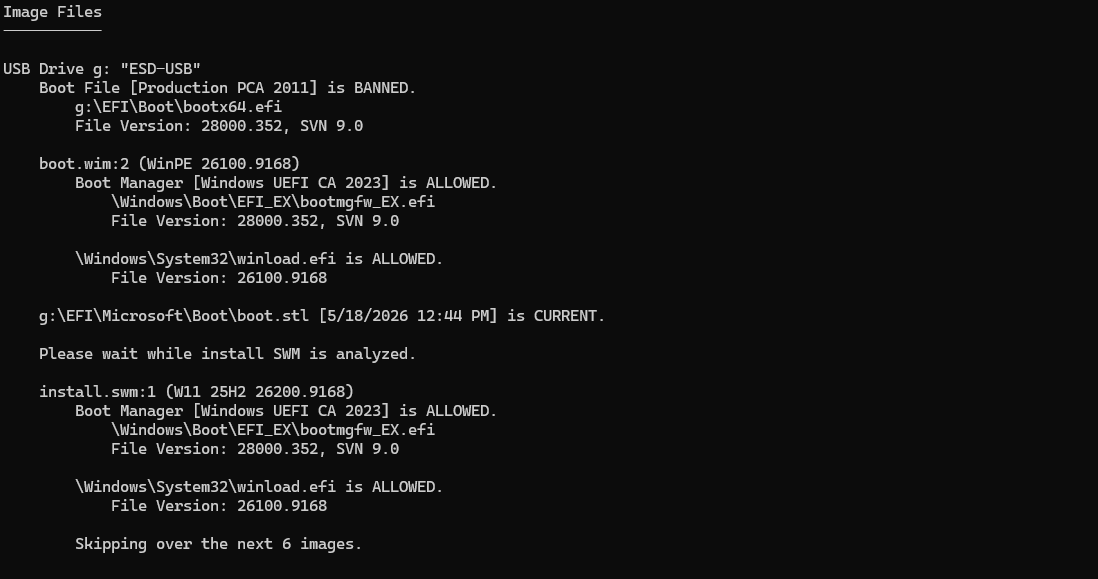 Notice the text that reads “‘Repair My PC’ is broken in WinPE.” no longer appears. Fixed!


See the garlin script “Repair_My_BootWIM.ps1”
https://www.elevenforum.com/t/download-official-windows-11-iso-file-from-microsoft.1009/page-36#post-768263
Fixed it on my MCT ISO UFD.