I’ve been documenting the path away from a stuck (and incorrect) Dev Channel build to a clean install of production 25H2 on my ThinkStation P3 Ultra for nearly two weeks now. Today’s episode is a simple one. After problems getting the device to boot to any UFD, I ordered a Lenovo factory recovery USB directly from Lenovo (see my “It’s the Layout, Stupid” post for more info). Last night, it arrived in a plain padded envelope, and I inventoried it. That’s the whole story. Except, of course, there’s more to it than that. I’ll explain…
Why Say: Lenovo Recovery UFD Works, But…
The first thing I noticed when the envelope hit the desk was the lack of any Lenovo branding on the drive itself. What I pulled out was an ADATA UVI128 32 GB USB 3.2 Gen 1 flash drive (available for about US$8 online; old enough to be unavailable from big US e-tailers). No ThinkStation logo, nor Lenovo red trade dress. No embossed branding of any kind. For a machine that runs somewhere in the neighborhood of four grand, I appreciate the transparency. It’s just a recovery drive, nothing more.
What’s On That UFD, Anyway?
I plugged it into Flo6 (my main Windows 11 PC here at Chez Tittel) and ran a quick PowerShell inventory. That let me see what I had in hand. These numbers came back: 26.41 GB used on a ~29.3 GB drive, with 2.86 GB free. Every major payload file was timestamped August 3, 2026, which tells me this was a fresh burn, not a dusty warehouse pull. That’s genuinely good to know.
7 Folders With Lots of History
The folder structure is straightforward once you know what you’re looking at. At the root you get seven directories: \boot, \EFI, \mfg, \preboot, \RECOVERY, \SWWORK, and \tvtos.
\boot and \EFI handle dual-mode booting — Legacy BIOS and UEFI respectively, with \boot packing 30-plus MUI language files for good measure. \mfg carries manufacturing metadata and a document called W11_RUSB_TEMPLATE_64_DEV.docx that makes absolutely explicit what this thing is: a Windows 11 recovery set. It’s just manufacturing boilerplate, but as internal tells go, it’s a nice one — you can see exactly which template Lenovo’s recovery build team signed off on. \SWWORK is a staging scratch area, and it’s essentially empty.
The real substance lives in \RECOVERY and \tvtos. The \RECOVERY folder holds the actual image payloads — the largest being LCAFKQ2BA0.IMZ at 957 MB, which is the core Windows 11 OS image, plus fifteen or more companion .IMZ bundles covering P3 Ultra-specific drivers and Lenovo’s software suite. Familiar utilities ride along for the restore process: imagex.exe, bootsect.exe, bcdboot.exe, 7z.exe, and a few Lenovo-proprietary tools including hddcln.exe and rcadm.exe. \tvtos is where the bulk of the 26 GB lives. That’s home to the WinPE-based ThinkVantage OS environment, which is the preboot shell that actually orchestrates the whole restore operation.
Python 2.6 Drives the Lenovo Recovery Engine
Here’s where the archaeology gets interesting. The recovery orchestration engine living in \preboot runs on Python 2.6. Python 2.6 reached end-of-life on October 29, 2013 — nearly thirteen years ago. It has not received a security patch since Barack Obama’s first term. I resisted the urge to feel old about this. Mostly unsuccessfully.
The image format is equally vintage. Those .IMZ files are Lenovo’s proprietary compressed image format. Indeed, there’s no public tooling to mount, extract, or meaningfully modify them. They travel with .CRI catalog companions and are handled entirely by Lenovo’s own restore .exe files. You are explicitly not intended to poke around. You are meant to click Restore and walk away while the progress bar does its thing.
ThinkVantage itself tells a similar story. Lenovo quietly retired the brand years ago, replacing it with Lenovo Vantage on the consumer side and Lenovo Commercial Vantage for enterprise. The preboot environment on this Lenovo factory recovery USB is frozen legacy infrastructure now past its expiration date. It’s functional, tested against this specific hardware configuration, and going absolutely nowhere. It works. It just works using technology that’s old enough to have its own nostalgic Reddit threads.
I Meant What I Said, and I Said What I Meant
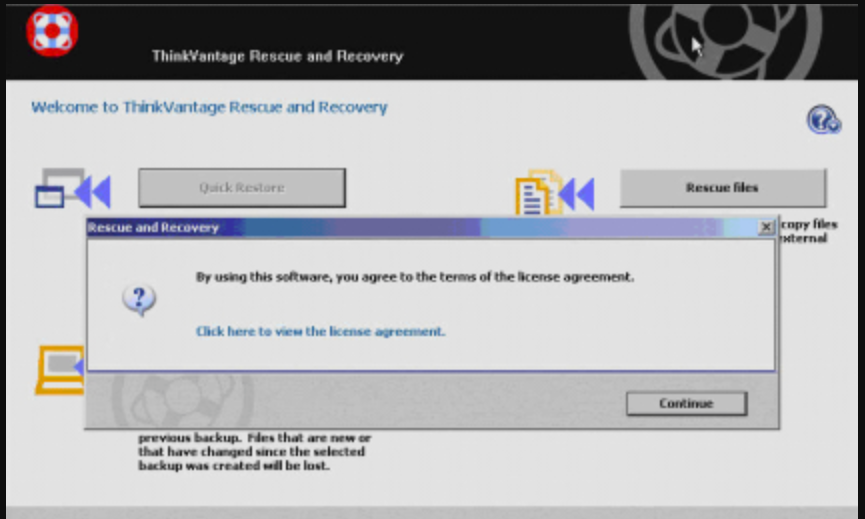
All that said: it does the job. Boot it using F12 at the Lenovo splash screen, then select the USB from the boot menu. Bam! The ThinkVantage preboot environment launches and walks you through a factory restore of the P3 Ultra to its original Windows 11 configuration, complete with all Lenovo drivers and software. No internet connection required. MSA prompts, nada. No drama, either. On a machine this complex, that’s pretty cool.
The dual-mode boot support, confirmed by both \boot and \EFI folder trees, means the drive works whether the firmware is set to Legacy or UEFI mode. Coverage is thorough: Windows 11, P3 Ultra-specific drivers, the full Lenovo software bundle. All available on one generic flash drive in one plain envelope.
My verdict: label it clearly, drop it in the P3 Ultra’s machine folder with the rest of the hardware documentation. Then, treat this Lenovo factory recovery USB exactly as the break-glass emergency media it is. I wouldn’t try to explore the ThinkVantage environment for entertainment. Why not? Because it’s a straight-up restore wizard, not a sandbox, and it doesn’t reward curiosity. And don’t get any ideas about cracking open those .IMZ files, either. You’ll need AI or serious programming chops in Python 2.6 to get anywhere.
That’s not my thing. Here in Windows-World, I’m OK with treating a black box as such. Shoot! I’m just surprised it came on a USB-A UFD. After my local success only with the USB-C Data Traveler to bring the P3 Ultra back to life, I’d expected the same kind of UFD to show up from Lenovo. I was wrong…


“Indeed, there’s no public tooling to mount, extract, or meaningfully modify them”
NirSoft has a list of programs for managing IMZ files.
https://extension.nirsoft.net/imz