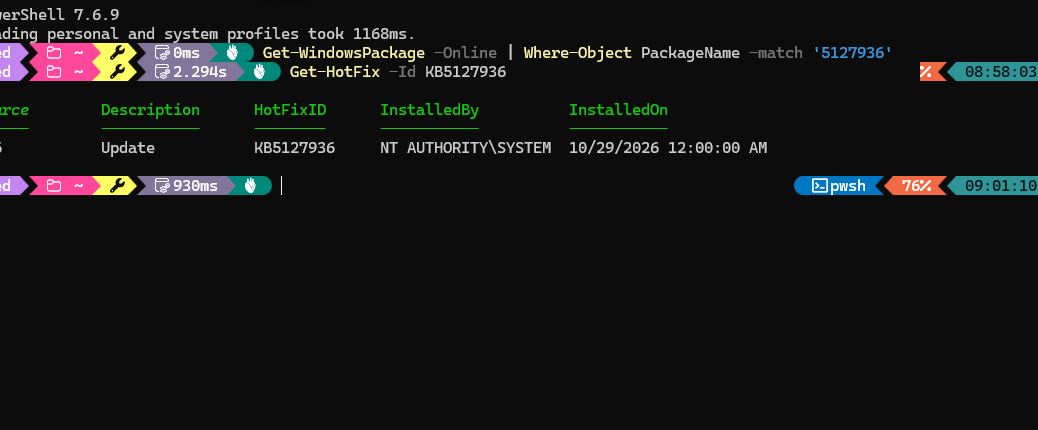
After reading about KB5127936 and its Cloud Rebuild facility recently, I wondered how many of my production level PCs already sported this Preview CU. So I asked Copilot to craft me some PowerShell to check. Along the way, I learned that: (a) some methods are better than others, and (b) that there are many ways to request such information. It’s also how I learned that checking hofix can beat package check info, depending on what you need.
My first query looked perfectly reasonable:
Get-WindowsPackage -Online | Where-Object PackageName -match '5127936'

Alas, that request returned no output. Such a result could tempt an administrator to conclude that the update was absent. Here, that conclusion would be wrong.
Why Checking Hofix Can Beat Package Check
Turns out the afore-cited PowerShell command (which uses DISM under the hood) assumes that the string “KB5127936” appears in the package metadata. It does not, as it turns out.
However, this simpler command
Get-HotFix -Id KB5127936
produces a direct hit. You can see the outcomes of both commands in the lead-in screencap. After Get-Hotfix, P16 reported KB5127936 as Update, installed by NT AUTHORITY\SYSTEM on October 29, 2026. For the question I was asking, that was exactly the information I needed.
Why the difference? Microsoft documents Get-HotFix as a cmdlet for retrieving installed hotfixes. It uses Win32_QuickFixEngineering WMI class, whose -Id parameter accepts a hotfix ID. Microsoft even provides an example specifically for verifying whether an update is installed.
In other words, if I start with a KB number, Get-HotFix gives me a KB-oriented lookup. Good stuff!
Get-WindowsPackage Asks Something Different
Get-WindowsPackage is not broken, nor did DISM somehow miss the operating system update. Microsoft describes this cmdlet as a way to obtain information about packages in a Windows image. With -Online, that targets the running Windows installation.
The distinction matters because PackageName is the name of a servicing package inside the image. It is not promised to be the public KB identifier with which its labeled. Microsoft also notes that Get-WindowsPackage cannot provide detailed package information for .msu files, only .cab files. And KB5127936 arrives in .msu form.
Thus my pipeline was really asking, “Does any returned package name contain the characters 5127936?” The empty result answered that narrow question. It did not establish that KB5127936 was missing. And that’s because the package data omits that string. Sigh.
Match the Cmdlet to the Question
This suggests a useful rule of thumb. When somebody hands you a KB number and asks whether that update is installed, try Get-HotFix first: Get-HotFix -Id KB5127936
For scripts, I like a quiet Boolean-style test:
if (Get-HotFix -Id KB5127936 -ErrorAction SilentlyContinue) { 'INSTALLED' } else { 'NOT FOUND BY GET-HOTFIX' }
That wording is deliberately cautious. Get-HotFix is not a universal inventory of everything Windows Update has ever installed, either. Microsoft defines its scope through QuickFixEngineering. Absence from that view should trigger another check, not a final verdict.
Package Checks Retain Their Value
When I am servicing an online or mounted Windows image, inspecting package identities, or working with CAB-based packages, Get-WindowsPackage remains the right tool. It answers a package-servicing question rather than a KB-history question.
That P16 session reinforced an old Windows lesson: command output only makes sense in the context of the question asked. Here, Get-WindowsPackage told me there was no package name matching my KB string. Get-HotFix told me the update associated with that KB was installed.
Sometimes the simpler check really is the better check. On P16, it certainly was. Here in Windows-World simple is not only faster and easier; it’s a minor but useful labor-saving device!
Further Reading
Microsoft Learn: Get-HotFix (Microsoft.PowerShell.Management)
Microsoft Learn: Get-WindowsPackage (Dism)

