Sometimes a simple hardware question turns into a modest expedition. That’s what happened when I plugged my iPhone into Flo6’s front-panel USB-C port. The phone charged normally, but I never saw the familiar “Trust This Computer?” prompt. Move the same phone and cable to a rear USB-C port and, bingo, everything works. That made me wonder: had the front port somehow become power-only? Thenceforth issued a whole slew of Flo6 front USB-C port shenanigans. I’ll explain…
Enumerating Flo6 Front USB-C Port Shenanigans
Flo6 uses an MSI B550 Tomahawk MAX motherboard. Its front USB-C connection comes from the motherboard’s internal Type-E header and feeds the case-mounted port. Because USB power and data are distinct parts of the connection, charging alone proves surprisingly little. A loose header, damaged cable, or marginal receptacle can deliver power even as data communications fail.
That was my working theory, anyway. Rather than open the case immediately, I grabbed a Sabrent NVMe enclosure containing a 4 TB Samsung SSD 990 EVO. It provided a much better test than an iPhone because Windows storage tools could tell me exactly how far enumeration got.
Sabrent Test Goes Sideways
At first, the enclosure seemed to confirm my suspicion. It powered up on the front port, but no new disk appeared in File Explorer. The same enclosure worked from the rear. Device Manager, however, complicated the story. Windows showed a Sabrent SCSI disk device and USB Attached SCSI, or UAS, storage entries. Those entries could not exist if absolutely no USB data were crossing the connection.
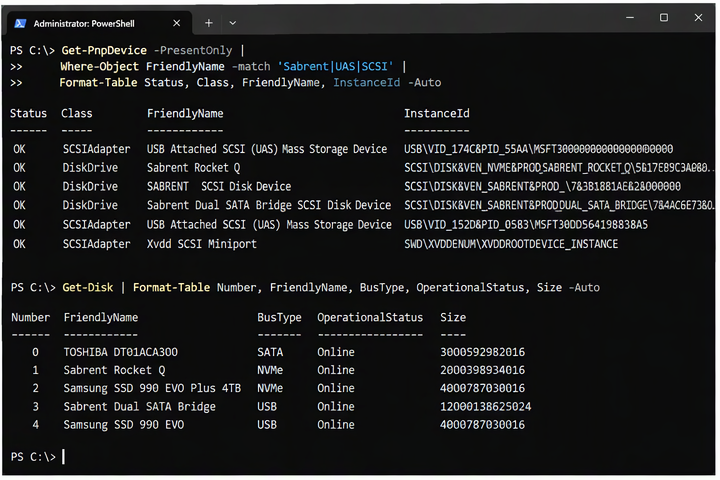
PowerShell made matters clearer. Filtering Get-PnpDevice to devices currently present showed healthy SCSI and UAS components. Get-Disk then delivered the clincher: the Samsung SSD 990 EVO appeared as Disk 4 with BusType USB, Offline status, and its full 4 TB capacity. At that point the front USB-C port had proved it could carry real data. The mystery moved up the storage stack. The outputs from those commands appear in the lead graphic.
Offline, Unassigned & BitLocker-Locked
Why, then, couldn’t I see the drive in Explorer? Get-Partition supplied the next clue. The 4 TB basic-data partition was offline and had no drive letter. After I brought it online and assigned R:, File Explorer finally displayed it, complete with a locked-drive icon. That confirmed another suspicion: this SSD had previously served as a data drive in my ThinkStation P3 Ultra and was BitLocker-protected.
That explained the apparent contradiction. USB was doing its job. Windows could identify the enclosure, load UAS, discover the NVMe device and expose the disk. What it could not initially do was mount the old offline, encrypted volume as an ordinary Explorer drive. In other words, I had blamed the USB port for a storage-state problem.
A DiskPart Detour
I no longer needed anything on the Samsung, so I decided to wipe it and start over. Naturally, there was one more wrinkle. My first DiskPart format attempt targeted Partition 1, which turned out to be the tiny 15 MB Microsoft Reserved partition. Its GPT type identified it as an MSR partition, and there was no volume associated with it. Formatting that was never going to work.
Partition 2 was the one I wanted: about 3.7 TB, primary, basic data, and initially offline. Once I selected the correct volume and brought it online, the NTFS quick format briefly sat at zero percent. Just as I started wondering whether another problem had surfaced, it jumped directly to 100 percent. One drive-letter assignment later, the Samsung was back in normal service with a fresh filesystem.
So What About the iPhone?
That brings the story back to the device that started all this. The NVMe experiment demonstrates that Flo6’s front USB-C port is not merely a charging port. It handles USB data and storage traffic correctly. The missing iPhone trust prompt therefore belongs to a different layer of the stack. The phone may already remember Flo6 as trusted, the Apple Devices pairing process may not have started properly, or I may simply have hit a transient iPhone/Windows handshake hiccup.
The useful lesson is broader than this one port. When USB-C behaves strangely, don’t let charging status or File Explorer visibility make the diagnosis for you. Check what Plug and Play sees, check what the storage subsystem sees, and distinguish the physical USB link from whatever higher-level protocol or filesystem sits on top of it. Flo6’s front port looked guilty as hell at first. After a fair amount of PowerShell, DiskPart and head-scratching, it earned an acquittal.
Here in Windows-World, Occam’s Razor occasionally fails to shave things properly. This time, the not-so obvious cause was a higher-level handshake, not the port-cable-motherboard chain. Go figure!

