I have to chuckle. When I logged into X380 yesterday, I found myself faced with a non-responsive Start menu. Worse yet, it kept jumping from centered to left side aligned. Not only would it not accept input, it wouldn’t hold still either. That’s what makes me say “Jump start gains new meaning” as my navigation bar did the cha-cha at the bottom of my display. Sigh.
Fortunately, the Run box still worked. That gave me an escape hatch. I could launch PowerShell and investigate without depending on Start. My first suspect was Start11, Stardock’s Start-menu and taskbar customization tool. I’d installed it for capabilities I no longer really needed (goes all the way back to Start8 on that PC, in fact). That made my troubleshooting move extra easy: rather than repair Start11, I could simply remove it.
What Made Me Suspect Start11
Restarting Explorer did not immediately cure the problem. The taskbar came back, but the left-center-left dance continued. That behavior looked more like two pieces of software disagreeing over shell state than a damaged Windows installation.
There is precedent for this. Start11 users have reported Start appearing on the wrong side, taskbar centering misbehaving, and Start becoming unresponsive until Explorer gets restarted. Start11’s Enhanced Taskbar feature is especially interesting because it can control taskbar presentation while Windows itself retains an underlying alignment setting. If those two views of the world fall out of sync, odd visual behavior is hardly surprising.
That does not prove exactly what happened on the X380. It does, however, fit what I saw remarkably well. Windows appeared to want one taskbar state while Start11 wanted another. The visible result was a taskbar that seemed unable to make up its mind and kept on dancing.
Out Goes Start11: “Raus mit dir!”
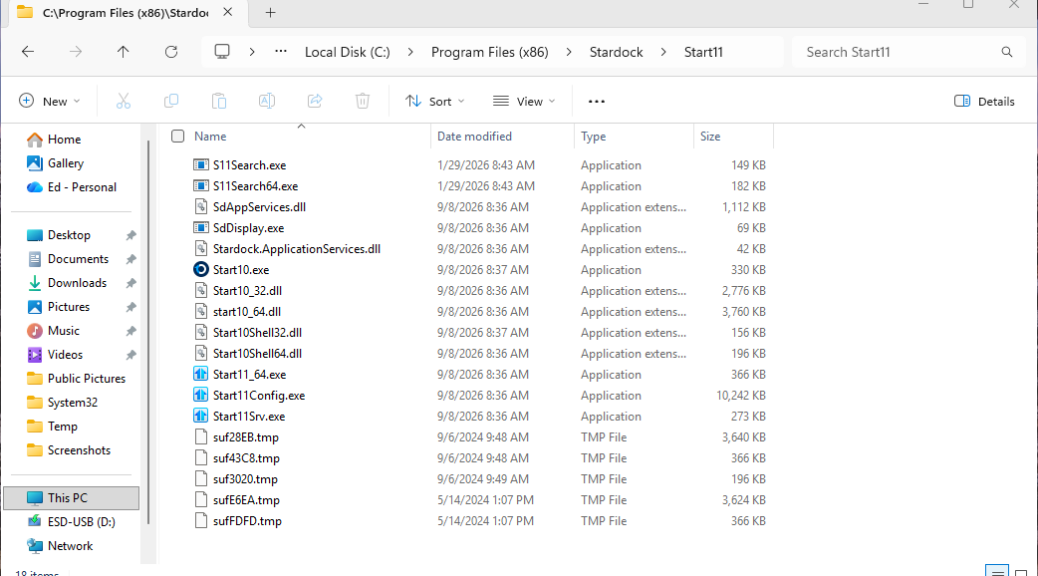
Because the Run dialog remained functional, I entered pwsh.exe and opened an elevated PowerShell session. Stardock documents a command-line uninstaller for non-Steam Start11 installations. The command I used is shown below.
& 'C:\Program Files (x86)\Stardock\Start11\uninstall.exe' `

'/U:C:\Program Files  x86)\Stardock\Start11\Uninstall\uninstall.xml' `

/s /noreboot
The /s switch makes the uninstall silent, while /noreboot prevents the uninstaller from restarting Windows on its own. Stardock recommends rebooting after removal, so I followed the uninstall with a normal restart. If that executable is not present, WinGet provides another useful route: first use winget list –name Start11 to identify the installed entry, then use winget uninstall against the exact package name.
After the reboot, the X380’s native Windows 11 Start menu behaved itself again. No jumping. No disagreement over left versus center. No refusal to accept input. Everything simply worked.
Sometimes the Best Fix Is Less Software
I’m resisting the temptation to turn this into a real Windows repair. There’s no reason, at least yet, to start throwing DISM, SFC, package-registration commands, or other heavy artillery at the X380. The symptom disappeared when the third-party shell customizer left the picture. That’s a pretty good stopping point.
There is a useful troubleshooting lesson here. When Windows shell behavior gets strange, think about anything that inserts itself between Explorer and what you see. Start-menu replacements, taskbar enhancers, shell extensions, and similar utilities can be great. They also operate next to rapidly changing Windows components. When things at that level misbehave, they can also get weird. My best guess is that’s what happened here.
In this case I no longer needed Start11 badly enough to justify debugging the symptoms. Removing it restored sanity. Thus, my X380 got a different jump start by losing Start11. Sometimes troubleshooting writes its own punch lines. Here in Windows-World I’ll take a quick and easy fix as a win. Cheers!

