Category Archives: Cloud PC

ASUS Snapdragon Shows Odd Boot Anomaly

Here is a puzzle that took me longer than I care to admit to fully unpack. I built a recovery USB — clean DISM export, proper bootloader, everything by the book — set it first in the UEFI boot order, and rebooted an ASUS A14 Zenbook expecting to land in a familiar Windows Recovery Environment. Instead, I got the ASUS recovery stub. Every single time. I moved the USB higher in the boot order. I tried the firmware boot menu. I watched the machine apparently select the USB and then, silently and without apology, drop me into ASUS’s own mini-recovery UI anyway. The drive was not defective. The boot order was correct. The machine just did not care. This is my reason for saying: ASUS Snapdragon shows odd boot anomaly.

Getting Past ASUS Snapdragon Shows Odd Boot Anomaly

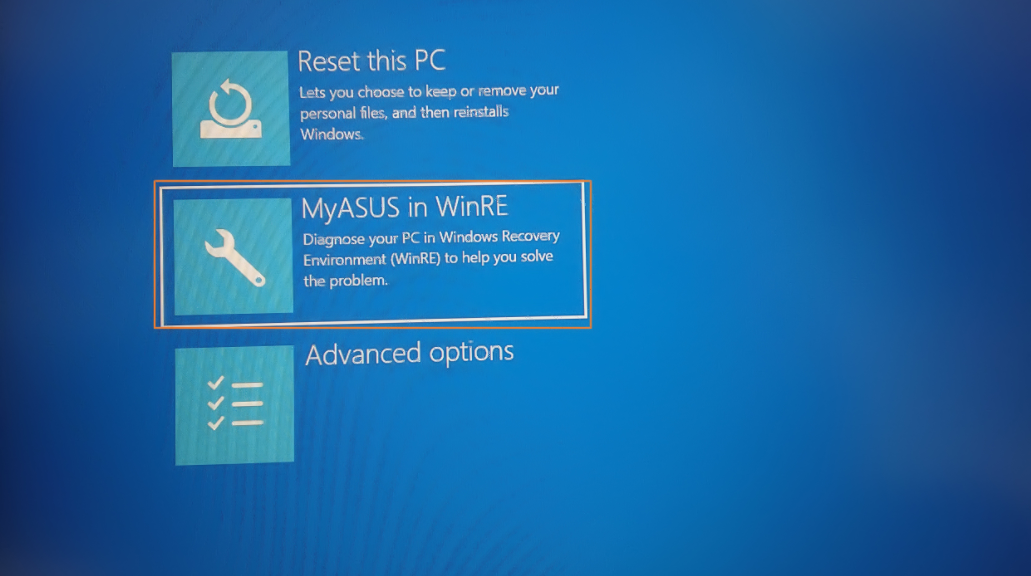
What I kept landing in was not Microsoft’s WinRE. It was ASUS’s recovery stub from firmware. It’s a minimal launcher, typically just a few hundred megabytes, that presents three or four tiles: Reset this PC, ASUS Recovery, and Advanced options. It looks vaguely like WinRE. It shares some ancestry with winre.wim. But it is ASUS’s gatekeeper, not Microsoft’s recovery environment, and it exists specifically to intercept the boot process before you can get anywhere else.

Here is the mechanism. ASUS, like most Tier-1 OEMs, configures its UEFI firmware with a hardcoded recovery boot path that fires during the BDS (Boot Device Selection) phase. It hits before the standard UEFI boot manager even looks at the user’s boot order. The firmware scans the internal NVMe for a partition stamped with a specific GPT partition type GUID — not the ordinary Microsoft Basic Data GUID, but a dedicated Recovery GUID or a custom OEM namespace. When it finds that partition, it hands control to the stub immediately. Your carefully ordered boot menu is consulted afterward, if at all. The USB was never really in the running.

Secure Boot adds a second layer of obstruction. Let’s say your hand-built USB carries an unsigned or self-signed bootloader (common with DISM-assembled media not signed against Microsoft’s KEK). Then,  the firmware rejects it silently and falls through to the next trusted entry in its internal list. That entry is the ASUS stub. So even when the BDS phase does get as far as examining external media, an unsigned USB is invisible. The machine looks like it’s ignoring you. It is, technically, but for a specific cryptographic reason (yes, really).

The WIM Recompression Tax

Once you understand why your DIY USB is being locked out, it helps to understand what the OEM actually ships in its place. It also explains why making a genuine ASUS recovery drive takes the better part of an hour. It starts with WIM compression. Microsoft’s stock winre.wim uses LZX compression and typically lands somewhere between 500 MB and 1 GB on disk. Manageable. Sensible. But ASUS’s customised image, once you add the recovery launcher, platform drivers, UI payloads, and potentially a full factory image, can balloon to several gigabytes of uncompressed data before anyone has touched the compression knob.

When you kick off the “Create ASUS Recovery Drive” process in MyASUS, what actually happens under the hood is a DISM /Export-Image /Compress:max operation (or its functional equivalent)  applied to an enormous source WIM. Maximum LZX compression, and on newer builds you may even see solid-block LZMS compression, which squeezes harder but runs even slower.

Here’s the critical detail: WIM compression in DISM is largely single-threaded. It reads every file, applies the compression algorithm, writes the output, and verifies integrity as it goes, all on one logical core (yes, really). On an otherwise fast NVMe-equipped laptop, that process still takes 40 to 55 minutes, not because the machine is slow, but because the algorithm is doing an enormous amount of intense, serialised work. The hardware isn’t at fault; the workload is.

Getting to USB-Based (Alternate) Boot

Here’s where the rubber meets the road. Getting external media to boot on an ASUS machine requires working around the firmware, not just the boot order. There are two reliable paths. First: disable Secure Boot in UEFI setup (DEL at POST, not F8 — more on that distinction in a moment). With Secure Boot off, unsigned bootloaders no longer get silently rejected. Second: on older platforms with CSM support, enabling CSM forces a legacy BIOS boot path that bypasses the UEFI BDS handoff to the stub.

The Bottom Line: Build Custom Recovery Media

Whether you use the MS supplied “Create a recovery drive” facility, or turn to the MyASUS toolbox to do likewise, the best way to protect an ASUS Zenbook A14 is to build recovery media from that PC. As I learned through a series of failed recovery attempts with other, supposedly generic, all-purpose recovery media, that stuff doesn’t fly inside the Zenbook’s firmware envelope.

Learn from my mistake, and follow this advice as soon as  you can. Otherwise, you too, will fumble around until you find the MyASUS in WinRE tool that does cloud-based image reconstruction instead. If all you want is WinRE running a command prompt, that’s not a good alternative. Do it now: don’t delay!

The Secure Boot Perspective (2 Days Later)

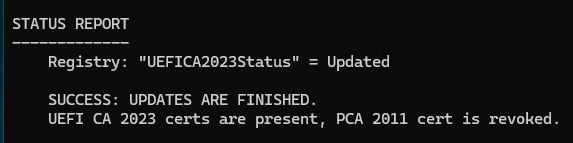
I just ran the Garlin scripts on the recently rebuilt ASUS Zenbook A14. Looks like one benefit of a constantly updated cloud-based restore is the ability to slipstream new stuff in (or replace older, outdated images with newer, current ones). The concluding status report from  that check script is pretty telling:Shoot! They’ve even revoked the CA-2011 certificate. Good stuff!!!

Facebooklinkedin
Facebooklinkedin

Bizarre ASUS Disk Layout Is Intentional

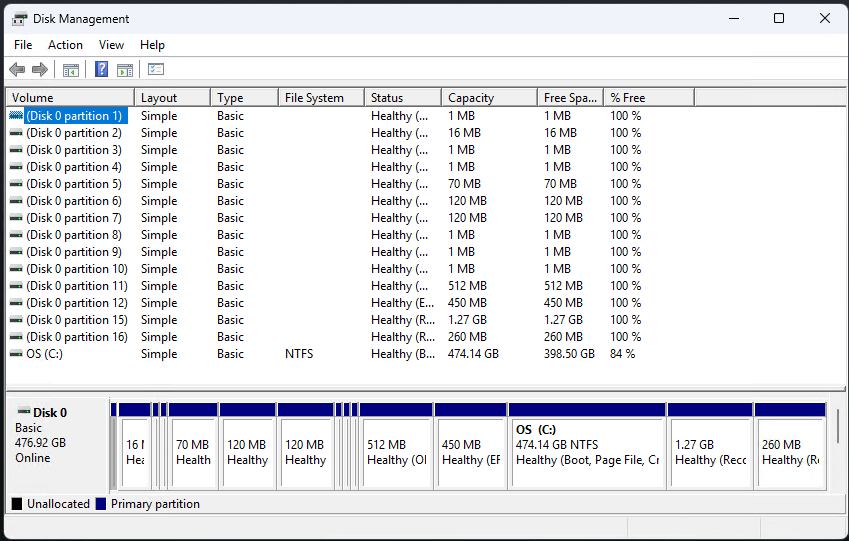
Wow! Wow! Wow! What an adventure I just went through. After examining the weird, seemingly fragmented disk layout shown in the lead-in graphic, I went nuts. I decided to clean install Windows 11. That’s when I learned a bunch of stuff I didn’t want to know. Chief among those things (more to follow): the bizarre ASUS disk layout is intentional. Indeed, it came back after typical clean install manuevers failed repeatedly. Ultimately, I used the “My ASUS in WinRE for USB” app to bring the unit back to life.

Why Say: Bizarre ASUS Disk Layout Is Intentional?

Short answer: because it came back on its own after running a cloud restore on the Windows 11 image on the Zenbook A14. Longer answer: the unit simply wouldn’t boot into any kind of standard recovery media that I could build by hand. I wasted more than a day trying to brute force my way into a clean install, only to realize ASUS has barred the “boot to USB” door very tightly and narrowly. Indeed, I’m very, very glad that I was able to get the unit up and running again. I’d been contemplating a run to a nearby repair shop. I’m glad it didn’t come to that — but it was close!

I’m not sure WTF is going on, that ASUS needs nine OEM partitions on its SSD drive (the 16MB one is undoubtedly the MSR). But I’ll be darned if I was able to figure out how to get rid of them. I think there are two recovery partitions (reagentc says it’s tied to Partition 15) because one is for normal Windows use, the other for ASUS’s no-doubt murky purposes.

If It Ain’t Broke…

Honestly, I should’ve known better. The unit was behaving and peforming as expected. Just because I didn’t — and still don’t — like what I see for disk layout, doesn’t mean I should’ve taken the clean install route. Now I know better.

A painful lesson learned, a day-and-a-half spent chasing phantoms. Sounds like my idea of a good time. Here in Windows-World, I take my jollies where I can find them. Think I’ve had enough of those to last me for a while, though…

Facebooklinkedin
Facebooklinkedin

Windows 365 App Now Available

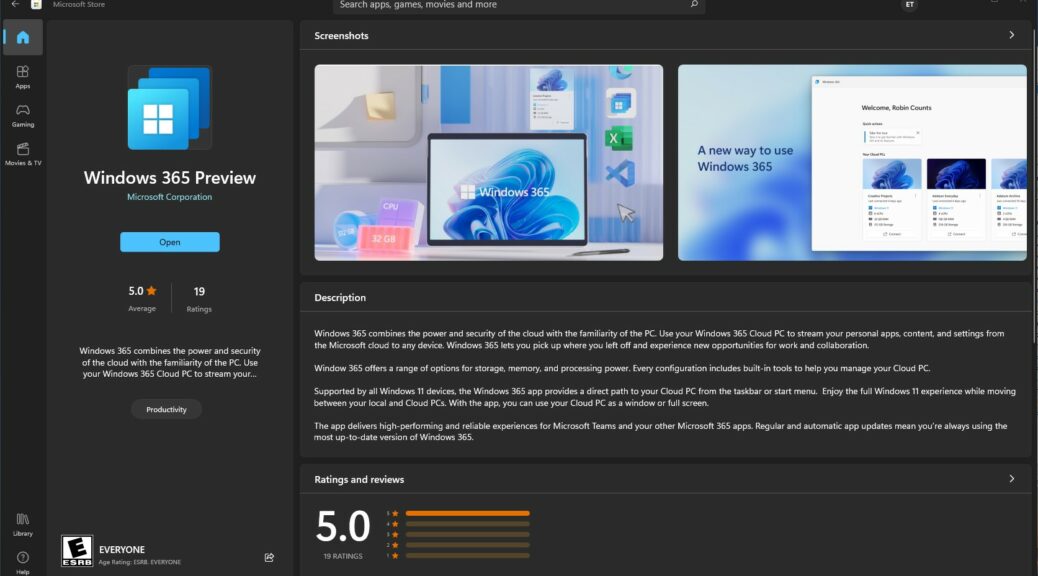
Too cool!  The Windows 365 app — now available in the MS Store — is out. Search on either “Windows 365” or “Windows 365 Preview” and it should come right up. The app’s Store page appears as the lead-in graphic for this story, in fact.

With Windows 365 App Now Available, What Else Is Needed?

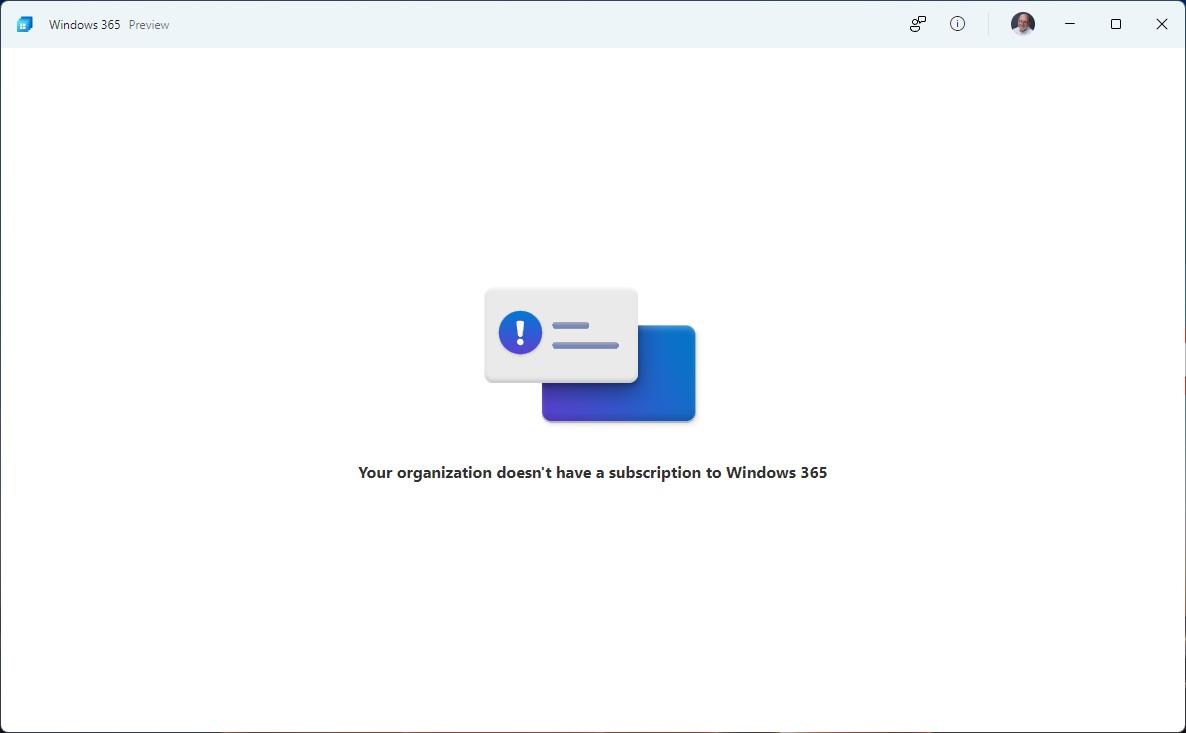
Good question! I immediately downloaded and installed the app. Upon running same, I learned that a valid Windows 365 subscription is required so that the app can connect and interact with a Cloud PC instance. Because I lack such a subscription, here’s what I got from the cloud when I logged into my AD tenant account:

Windows 365 App Now Available.noacct

Drat! I was afraid that Preview didn’t confer temporary or evaluation access. I was right, alas…

Looking at Windows 365 Business Plans for SMBs, I see they cost from US$31 to 61 per month. Ouch! That’s costish, for something I don’t really need, but would love to play with.

Visiting the MS Evaluation Center, nowhere do I see Cloud PC among its various offerings. I guess that makes sense: it doesn’t cost MS anything more than storage space to provide ISOs for download. Hosting (extra) cloud PCs for evaluation means they bear more or less the same costs that the real thing imposes, with none of the revenue generating benefits.

Ifs and Buts for Cloud PC, Windows 365 App

Too bad! I’ve wanted to give the Cloud PC thing a try since it was first announced in 2018-2019. Right now, it seems like there’s no way to try it out without buying it. And with costs at US$372 per year and up, that means tangible costs. I’ll have to think about this, to see if I want to “pay to play.”

But those who already have Windows 365 subscriptions can simply download the app. When they log into an AD tenant with associated Cloud PC instances, the app should take it from there…

Facebooklinkedin
Facebooklinkedin

Appreciating Apple CarPlay

Hello there! We’re just back from a combination trip to the Northeast. On August 25, we flew to Boston with son Gregory to move him into Emerson College. On August 31, we took an Uber to the Boston Logan rental car pickup to head north to Maine. This latter half of the trip has me appreciating Apple CarPlay greatly and enthusiastically.

Why I Am Appreciating Apple CarPlay

I’ve owned and used various in-car GPS systems for years, including those available in Mercedes, Volvo, and Toyota models. Each one is a little different. Each one has its decided UI quirks and foibles. That leads me to my number one source of CarPlay gratitude: a single, consistent and pretty intuitive UI for navigation via Google Maps. It’s great!

Item number two may be just as important. I can remember paying $300 to $500 to access GPS capability in several cars. CarPlay comes as a standard (no added cost) feature on many cars these days. That’s a nice savings, in addition to the benefits of a familiar and standard UI.

My third source of gratitude is a YMMV thing, or it may be a matter of personal preference. I find the voice instructions in Google Maps to be easier to understand and follow than those in the Mercedes GPS (that’s the built-in one I know best thanks to using it in 3 cars over the last 10 years or so).

When driving in unfamiliar places, that’s a benefit that’s hard to overstate. I’ve learned to turn around or re-route to rectify my mistakes while driving. But gosh! I’d rather not have to rectify mistakes that result from misunderstanding voice instructions. Google Maps works better for me in that regard.

All My Future Vehicles Will Have CarPlay

Because we’re an iPhone family (wife, son and myself all have 13 models right now), it makes sense to integrate phone and vehicle. There are lots of other benefits, too — including music, phone calls and SMS messages, the Waze app, and more. Frankly, I just can’t see paying extra for a feature from a carmaker that doesn’t work as well for me as the iPhone running Google maps (or some other equivalent). One more thing: here’s an interesting MakeUseOf story that explains the best of the CarPlay apps, and what new stuff lies ahead in this category. Check it out!

‘Nuff said!

Facebooklinkedin
Facebooklinkedin

Remote Desktop App Holds Cloud PC Keys

OK, then. I’ve finally had a chance to read and learn a bit more about Microsoft’s Cloud PC offering. Indeed, it’s now finally available for subscription and use. I did not luck out and land a free trial (the offer was swamped beyond capacity within minutes of opening). Over at ZDNet, however, Ed Bott ponied up for a subscription. He reports on his experiences working with the Windows 365 Service, built around Cloud PC. His “Hands-on” story appeared yesterday and includes lots of useful info. Not least amongst its nuggets of wisdom and observation is the notion that the Remote Desktop App holds Cloud PC keys.

Why Say: Remote Desktop App Holds Cloud PC Keys?

Bott describes the “Open in Browser” button for Cloud PC as  “the simplest way to begin working with” its capabilities. His story shows useful screenshots and example. In fact, it’s well worth reading from end to end.

In that story, Bott further opines as follows:

“The browser is fine for casual connections, but you’ll have a better experience using Microsoft’s Remote Desktop client, which is available for download from a separate page on the Windows 365 dashboard. Apps are available for Windows, Mac, iOS, and Android.”

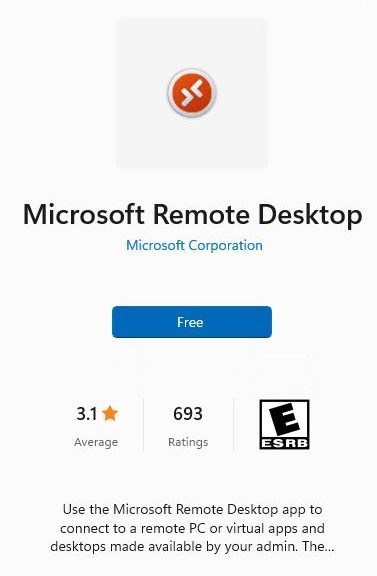
I wrote a story for ComputerWorld earlier this year called “Windows 10’s Remote Desktop options explained.” Its conclusion starts with the heading “The future of Remote Desktop.” In that section I put forward the guess that “URDC [the store app for Remote Desktop depicted as the lead graphic here] and MSRDC [an enterprise version of the same tool] will become much more important and capable clients than they are right now.” I also expressed the idea that this might spell the waning days for the old Remote Desktop application (mstsc.exe). I believe Mr. Bott’s story just proved me right, to my great relief.

What Remote Desktop Brings to Cloud PC

In short, it makes interacting with Cloud PC just like any other remote PC session. It permits full-screen (and even all displays in multi-monitor set-ups) operation and works just like desktop access over the network. Of course, that’s what it is, so this is no surprise.

What is surprising is what Bott report about Cloud PC performance. Not much lag, with only “momentary display glitches” for graphics-heavy apps, and “general productivity apps like Office perform just fine.” His only compatibility issue came when trying to connect to a Gmail account with Cloud PC (the server didn’t accept Outlook authentication dialog boxes, but Bott did access the account using the built-in Mail app and via MS Edge).

Bott’s economic analysis of Cloud PC is also interesting. At a minimum of US$20 per month (single vCPU, 2 GB RAM, 64 GB storage) — useful for what he describes as “only the most lightweight tasks” — it offers no significant value-add for home or small business users. For larger businesses, though, I think he observes correctly that the simplicity of Cloud PC (operable from any Internet-attached device including PCs, tablets and smartphones) could appeal to and might even cost less than deploying a managed and secured company-owned PC to employees at home (and other remote locations). It also lets remote users work from familiar local platforms already to hand and might even boost productivity.

So far, I very much like what I’m seeing and reading about Cloud PC. But that’s not the same as trying it out for oneself.

From Reading About to Hands-On

Next, my goal is to figure out how to get involved with Cloud PC myself. I’ve already floated the question with the Windows Insider MVP program if they can’t make  such subscriptions available as part of the award benefit.

But just because I think they should, doesn’t mean they will. In that case, I’ll have to carefully examine the family exchequer to see if it can float the $492 a 1-year subscription for a suitably equipped Cloud PC would cost. By hook or by crook, though, I want in! Stay tuned: I’ll keep you posted…

Facebooklinkedin
Facebooklinkedin