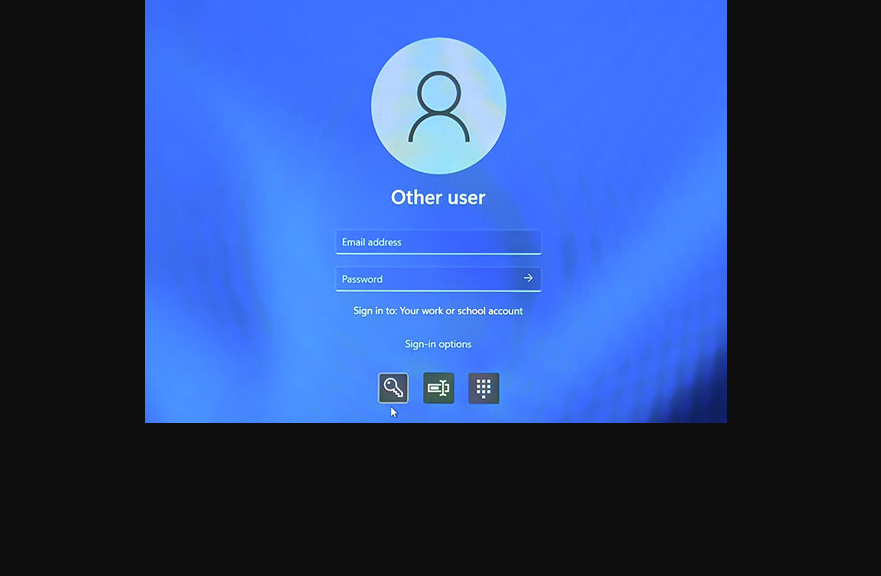
Last Friday, I packed up the tiny but nifty Lenovo ThinkCentre Neo 50q to ship it back to North Carolina. Then, I stood the small but mighty ThinkStation P3 Ultra Gen2 up in its place. When I tried to RDP into that machine to catch it up with changes since it went dark in early January, it wouldn’t let me log in with my usual MSA. “I’ve seen this before,” I thought, as I recalled my Feb 19 blog on this very topic. That previous fix had changed the folder name for my user account and I wanted to avoid that on the P3Ultra2 if possible. So, I took another take on failed RDP login fix and came up with something better. Let me explain…
Details: Another Take on Failed RDP Login Fix
The P3 Ultra2 had been healthy after its identity‑stack cleanup, TPM reseal, and scheduled‑task repairs. Local login worked. The system was stable. Nothing in the logs suggested trouble. But RDP refused to authenticate. Every attempt failed with the same unhelpful message: “The credentials did not work.” The username was correct. The password was correct. The account was enabled. The SID matched. The machine was healthy. Yet RDP would not accept the credentials under any circumstances.
When this kind of failure presents, there’s usually some mismatch between the local Windows identity and the identity info RDP uses for remote validation. TL;DR version: that was exactly what went wrong.
Why Correct Credentials Failed RDP Validation
The key understanding requires knowing how RDP handles MSAs. When a user signs into a Windows PC locally, her or she can use Windows Hello, a PIN, or security tokens. That said, RDP cannot use any of these for remote login validation. Indeed, RDP requires a local NT password hash stored in the SAM on the target PC. If no such hash exists, RDP can’t validate user login input, even if the supplied password for an MSA is correct and current.
Here’s what went wrong on P3Ultra2: the MSA acccount had never generated a local password hash. From the first login, Windows 11 used Hello-based authentication. Alas, that means the SAM never got a password hash for that account. Locally, things worked as expected (because Hello could — and did — work with cloud based authentication). RDP could find no password hash and thus could not authenticate.
The Fix Is In, and Dead Easy
All I had to do was to sit down in front of the P3Ultra2 and force it to use the password for a single login. I did so at the lock screen by clicking the password icon (middle position in lead-in graphic) and then typing in the account password.
As soon as I did that, Windows automatically generated the NT password hash for that MSA. With that value now available, RDP immediately opened its remote access doors on my next try to get into P3Ultra2 through the Remote Desktop Connection App. Problem solved.
Sometimes, problems in Windows-World are huge and hairy. Sometimes, they’re astoundingly simple — as long as you can figure out what’s really going on. This particular RDP thing fell into the latter category. I’m glad I now understand, and gladder still it’s fixed.

