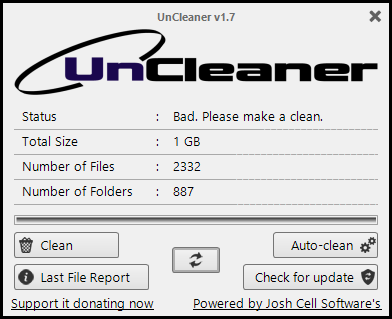
In poking around the fleet here at Chez Tittel lately, I can’t help but notice that my Windows PCs seem to pick up detritus at a good clip. Nearly every time I run a tool such as Disk Cleanup (cleanmgr.exe), PC Manager, or even the ancient but still servicable UnCleaner utility, I put at least 800MB-1GB of storage back into the free pool. One of my mottos has been (and remains): “Keep your Windows clean.” And there’s more to suggest driven by that impetus…
What Keep Your Windows Clean REALLY Means
As you can see in the lead-in graphic, even after running PC Manager’s “deep clean” facility, Uncleaner still finds another GB of trash to take out. Indeed, multiple tools often focus on multiple sources of unwanted or unnecessary stuff. Using them in combination will usually take out more trash than a single item can ferry into oblivion on its own.
But wait: there’s more! Other things in Windows besides file storage need an occasional cleanup. Here are some examples:
- Use a tool such as RAPR (DriverStore Cleaner) to remove obsolete or duplicate device drivers from the Windows driver store
- Use DISM to do likewise for the Windows Component Store (e.g. DISM /Online /Cleanup-image /StartComponentCleanup)
- Various identity and authentication cleanups, including credential manager, Windows Hello/NGC, AAD/Workplace Join, cached identity tokens, and more
I’ll blog about this final item tomorrow, because I’ve been spending a lot of time on that kind of stuff lately, and have some useful PowerShell to share along those lines. Stay tuned.
And remember: a clean Windows install is a happy and healthy Windows install. Cheers!

