Category Archives: Windows 10

Macrium Reflect 8 Free Version Now Available

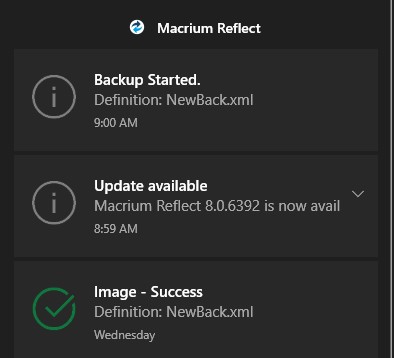
Yes, I know. There have been alternate downloads (e.g. Softonic) for Macrium Reflect 8 Free available for 30 days and longer. This week, however, Paramount Software UK — the maker of Macrium Reflect — is offering an “official” free download of the well-known and respected backup/recovery toolset. Hence my title, which proclaims Macrium Reflect 8 Free version now available. Good stuff

With Macrium Reflect 8 Free Version Now Available, Grab One!

I’ll confess cheerfully and unreservedly, I was converted to MR through my association with TenForums. I’ve been using MR about as long as I’ve been a member there. And indeed, I concur with prevailing opinions there (and at its sister site ElevenForum.com) that MR Free is sufficient to meet the backup needs of most ordinary users.

Because I believe in supporting makers who do good work, I own a 4-pack license for the commercial version of MR8 released earlier this year. But now, I can — and will — upgrade all of my other test and experiment machines to the free version directly from the source.

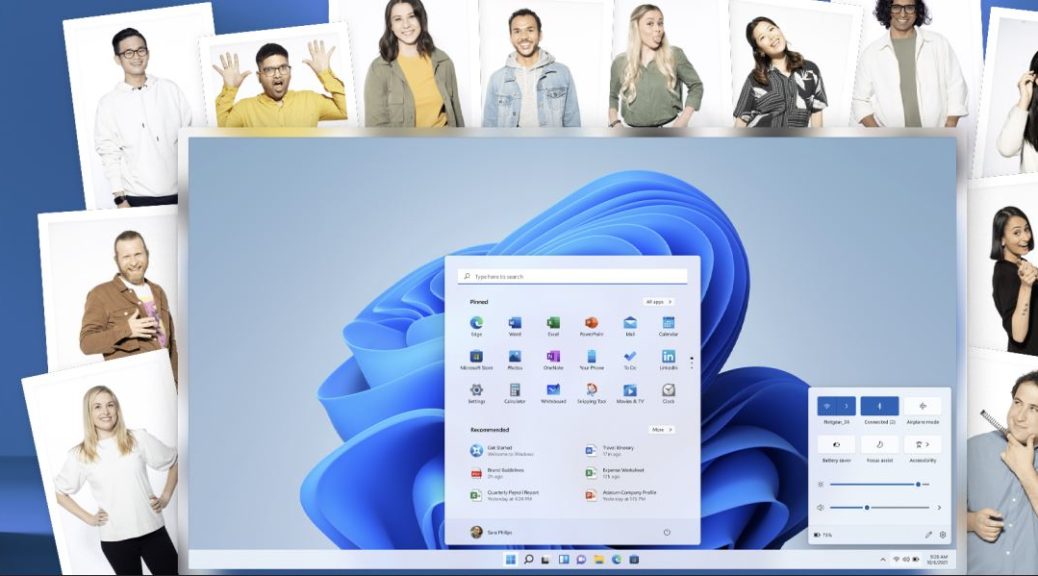
Macrium 8 Has Windows 11 Covered

The program has been reworked and revamped, especially in light of Windows 11. It supports use of WinPE 11 rescue media, and works well with the new OS. It supports removable media imaging and cloning, and uses VSS to support imaging of running Windows 10 and 11 instances. It’s got great backup exploration tools, and can mount its backups as VMs via Hyper-V.

In all seven years I’ve been using MR, it’s never failed me when it comes to restoring a backup or repairing damaged Windows boot facilities. MR7 was a great tool. MR8 is even better. If you’re not already using it, grab a copy of MR8 today. If you’re using MR7, it’s time to upgrate to MR8 (even on Windows 10 PCs). Cheers.

Facebooklinkedin
Facebooklinkedin

Windows Web Experience Pack Mysteries

Recently, Microsoft Store has installed a new app on all of the Windows 11 machines I’ve checked. It’s named the Windows Web Experience Pack. It only has the name in the Description field, is categorized under “Utilties & tools,” and the support and website URLs on its store page link to Microsoft.com. So when, I say I’ve encountered some Windows Web Experience pack mysteries, I’m not kidding. In fact, it’s definitely more mysterious than not.

A List of Windows Web Experience Pack Mysteries

1. You can’t find this utility with a search. I tried.
2. Check out the whole Store page. There’s a Windows 10 logo in the Screenshots pane. System Requirements, however, specifically state “Window 11 version 22000.20 or higher.” WTF?
3. No description or working links for documentation. A search at docs.microsoft.com turns up zilch,  as well.
4. When you click on the “Open” link on the Store page, nothing happens. Nothing shows on the Processes or Details tabs in Task Manager either (at least, not as far as I can tell).
5. WinAero puts things best when it stays “Because there is no official word from Microsoft on what WWEP does, we can only speculate that this component is responsible for updating core web components in the OS used by Store apps.”

We know it’s something aimed at all Web browsers, because otherwise it would be Edge-focused and -specific. But beyond that we don’t much about it all. It’s a “mystery pack” much like the Recent Windows Feature Experience Pack and the Online Service Experience Pack introduced earlier this year.

One Mystery Resolved

Turns out you can also find the Web Experience Pack in Windows 10. Here’s a link to that Store page. Its system requirements are 2004/19041.0 or higher. Thus, it obviously originated with Windows 10. I think that explains the logo at the top of the Windows 11 version’s Store page. Somebody copied it over from the Windows 10 version and changed nothing except for the system requirements. Even the reviews for both versions include all the same stuff.

What About the Others?

Good question! I’ve got my curiosity up now, so I’ll keep digging around. But these “packs” seem extraordinarily opaque to those outside the inner circle of Windows architects and developers. This is definitely another case of “wait and see how it all turns out.” Stay tuned: I’ll keep you posted.

Note Added November 4

One of my WIMVP buddies — Shawn Keene — informed me that you can simply type “web” into the Run box (WinKey+R) and it will open File Explorer to that folder automagically. I tried it. Sure enough: it works. Use this as your shortcut for exploring. Thanks, Shawn.


Facebooklinkedin
Facebooklinkedin

Windows Wallpapers Live Elsewhere

Here’s something I didn’t know, that you may not have known, either. Wallpaper images for both Windows 10 and 11 live in a separate folder hierarchy under C:\Windows\Web. That hierarchy appears as the lead-in graphic for this story. The parent folder spec is C:\Windows\Web. In Windows 11 each of the four subsidiary folder contains 2 or more images, all suitable for wallpaper use. When I say Windows wallpapers live elsewhere, I mean they live in their own private directory, as indicated.

If Windows Wallpapers Live Elsewhere, Visit Them

I spelunked around the four-folder hierarchy and found 37 images therein. Many of them are based on those twisting laminar surfaces that have come to stand for Windows 11. I copied all of them into a single directory so I could find them all in one place. The next screencap shows a listing of those images by filename. You’ll probably want to set a similar view to Extra Large or Large icons, so you can identify them by visual content (I did it this way for compactness).

WWindows Wallpapers Live Elsewhere.details

What to do With Windows Wallpapers

Overall, they’re an astonishing collection of images and graphics. Microsoft operates an image service named Spotlight, that curates over 4,000 high-quality professional images of nature, cities, objects, and more. All of these work well for desktop backgrounds and lockscreen images. I have an older app from Timo Partl (no longer in the Store, alas) that does a great job of visiting the Spotlight connection and downloading anything I don’t already have locally to a target directory. For those of you who, like me, like lots of variety in your lockscreens and backgrounds, this provides a trove of beautiful eye-candy of amazing variety and great quality.

I’m adding these wallpapers to that collection. I assume that means they’ll show up occasionally, as the forces of random selection dictate. Check out the 11 wallpapers and feel free view them as and when you like. Cheers!

Note Added Nov 4

I got a great tip from my fellow WIMVPs about this–namely Shawn Keene. He observes that if you open the Run box (WinKey+R) and type “web” into the box, then hit OK, it will open a fresh instance of File Explorer to that directory. Very handy!

Facebooklinkedin
Facebooklinkedin

PowerToys v0.49.0 Gets Video Conference Mute

Clint Rutkas and his team have been talking about it for months. I’ve been waiting to check it out myself. That’s right: in its latest release, PowerToys v0.49.0 gets video conference mute capability. Right now it’s available through GitHub, though I expect it’s just a matter of time before it comes via the Microsoft Store. The new control page in settings serves as the lead-in graphic for this story.

What PowerToys v0.49.0 Gets Video Conference Mute Means

I run at least 4 different video conferencing platforms regularly: Zoom, Teams, Blue Jeans, and Google Meet. From time to time, I’ll get invited to another, similar platform for online meetings. Each of them offers a mute capability, but each one uses a different control in a different place in its app window.

What I like about Video Conference Mute in PowerToys is that it offers one single set of controls for mike and camera, for all such apps. Here’s the set of keystrokes it uses:

PowerToys v0.49.0 Gets Video Conference Mute.keys

Keys to toggle the mike and video together, or separately. Good stuff! (Source: PowerToys built-in Welcome docs)

For those already using PowerToys, an update is in order. For those not already using the tool, you can simply run the installer and it will set you up. Then, right-click the PowerToys icon in the notification area to open its UI, and go to the VCM pane. There you simply need to move the slider labeled “Enable Video Conference Mute” to on (as shown in the lead-in graphic if you exercise the option to view it on its own web page). It’s just that easy. I already liked PowerToys a lot, but this latest and long-anticipated addition just made me like it a whole bunch more. Check it out.

Facebooklinkedin
Facebooklinkedin

WU Delivers New PC Health Check Version

For Windows 10 and 11 users alike, those who try to run PC Health Check (PCHC) may experience an interesting initial impediment. Instead of running whatever version of the tool may already be installed, Windows will install the latest version. Numbered 3.1.210929003-s2, it shows up on all my updated Windows 10 and 11 PCs. Apparently, WU delivers new PC Health Check version as a routine part of the update process.

Why WU Delivers New PC Health Check Version, In Brief

My best guess is that MS wants to make SURE all Windows PCs have the latest version of PCHC at their disposal. WU itself offers to run the tool as part of its routine update checks now. As you can see in the lead in graphic (at bottom) this means the installer runs to remove the old version, then loads and configures the new one automatically. Only then, can you tell (at top) that the latest PCHC version is running.

It came as something of a surprise to me to invoke PCHC on my PCs, and get the installer first instead. Looks like this is one update that MS does not leave to user discretion. Here it comes, ready (and like it) or not!

PCHC Goes to All Players…

Even on my Surface Pro 3, which WU correctly labels as “unfit for 11” I still get an offer to get PC Health check as shown here:

WU Delivers New PC Health Check Version.no11

This 4th-gen Intel laptop with no TPM will never run Windows 11. Yet WU still hopefully proffers PCHC.
[Click image for full-sized view].

I’m bemused. There are no “things I can do in the PC Health Check app” that will ever bring Windows 11 to the old Surface Pro 3. Am I wrong to read the language shown above as extending some glimpse of hope that things might turn out otherwise? Nah. It’s just a teaser. Good thing I’m running this system to keep track of Windows 10 as it runs out its tether to the 2025 EOL on purpose, eh?

Note Added 00:30 Later…

Just saw a very nice story on this phenomenon from Liam Tung at ZDNet. It’s entitled Windows 10 users get PC Health Check app for diagnostics and troubleshooting. Worth a read it makes some interesting points, and provides a quick way to remove PCHC for those so inclined. That tip reads “Users can uninstall PC Health Check by going to Apps → Apps & Features → App list (Windows PC Health Check) → Uninstall. (I substituted the right arrow entity for Mr. Tung’s less-elegant > (right caret/greater than sign) in this rendition.)

Facebooklinkedin
Facebooklinkedin

Windows 11 Upgrades Gain Momentum

This morning (October 26) Twitter is ablaze with reports of qualified PC getting the “Windows 11 offer” via WU. I just checked my eligible PCs still running Windows 10 (all both of them). The Intel i7 11th gen machine gets the offer; the AMD Ryzen 5800X does not. So, as Windows 11 upgrades gain momentum the coverage remains partial. I guess, it’s just a bigger piece of the overall pie.

Twitter Sez: Windows 11 Upgrades Gain Momentum

But gosh, I see dozens of posts on Twitter this morning from people with all kinds of PCs indicating they’ve accepted the offer. Most report a successful install. Some report hanging, of which most seem to involve the post-GUI install phase somewhere between 80 and 100% complete.

FWIW, such issues have been common with other new Windows versions. One could argue — and MS often does — that the whole point of the “gradual rollout” they now follow is to ensure the highest likelihood of success to those who get “the offer.”

What I Do if WU Upgrade Hangs

This hanging has happened to me often enough in my 7 years as an Insider that I’ve got a step-by-step approach to trying various fixes:

1. Power off and restart. Often, the install will pick where it left off and continue to completion.
2. If rollback happens after restart, I try using the setup.exe from an ISO equivalent to the current install version. That has worked for me in most (9 out of 10) cases.
3. If a standalone/local installer won’t cut it, that often indicates driver or hardware issues. I’ll often roll back and wait for the next upgrade or a new ISO to come along. For those who MUST get to Windows 11, the only thing left to try is a clean install from the same ISO as in Step 2. This works for 9 of the remaining 10 hard cases.

But as I’ve recently learned with the Lenovo X1 Carbon Gen 9 that has a Thunderbolt Firmware issue I can’t fix for love or money, even a clean install doesn’t ALWAYS work. That’s why I’m sending that one back to Lenovo with a “Thunderbolt doesn’t work” note in the box. Sometimes, the forces of darkness do prevail. I can only add that I *HATE* when that happens.

Facebooklinkedin
Facebooklinkedin

Heavy Update Traffic Complicates Fleet Management

Wow! It’s been quite a week here at Chez Tittel. It never fails but when I get busy with paying work, the frequency of and/or workload in handling Windows updates goes up, too. Including a loaner unit, I have 11 PCs to take care of right now. And this week has seen a Preview CU for production Windows 10, a release for 21H2 Windows 10, and various updates and upgrades for Windows 11 Insider Previews in all 3 channels (Release Preview, Beta and Dev). Hence my summary, that heavy update traffic complicates fleet management.

When Heavy Update Traffic Complicates Fleet Management, Get Busy!

As I check update history on my PCs, I see one or more items this week on all of them. Around here that’s about as busy as things can get. Fortunately, except for a firmware update issue on a loaner PC — which has nothing to do with MS updates AFAIK — it’s all been pretty routine and trouble-free. All it takes is paying attention and a little time.

I also use a couple of tools to keep up with applications and suchlike as well. PatchMyPC is a free updating tool that keeps up with most of my stuff. SUMo (Software Update Monitor) Lite is a free scanning tool that tells me what else I need to update (but leaves me on my own to get that done). I try to run these once a week, or as time permits. Lately, there hasn’t been much free time to spend on updates, but it’s getting done now, as I think of it.

The “Clean-as-you-Go” Principle

In keeping up with my PCs, I try to do a little bit every time I use them, so I don’t have to deep clean at longer intervals. A little bit of clean-up and update on an ongoing basis works better for me as a maintenance regime that periodic, scheduled (but longer) update/clean-up sessions.

Here in Windows-World, you can pick whichever regime makes most sense for you. I’ve got my routine and I’m sticking to it!

Facebooklinkedin
Facebooklinkedin

Win10 Rollback Works But Thunderbolt Issues Continue

Big Sigh. I’ve been trying to get the Thunderbolt 4 firmware updated on the snazzy new Lenovo ThinkPad X1 Carbon Gen 9 they sent me, but to no avail. Today, I observed that Win10 rollback works but Thunderbolt issues continue. Something gets weird when the PC reboots to do the firmware install. I see a short (and tiny) error message long enough to know it’s there, but definitely not long enough to read it, or interpret its significance.

When Win10 Rollback Works But Thunderbolt Issues Continue, Then What?

First, the good news. I elected to roll back my Windows 11 update on this machine and it not only went well, it finished in under 3 minutes. That’s amazing! It also confirmed that the Windows.old snapshot is of whatever vintage and state the OS was at the time of upgrade. All my account stuff remained clear and workable, thank goodness.

Now, the bad news. I remain unable to complete the firmware update successfully. That means Thunderbolt sees no devices on either of the PC’s two USB-C/Thunderbolt 4 ports. Bummer! It also means I’m sending this fish back to the pond (Lenovo, that is) with a request to return it when THEY can fix this driver issue. For me, Thunderbolt 4 is a big deal. I don’t think I can review this system without a working and capable Thunderbolt 4 connection for me to test performance, throughput, and so forth.

That said, the USB-3 Type A port is remarkably fast. I get better performance out of my old, tired mSATA drives on this machine (Samsung EVO SSDs in Sabrent mSATA enclosures) than I’ve ever seen before.

Do All Things Come to He Who Waits?

I guess I’ll be finding out. Tomorrow, I’ll fire off an email to the reviews coordinator, explain my situation, and let them know I’m sending the laptop back. It will be absolutely fascinating to see how they respond. I’m hopeful I’ll get a fixed (or replacement) laptop soon. If and when I do, I’ll start posting madly about what I see and learn. Right now, I just can’t go forward with a major subsystem on the fritz. Hope that makes sense…

Facebooklinkedin
Facebooklinkedin

Windows Updates Gain Expiration Dates

Take a look at the web page for this June vintage 19042 Windows 10 preview item KB5003690. As the concluding term in its title states, this item is EXPIRED. It’s also no longer available for download. Revised MS policies mean that some Windows Updates gain expiration dates (or status, anyway) when they reach obsolescence. The lead-in graphic for the story shows the revised KB5003690 title and its EXPIRED status above.

If Windows Updates Gain Expiration Dates, Then What?

It’s not exactly like a carton of milk from the grocery store. You won’t know in advance when any particular KB item might (or will) expire. This looks like the kind of thing that will pop up when you try to access older updates that Microsoft has removed from circulation.

The details of Microsoft’s EXPIRATION NOTICE read like this:

NEW 7/21/21
EXPIRATION NOTICE

IMPORTANT As of 7/21/2021, this KB is no longer available from Windows Update, the Microsoft Update Catalog, or other release channels.  We recommend that you update your devices to the latest security quality update. The latest security quality update is cumulative and contains all the addressed issues in this update.

Apparently, the idea is that as certain updates age out, they will no longer clutter up the update universe. WindowsLatest opines this will be a boon to those who might pause or skip updates, by reducing download items and data volume. They also assert that “… older and redundant packages will now expire automatically, which can improve the performance of Windows Updates and reduce update cache size.” Same effect applies to scan time: with fewer updates to look through, scan results should come back more quickly as Windows PCs “Check for updates” in WU.

Less Is More?

Certainly from data management and networking perspectives, reducing the population of update items is a good thing. I’ll be curious to watch for this status to start coming up when checking KB items.

Just for grins I checked a newer Preview update for status. KB5005101 (released on 9/1/2021) remains available, and its Catalog download likewise. Looks like expiration dates don’t kick in until an item — even a Preview item — gets to be four months old, or older. Time will tell if that boundary is flexible, or fixed…

Facebooklinkedin
Facebooklinkedin

UWP Came — Now It’s Going

For some odd reason, the old French saying “Le roi est mort, vive le roi!” comes to mind. Announced with great fanfare and stunning promises along with Windows 10 in 2015, the Universal Windows Platform (UWP) is now mostly history. The lead-in graphic shows that UWP was short on neither vision nor ambition (source: MS). But as dramatically as UWP came — now it’s going, as Microsoft recommends developers migrate their UWP code to the Windows App SDK.

First UWP Came — Now It’s Going. What Next?

From being the key to developing apps that could run on Windows Phone, desktop, or Xbox platforms  — and more (Surface Hub, HoloLens, IoT, etc.) — UWP is falling by the wayside. Long time development guru Rafael Rivera temporarily suspended his Twitter boycott to post about the afore-linked migration advice from MS.

His comment on where UWP is going could be summarized as nowhere, fast. This is what he said:

This signals what I already told you before: UWP will only get “bug, reliability, and security fixes”.

The Windows App SDK is the new king of the development hill. Vive le roi! The Docs item walks developers through the migration process in step-by-step fashion, following these headings:

  • Install the Windows App SDK VSIX (Visual Studio extension)
  • Create a new project
  • Migrate code with the least dependencies first
  • Copy files, or copy file contents?
  • Folder and file name differences (C++/WinRT)
  • If you change the name of your migrated project
  • Install the same NuGet packages that were installed in the source project

To further guide developers MS includes links to a PhotoLab case study and a Photo Editor case study. It also lists WinRT APIs no supported in desktop apps.

Out with the Old, In with the New

Curiously, MS doesn’t spend much text on explaining this change or touting the benefits of the new Windows App SDK. It simply makes  matter-of-fact assertion that “The Windows App SDK provides a broad set of Windows APIs — with implementations that are decoupled from the OS, and released to developers via NuGet packages.” Later on it says “With the Windows App SDK you can incorporate the latest runtime, language and platform features into your app.” And that’s about it.

It will be fascinating to observe uptake and reactions from the Windows developer community. Given that occasional API reworking have occurred before in this world, I’m curious to see how this goes over. Stay tuned, and I’ll revisit this as news and events decree.

Facebooklinkedin
Facebooklinkedin