Category Archives: Troubleshooting

Sysmon Lands in Windows 11 Beta

Lots of Windows nerds have spent years bolting Sysinternals’ Sysmon into every PC we work on. For them — and me — the latest Windows 11 Beta build (26220.7752) brings a welcome surprise: Sysmon is now a built-in optional feature. That’s right — no more downloading, unzipping, or scripting installs from Sysinternals. No need to run its handy web-based version, either. Microsoft has quietly slipped this powerful tool into the OS itself, and it’s ready to roll with some simple PowerShell commands.

What Sysmon Lands in Windows 11 Beta Means

Sysmon (System Monitor) has long been a staple in toolkits for security pros, blue teamers, and forensic analysts. It provides deep visibility into system activity — process creation, network connections, file writes, registry changes, and more. Until now, deploying Sysmon meant managing binaries and XML configuration files. With its inclusion as a Windows Optional Feature, Sysmon becomes easier to deploy, update, and manage across PC fleets.

PowerShell: Enable and Install Sysmon

To enable the built-in Sysmon feature from Windows itself, and then start monitoring stuff, run these two commands:

Enable-WindowsOptionalFeature -Online -FeatureName Sysmon
sysmon -i

In case it’s not obvious, the first command enables the Sysmon feature; the second installs it, ready for use.

Quick Peek: View Sysmon Events

Here’s a PowerShell one-liner that shows the 25 most recent Sysmon events.  Gives a taste of how it works and what it shows:

Get-WinEvent -LogName “Microsoft-Windows-Sysmon/Operational” -MaxEvents 25 | Format-Table -AutoSize

Unless your PC is acting up or ill, sysmon mostly shows process creation and termination (like here).

What Sysmon Illuminates

Sysmon shines brightest when you need to understand what’s really happening under the hood in Windows. It logs detailed info about process creation, including parent-child relationships, command-line arguments, and DLLs loaded. Sysmon captures network connections with source and destination IPs, ports, and process IDs. It can even detect code injections, image loads, and registry modifications. With a well-tuned configuration, Sysmon becomes a forensic goldmine. It’s like a time machine for system activity. Properly used, it can help you trace malware behavior, insider threats, and suspicious persistence mechanisms.

Adding Sysmon Into the Mix Is Good!

The integration of Sysmon into Windows 11 Beta is a quiet but powerful shift. It signals Microsoft’s growing commitment to built-in security observability and makes it easier than ever to deploy advanced monitoring at scale. For IT pros and security teams, this is a win. If you’re running a Beta build, it’s time to fire up PowerShell, flip the switch, and start watching your system like never before.

Showcasing Sysmon in Action

Sysmon’s long history in the Windows ecosystem is best illustrated through several well‑known case studies that show how deeply it illuminates system behavior. The three cases listed below not only show Sysmon’s diagnostic power but also its ability to reveal subtle, causal relationships that define complex system activity.

Together, these cases demonstrate Sysmon’s unique strengths: high‑fidelity process creation logging, deep visibility into network connections, precise registry and file‑system monitoring, and the ability to reconstruct causal chains that ordinary Windows logs simply cannot express. Whether used for diagnostics, security investigations, or system forensics, Sysmon remains one of the most powerful visibility tools available on Windows.

And that, dear readers, is why Sysmon is already well-regarded in Windows-World. That’s ultimately what makes it a amazing addition to the collection of built-in Windows features.

Facebooklinkedin
Facebooklinkedin

Catching Up Can Be Hard to Do

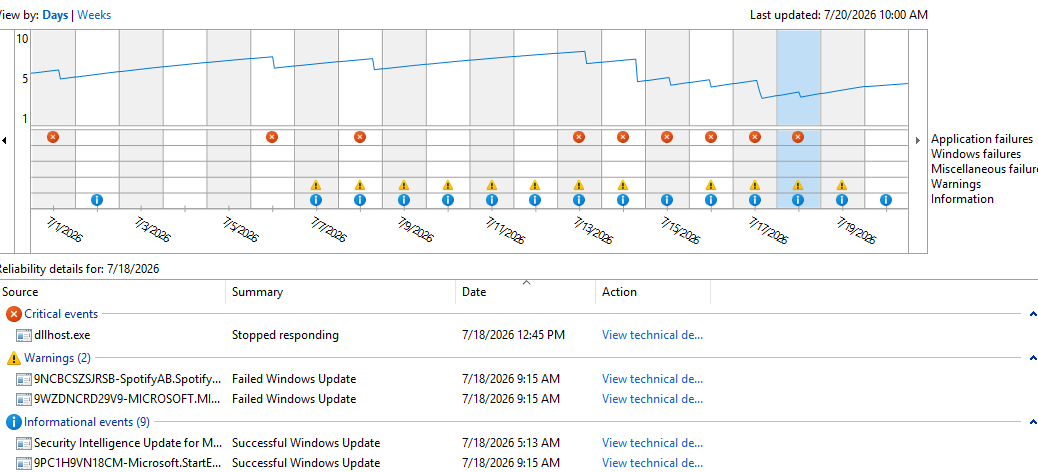
I’ll admit it. I’m lazy. When I hooked up the Lenovo ThinkCentre Neo 50q Tiny PC a couple of weeks ago, I cheated. How? By hooking up the power, networking, video, keyboard, mouse and camera that had previously been driving the ThinkStation P3 Ultra Gen 2 mini-PC. Yesterday, I had some free time so I unhooked the former and reconnected to the latter. Given the hiatus a storm of updates followed (as expected). When I checked Reliability Monitor (ReliMon) this morning, I found a couple of unexpected errors for the Lenovo TSSIOMonitor (aka Super IO Monitor). When I asked Copilot for help reading those tea leaves, its response: “Catching up can be hard, especially after a prolonged idle period.”

Why Catching Up Can Be Hard

As I look at ReliMon for yesterday afternoon, I see a steady stream of updates and installs that start at 3:38PM and run through 4:09PM (60 in all). According to Copilot, TSSIOMonitor.exe is a Lenovo executable that’s constantly monitoring hardware. Its job is to throw errors when things don’t look or work correctly.

One potential cause of the error is when sensor data is invalid. Another is when driver data doesn’t match what the monitor expects. That’s precisely what happens when chipset drivers update, ACPI tables get rebuilt, embedded controllers reinitialize, and Super I/O registers may be unstable. Basically, the monitor was  using stale data to analyze a fresh situation, and erroring because of inevitable mismatches. Good to know.

Copilot Offers Insight, But I Must Assess Same

I’m getting used to asking Copilot to opine on system stuff when I need help understanding what’s going on. It certainly has more access to deep Windows arcana that I do, but I do notice occasional hiccups and hallucinations as it recites specific details. Indeed it sometimes goes off on tangents that don’t relate to my specific situation, but do play into the general circumstances and experiences around it.

This time, Copilot’s explanation makes good sense. And it helps me understand why such errors might occur when they did. It’s even comforting for it to tell me what I already knew: that a one-off or two-off error while a bunch of updates are underway isn’t terribly concerning. But we both agree that if it kept on happening (TSSIOmonitor.exe has been quiet ever since updates finished) there would be cause for concern, and possible action.

What Ronald Reagan said about nuclear arms monitoring apparently also provides to ingesting information from Copilot: “Trust, but verify.” Words to live by, here in a brave new AI-informed Windows-World.

Facebooklinkedin
Facebooklinkedin

Fixing WinKey+X Menu Change

The Win+X menu — that little power‑user gem tucked behind the Start button — is a Windows feature you don’t think about much until it breaks. When it does, the symptoms can be maddening: missing entries, wrong icons, dead shortcuts, or menu items that don’t launch. I recently went through a repair of the Win+X system on my production desktop. That process revealed just how many layers contribute to this simple menu. Here’s a recap of how the issue was resolved in fixing WinKey+X menu change.

Getting Started: Fixing WinKey+X Menu Change

The first clue was that the Win+X menu wasn’t launching Windows Terminal correctly. Instead of opening a PowerShell or Terminal instance, it either did nothing or threw an error. That pointed to a problem in the Win+X shortcut groups. These reside beneath the user profile at:
%LOCALAPPDATA%\Microsoft\Windows\WinX

Windows organizes these shortcuts into GroupN folders (N = 1-3). Group3 is where Terminal and PowerShell entries live. When I opened that folder, those shortcuts were either missing or pointing to stale AppX registrations. This can happen after uninstalling or repairing Windows Terminal, or some profile migration wherein AppX package identities change.

Making Shortcuts Happen…

The next step meant rebuilding shortcuts manually. Windows Terminal doesn’t include .lnk files. Hence, I created fresh ones by right‑clicking the desktop and choosing New → Shortcut, and pointing them at the program. It lives under WindowsApps and includes current version info in its actual filename.

Because Windows Terminal’s AppX path changes with every update, hard‑coding its location isn’t smart. Thus, I used the stable execution alias: wt.exe

Once the shortcut was created, I renamed it to match canonical Win+X naming conventions:
Windows Terminal.lnk
Windows Terminal (Admin).lnk

Then I moved them into the Group3 folder. At this point, the shortcuts existed, but they were MIA on the menu. That’s because Win+X system caches entries and doesn’t refresh automatically. I forcibly rebuilt that cache by signing out and back in. After the next login, the menu finally displayed the new Terminal entries — but the icons were wrong.

What About Them Icons?

This led to the next discovery: Windows Terminal’s icon is stored inside its AppX manifest, not in a traditional .ico file. To fix them, I edited each shortcut’s properties and pointed the icon field to the stable Windows Terminal executable under Program Files. That exposed the correct embedded icon. Once updated, Win+X  displayed the proper visuals.

The final step was cleaning up legacy entries. A repaired Microsoft Account caused Windows to resurrect old Win+X shortcuts from a now-defunct installation. Removing stale .lnk files from Group3 eliminated duplicates and restored the menu to a clean state.

By the end of the trail, Win+X worked again: correct icons, correct commands, and a clean set of shortcuts that launch reliably. The repair reinforced something I’ve seen before in Windows troubleshooting . A system often holds onto old paths, old identities, and old assumptions long after underlying components change or go away. Fixing things means understanding where Windows stores its info, and updating each layer one by one.

If your Win+X menu ever starts acting strangely, a careful rebuild of Group3 shortcuts may be exactly what brings it back to life. Here in Windows-World you can always try. It might work. And if it doesn’t, there’s always something else to try instead.

Facebooklinkedin
Facebooklinkedin

WinGet Weirdness Finally Whacked

Every once in a while, Windows throws you a problem so strange, so deep in the plumbing, that you can’t help but treat it like a spelunking adventure. Over the past week, I’ve worked through one of those rare cases. Copilot ultimately helped diagnose it as a completely broken WinGet (aka Microsoft.AppInstaller) stack. Apparently, it came from corruption inside the WindowsApps directory. That’s the protected, TrustedInstaller‑owned home for all MSIX/AppX packages. I worked through a recovery  process that touched ACLs, reparse points, Safe Mode, user‑level activation, and the PATH environment itself. Ultimately and fortunately, it ended with WinGet weirdness finally whacked.

Getting to WinGet Weirdness Finally Whacked

The symptoms were deceptively simple: WinGet wasn’t recognized, App Installer wouldn’t register, and the user‑level WindowsApps folder lacked key shims. Alas, the root cause was far deeper. The system‑level C:\Program Files\WindowsApps directory had partially corrupted ACLs, preventing enumeration that blocked TrustedInstaller from working. Even elevated tools couldn’t see its innards.

The breakthrough came in Safe Mode, where Windows releases some of its usual locks. Using takeown and icacls, I forcibly reclaimed ownership and permissions long enough to inspect the directory. Hundreds of previously invisible entries suddenly appeared — confirmation that the ACL choke point had finally broken open.

From there, I rebuilt the directory’s security model: restoring SYSTEM and TrustedInstaller with full control, removing inheritance, and returning ownership to TrustedInstaller. With the system-level store healthy, I exited Safe Mode (after discovering that msconfig, not BCD, was trapping the machine there) and rebooted into normal Windows.

Repairing WinGet/Microsoft.AppInstaller

Next came the App Installer repair. The system package was still resident, but user-level registration was MIA. I downloaded the official MSIX bundle, reinstalled it, and then manually re‑registered the package using its AppxManifest. That restored the user‑level WindowsApps directory and recreated the shims — including winget.exe.

But one last puzzle remained: even with the shim present, Windows still didn’t recognize the command. The culprit turned out to be the PATH. During the earlier corruption, Windows had silently dropped this critical entry:
%LOCALAPPDATA%\Microsoft\WindowsApps

Without that, no packaged app alias can resolve. Adding it back with setx, signing out, and signing back in finally brought the entire chain back to life. winget -v lit up instantly.

In the end, the repair touched nearly every layer of the Windows package‑servicing stack: NTFS ACLs, TrustedInstaller ownership, AppX registration, user‑level activation, and environment variables. It was a rare, deep, and oddly satisfying recovery — the kind of fix you document not just for others, but for the story it tells.
And now WinGet is fully operational again.

I’m celebrating the occasional “happy ending” that’s so rare in Windows-World. If you’re lucky you’ll never have cause to do likewise. But if this ever happens to you, here’s a trail of breadcrumbs to lead you out of that forest…

Facebooklinkedin
Facebooklinkedin

Diving Into Recovery Media Rabbithole

I went down a number of dead ends yesterday, trying to restore WinGet to proper operation on my Flo6 AMD desktop. One of the more interesting and frustrating alleys I banged around in involved building bootable recovery media for Windows 11. At first,  I tried to get Copilot to steer me through, but found myself wandering in circles. So I turned to the built-in RecoveryDrive.exe tool. Diving into recovery media rabbithole took longer than I wanted, but gave me what I needed. I’ll explain…

Diving Into Recovery Media Rabbithole Requires Escape

Copilot had me formatting two partitions (UEFI: 1024MB; NTFS: rest of UFD), copying files, creating boot configuration data, and more. Only problem I had was that creation and management of the runtime environment ramdisk kept falling over sideways.

After my third failed attempt to create such a drive from scratch, I turned to the built-in Recovery Drive facility inside Windows 11 itself. (Visit Settings, search for “recovery drive” and it’ll take you right there.) This took a long-ish while to complete (about 45 minutes, all told). But it did what I needed it to do, and let me attempt AppX provisioning and repairs on a quiescent Windows image. That didn’t work out so well for me, but it did make it possible for me to learn some new PowerShell and Command Prompt tricks. I even got a couple of chances to dig into Safe Mode boot on my production desktop.

File layout for the Recovery Media looks like a typical Windows Setup disk (it can do that, too).

Desktop Fights Alternate Boot-ups: I Fight Back

At first, I was a bit stymied by the unwillingness of the Windows repair boot screen to field function keys (F1 for UEFI, F11 for boot menu, and so forth). But after a while, I learned how to work around those hurdles. Msconfig came in handy for getting into Safe Mode, while various flavors of the shutdown command let me access UEFI, alternate boot options, troubleshooting menus, and more.

The day was not a total loss, but it did throw me behind schedule on some project work. Today, I’m nosing the grindstone as I start to catch up. And isn’t that just the way things too often go, here in Windows-World?


Facebooklinkedin
Facebooklinkedin

Primary Desktop: Something Profoundly Wrong

I’ve been fighting dragons here at Chez Tittel all day long. On my primary desktop, something profoundly wrong is dogging my steps, and docking my productivity. I can’t boot to a recovery drive to fix a relatively simple problem with application package provisioning. Behind the scenes, something is amazingly weird, and blocking my every move to try to get things fixed. Let me explain…

More About Primary Desktop: Something Profoundly Wrong

It all started with WinGet. It (Microsoft.AppInstaller) wouldn’t update  properly . I went through a lengthy and trying series of misadventures (that took the best part of a full day). I only slowly determined the ed@edtittel.com account profile was thoroughly messed up.

First, I went through three iterations building a WinRE (Windows Recovery Environment) bootable USB flash drive. I realized something fundamental and serious was broken. Copilot says it’s not because of any of these:

  • Not a bad install.
  • Not a missing EXE.
  • Not a PATH issue.
  • Not a system‑wide problem.

Rather, it’s a borked reparse point. It’s coupled with missing shims inside user-level WindowsApps and Winget folders.

A Wilderness of Errors

Here are some of errors I’ve fought today:

  • “The system cannot find the path specified”
  • Winget working in one account but not another
  • App Installer reinstall not fixing anything
  • PATH looking correct but still failing
  • Winget.exe present but nonfunctional
  • Commands failing instantly with no useful error text
  • Ephemeral pop‑ups and disappearing error dialogs

TLDR: I couldn’t build a bootable WinRE UFD that worked. I’ve switched to another PC. Now, it’s the Lenovo ThinkStation P16 Gen1. It’s frustrating… But at last a bootable UFD via the Windows 11 Download page and msconfig to get into “Safe Mode” worked. That said, I never got WinGet working on my primary MSA.

An Alexandrine Solution

I’ve now been up and down, and back and forth, over the same ground. I can’t make WinGet work in my primary login. It works fine in an alternate MSA. After spending a long, long day trying to fix this, I am throwing in the towel. I can run WinGet from the old MSA, and for now, that’s good enough for me.

Sigh. Another wasted day (at least 8 hours) here in Windows-World. Sometimes, all the effort just doesn’t produce the desired outcome. It’s a real pickle!


Facebooklinkedin
Facebooklinkedin

Manual Store Update Clears Ongoing Errors

Here’s an interesting one. I just took a look at Reliability Monitor on one of my Canary channel test PCs (the venerable ThinkPad X12 Hybrid Tablet). As you can see in the lead-in graphic, it shows 14 days’ worth of “Warnings.” All of them mention Windows Terminal and YourPhone with a “Failed Windows Update” summary. But a manual Store update clears ongoing errors, and everything is hunky-dory now. Let me explain…

Why Manual Store Update Clears Ongoing Errors

I’m in the habit of leaving Windows Terminal open on many of my PCs. That’s because I run WinGet and other CLI utilities on them on a near-daily basis. But although this strategy is convenient, it sometimes means that Store updates won’t complete successfully because they don’t want to affect a running and related process.

Running a manual store update (Click Upates & downloads in the left column, then click the “Check for updates” button at upper right) forces the Store to interrupt things and start with a clean slate (Copilot calls this a “clean install path”). That means it restarts the Store install service, flushes any stale metadata, closes the running Terminal processes, pulls dependencies in the necessary order and forces a high-priority update job.

Thus, what’s stuck inside the automated daily update tasks that Store handles in the background is stuck no longer. The update goes through and the program shows itself running the latest version — namely, 1.23.13503.0 — without issues. And indeed, the same thing applies to Microsoft.YourPhone (showing the same error over the same period — it runs in the background automatically).

Not All Automatic Updates Always Succeed

This heading is the “moral of the story.” It emphasizes that occasional manual intervention may be needed, especially for processes that run in the background by themselves. But hey — that’s the way things go here in Windows-World sometimes. Happy New Year!

Facebooklinkedin
Facebooklinkedin

Bitlocker Boot Loop Finally Broken

After at least half-a-dozen failed attempts to build bootable media for the ThinkPad T14s ARM laptop, I finally put a usable UFD together. The secrets? First, I used the Lenovo Digital Download Recovery Service (DDRS) and its associated USB Recovery Creator Tool.  Second, it built me a UFD that actually booted up on the T14s on another ARM laptop (an ASUS Zenbook A14). With the BitLocker boot loop finally broken, the Lenovo Recovery Media successfully reinstalled Windows 11. It was a long, wild and sometimes harrowing ride!

How Was BitLocker Boot Loop Finally Broken?

Because the .wim files for Windows 11 were so huge, I’d been formatting the repair UFD using NTFS. That was apparently not working on the T14s. The Lenovo tool built a UFD using FAT32, and assigned no drive letter to its repair partition. Because the basic Windows 11 .wim files exceed 4GB in size, that means it did some juggling work to create a boot.wim of about 700K, and a Recovery WIM of just under 3.9GB. And then it went through the most complex unattend.xml I’ve ever seen go by on-screen, with no less than six (6!) reboots to get the recovery image installed, updated and ready to run. It took about 100 minutes to grind through its process. Color me impressed.

I had tried using various other tools to fix things on my own, but none of them produced a working and bootable UFD from which to run the Windows installer. I believe all of them foundered either on the use of NTFS. complex partition structures, or lack of complete ARM support:

  • MCT (Media Creation Tool): doesn’t work properly on ARM PCs right now, and cannot generate ARM installation media
  • Ventoy: The UFD could boot initially and select the correct ISO for hand-off, but would not boot into that mounted image. Here, because the Ventoy partition is formatted NTFS, I’m presuming that caused the problems.
  • Rufus: I told Rufus to use NFTS, not realizing this could stymie proper booting into its runtime environment.

One More Thing…

I also learned that ARM PCs want fast, standard UFDs as boot media. Me, I’m fond of those tiny micro-UFDs (in this case, Mushkin Atom devices). Turns out they work fine on Intel and AMD; on ARM, not so much. I ended up using a Mushkin full-size USB 3.0 MKNUFDVP64GB device (or half of it, rather, because its FAT32 partition maxed out at 32GB). It did the job, though, so I’m glad.

This has been one of my wilder, woolier adventures in Windows-World lately. First, I had to find the right medium. Then I had to use the right format. And finally, I had to use the right tool. Only then could I reinstall Windows and put the T14s back into service. Sheesh!

Facebooklinkedin
Facebooklinkedin

WinGet Acrobat Mismatch Continues

Back on September 5, I blogged about how long it took Acrobat to update itself. Adobe has since addressed that (it now takes 1 or 2, instead of 20-30 minutes). But there’s still something amiss. Acrobat shows up as a package inside the WinGet database, but it can’t successfully do its job. Indeed, after a substantial download (usually 200 – 250 MB). WinGet reports it can’t complete the update. It also avers that the old version must be uninstalled before a new one may be applied. Thus, the WinGet Acrobat mismatch continues. One must run the in-app update to get things to work.

WinGet ultimately throws error 1603 when trying to update Acrobat.

Getting Past WinGet Acrobat Mismatch Continues

Adobe has to be aware of the WinGet issues, because they’re the ones responsible for maintaining packages available to the program. Adobe, according to Copilot “acknowledges error 1603 as a ‘computer-specific installation failure’ with multiple causes.” And while Adobe has issued troubleshooting instrux, they haven’t yet issued a WinGet patch. Indeed this must’ve been reported in July, because that’s the date on the aforelinked item in the Adobe Help Center.

Fortunately, the in-app installer does work, so I just have to steer around Acrobat updates in WinGet for now. Things like this happen in Windows-World regularly. But gosh: I wish Adobe would go ahead and get this fixed. Seems like they have more important fish to fry…

Facebooklinkedin
Facebooklinkedin

Update Gotcha Highlights BitLocker Key Backup

Recent updates have triggered news and warnings that some PCs will request a BitLocker key upon restart. Reports from Windows Latest and Neowin confirm that KB5066835 (Win11) and KB5066791 (Win10) trigger such behavior for Windows Enterprise and Microsoft 365 Business editions. Apparently, as Copilot says of this issue “Intel-based PCs with Modern Standby are most susceptible.” But this update gotcha highlights BitLocker key backup and recovery techniques for all Windows users. Let me tell you about that…

New Update Gotcha Highlights BitLocker
Key Backup and Recovery

The easiest way to backup and use a BitLocker recovery key is to type Bitlocker into Settings, then select the resulting “Manage BitLocker” item that pops up. This takes you to the Control Panel pane for BitLocker Drive Encryption shown above, where you can click the entry labeled “Back up your recovery key.”

Resulting options read:

  • Save to your Microsoft account
  • Save to a USB flash drive
  • Save to a file
  • Print the recovery key

As something of a belt-and-suspenders guy, I usually save to a file named <machine-name>blrk.txt AND I print a copy that I stick in a folder in my filing cabinet labeled “PC Recovery Stuff.” Saving to a file means loss of access to its drives and backups could stymie recovery in some circumstances, so I like to have the hard copy as a fallback.

Of course, you can also register your PCs into your MSA (Microsoft Account) and get it online as well. The URL for that specific purpose is https://account.microsoft.com/devices/recoverykey. I’ve pretty much got that memorized because I do use it multiple times a year, every year, like clockwork.

Here in Windows-World, if you use BitLocker it’s wise to ensure you can access the recovery key when and as you need it. The techniques I’ve described will get you where you need to go, should that need arise. Cheers!

Facebooklinkedin
Facebooklinkedin