Category Archives: Tips, Tricks and Tweaks

Want to know how to make the most out of your Windows 7 system?
Here we share the things we have learned for what to do (and what not to do) to make Windows 7 perform at its best.

{WED} Windows 10 Power Options Include NVMe Idle Timeout

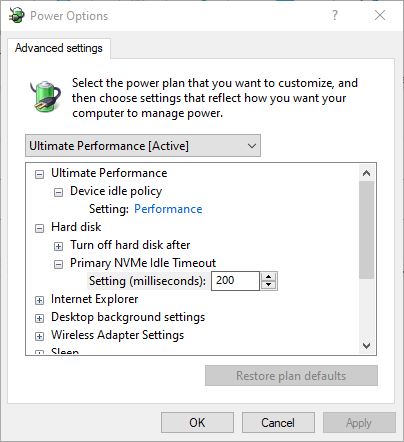
Here’s another factoid that falls under the heading of “I didn’t know Windows 10 could do that.” In this case, the particular widget in question is Power Options (Control Panel). The right PowerShell command or its equivalent Registry tweak makes an NVMe item appear. Actually, this item occurs under the Hard Disk entry. Its full name is Primary NVMe Idle Timeout (see below). In fact, it defines an idle timeout value for an NVMe SSD in the boot/system role.  Hence my post title: Windows 10 Power Options Include NVMe Idle Timeout. Here’s how it looks:
Windows 10 Power Options Include NVMe Idle Timeout.nvme-info

Until you enable this attribute (PowerShell) or set the right RegKey value, you won’t see this in Power Options.

In case you didn’t already know, NVMe stands for Non-Volatile Memory Express. Usually, it’s a kind of flash memory that might be a solid state disk (SSD), a PCIe add-in card, an M.2 card, or something similar. NMVe is incredibly popular because it’s fast and increasingly affordable. Nearly all of my newer systems boot from an NVMe drive. Lots of vendors make NVMe drives. Right now, my systems include such drives from Samsung, LiteOn and Toshiba.

Make Windows 10 Power Options Include NVMe Idle Timeout

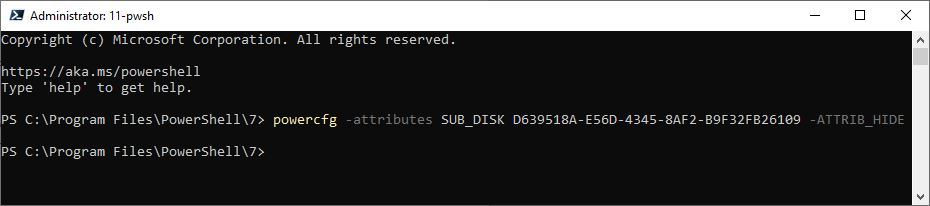
In fact, to see this entry in Power Options, you must reverse Windows 10’s default setting. Thus, the operative part of the command string reads -ATTRIB-HIDE. The minus sign does the magic that makes the entry appear. You can cut and paste the whole string (shown below)  into PowerShell. For illlustration, it’s also shown in the screencap that follows the command-line text input.

powercfg -attributes SUB_DISK D639518A-E56D-4345-8AF2-B9F32FB26109 -ATTRIB_HIDE
Windows 10 Power Options Include NVMe Idle Timeout.ps

Entering the command gives zero feedback, but the change shows up immediately in Power Options.
[Click image for full-sized view.]

 The following command string makes this NVMe entry invisible in Power Options:

powercfg -attributes SUB_DISK D639518A-E56D-4345-8AF2-B9F32FB26109 +ATTRIB_HIDE

Of course, the only difference is the plus sign in the final command element. The preceding value is a GUID for this particular Power Options setting.

Do It in the Registry, If You Prefer

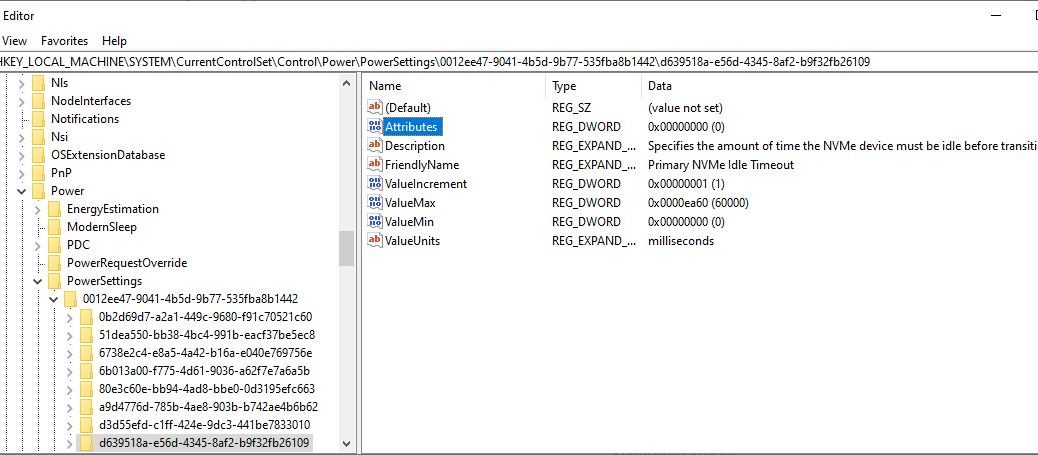
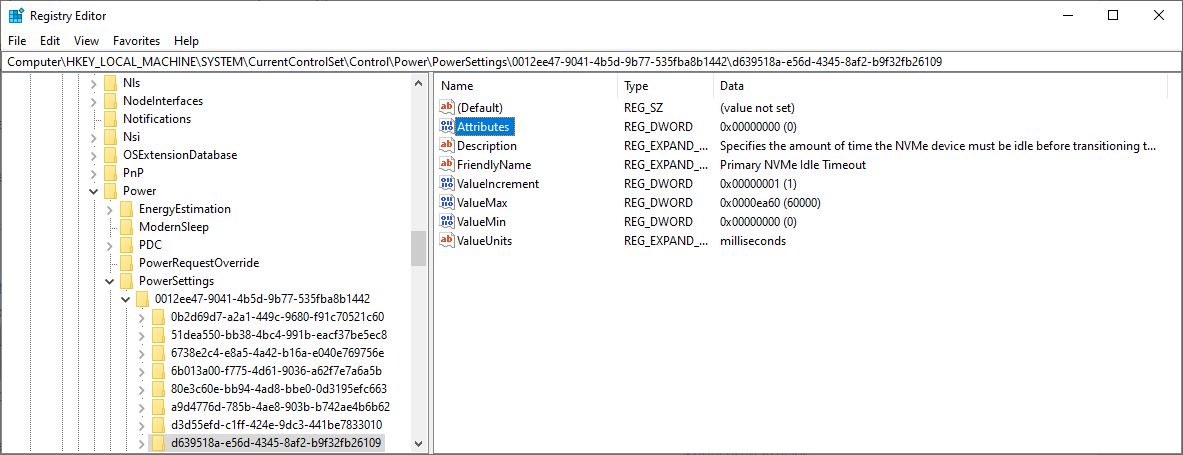
The name of the corresponding registry key is, in fact, the afore-cited GUID. The highlighted Attributes value controls if the NVMe item is visible in Power Options. Here again, a value of 0 makes the option visible; 1 makes it disappear. String alert! The fully-qualified registry key name is:

HKLM\SYSTEM\CurrentControlSet\Control\Power\PowerSettings\0012ee47-9041-4b5d-9b77-535fba8b1442\d639518a-e56d-4345-8af2-b9f32fb26109

Just for the record, HKLM is a common abbreviation for HKEY_LOCAL_MACHINE. For better visualization, here’s a screencap of all that good stuff:
Windows 10 Power Options Include NVMe Idle Timeout.regedit

The complete registry location occurs just below the command menu line, and includes two (2) GUIDs in its path.
[Click image for full-sized view.]

Once again, a value of zero (0) for Attributes means the NVME timeout item shows up in Power Options. A value of one (1) means it’s hidden.

Does NVMe Idle Timeout Really Matter?

Looking at the default value (200 ms), I’m inclined to think not. That’s so fast that altering the value won’t affect the PC much (or at all). But it’s always interesting to learn something new about Windows 10. There’s a lot more going on in general, and in Power Options, than one might think. And who knows? Someday, this tidbit may come in handy.

[Note] Thanks, Sergey Tkachenko/WinAero.com for covering this topic. He posted on this topic sometime in the last 24 hours. (Alas, his posts aren’t dated.) Check it out: it’s entitled Add Primary NVME Idle Timeout to Power Options in Windows 10. Bolshaya spaciba, Sergey!

Facebooklinkedin
Facebooklinkedin

{WED} Diagnosing Dead Windows 10 USB Flash Drives

I’ve probably owned 100+ USB Flash Drives (UFDs) over the years. In that entire time, I’ve had exactly three of them fail. My most recent failure occurred on Monday (March 16). This happened as I tried to build a 1909 bootable installer using the Media Creation Tool. The OS  downloaded successfully. But before the UFD finished building, MCT errored out (“There was a problem running this tool” as shown below). After a second failed try, I found myself diagnosing dead Windows 10 USB flash drives. This time around, the death was irreversible and indisputable. I’ll explain what I found so others can benefit from this experience.

Diagnosing Dead Windows 10 USB Flash Drives.wct-error

The error message doesn’t identify media as the problem explicitly, but it clearly identifies a problem and it fails to complete.
[Click image for full-sized view.]

Error Message Helps Diagnosing Dead Windows 10 USB Flash Drives

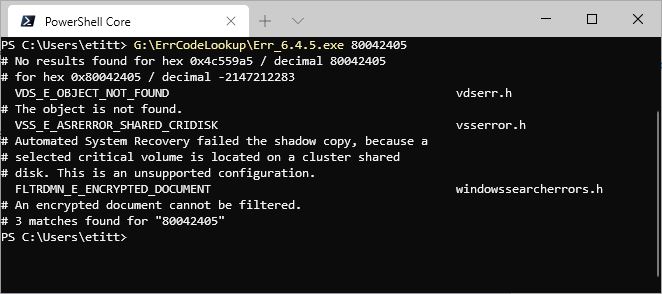
The error code is 0x80042405, so I turned to the Microsoft Error Lookup Tool for more information. The following PowerShell session screencap shows what it told me, which was both interesting and mysterious.

Diagnosing Dead Windows 10 USB Flash Drives.melt-output

Error message lookup reports a problem with the target disk, with key term “unsupported configuration.”
[Click image for full-sized view.]

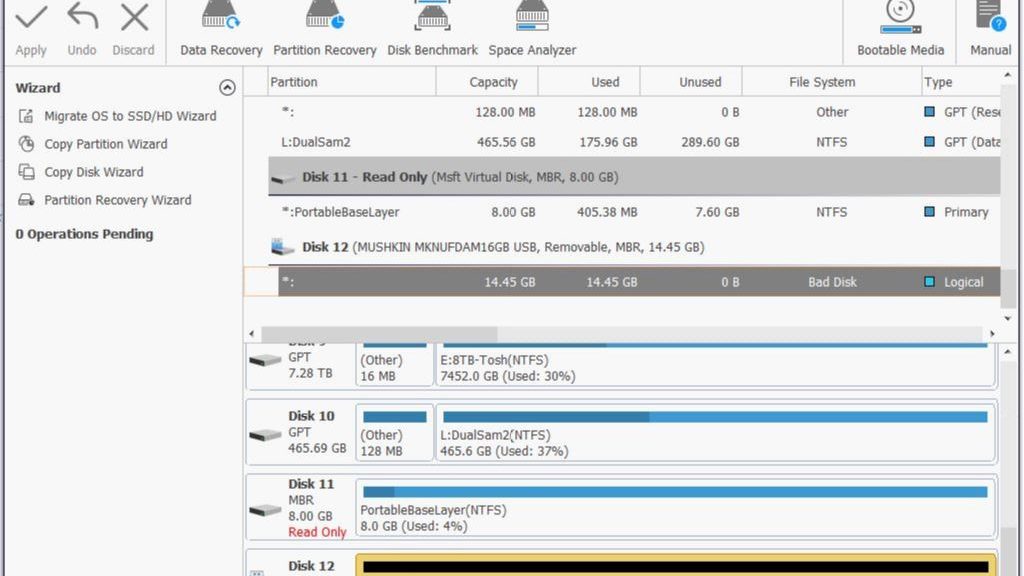
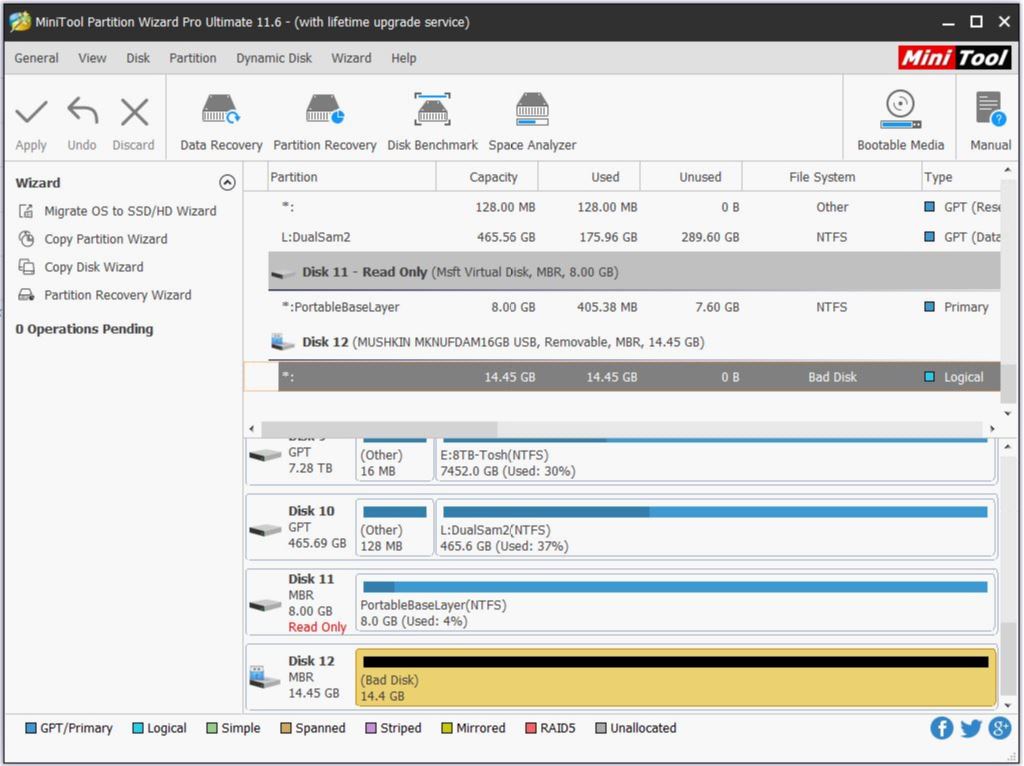
I got my next real clue when I tried to find the UFD in Disk Management. It failed to finish loading until I removed the UFD. Obviously, it was having issues recognizing the drive. Then I loaded up MiniTool Partition Wizard (MTPW) and got the following information: “Bad disk.”

Diagnosing Dead Windows 10 USB Flash Drives.bad-ufd

MiniTool Partition Wizard calls out the UFD’s condition as a “bad disk.” That can’t be good!
[Click image for full-sized view.]

None of MTPW’s built-in facilitiees — partition recovery and data recovery, to be more specific — could find any files on the device. There was no path to recovery or reformatting at all. As a last ditch effort, I tried HDD Guru’s HDD LLF Lower Level Format tool (aka HDDLLF.4.40.exe). It couldn’t do anything with the UFD, either. To me that proves conclusively that this UFD is dead, dead, dead. End of story, except to observe that I paid less than US$10 for this 16GB Mushkin ATOM device, so it’s a tolerable loss. Next!

Facebooklinkedin
Facebooklinkedin

{WED} Microsoft Technet Gallery Retires June 2020

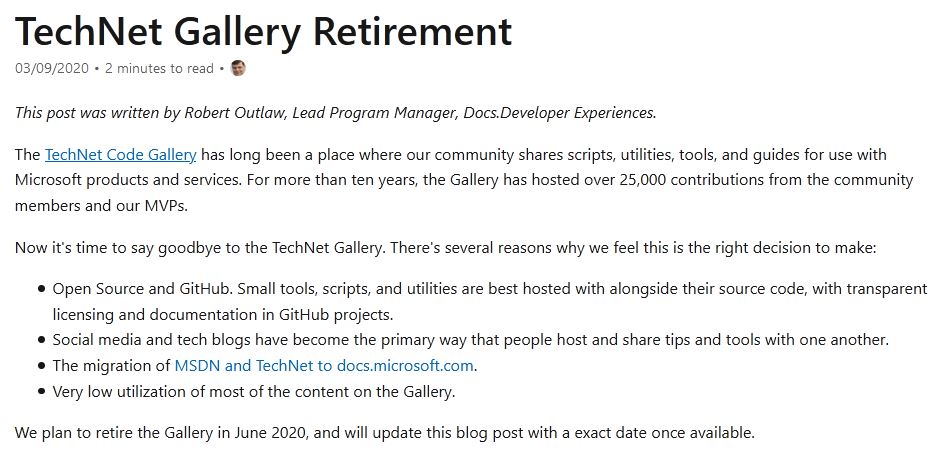
Here’s an interesting news item. On March 9, Robert Outlaw, Lead Program Manager, Docs.Developer Experience posted the immanent retirement of the Microsoft Technet Gallery. This is a long-time “public space” in the Microsoft DOCs web pages. Here, Microsoft MVPs, developers and community members have made a collection of over 25,000 PowerShell scripts for all and sundry server and desktop management tasks. But according to Mr. Outlaw, the Microsoft Technet Gallery retires June 2020. As the snippet at the head of this story says, the exact date for retirement is still TBD.

Technet Gallery Retires June 2020
Technet Gallery retirement post header info

[Click here for full-sized view.]

If Microsoft Technet Gallery Retires June 2020, Then What?

Having just delved into a Wayback Machine site snapshot from March 16, 2020, I see that the site is HEAVILY archived there. In fact, I couldn’t find a single page that wasn’t already present in that online archive. Interestingly, getting to the leaf (script) level in the Technet Gallery is like time travel. That’s because you’ll go back to the latest update to the script page itself when you navigate that far in the gallery. Thus, for an AD script named List all groups or users in an OU, I found myself back to October 2015.Under Networking, a NAT Detection script links to a September 2015 page.

I could go on and on, but I’m sure you get the idea. It is: while you may not be able to access the Technet Gallery pages live through Microsoft Docs come June 2020, that’s not really a problem. You’ll still be able to get to the archive through the Wayback machine. As far as I can tell, what’s available there is a full, faithful and complete copy of the whole shebang. Simply change your favorite for this valuable scripting resource to the last, best and final Wayback Machine snapshot taken just before MS pulls the plug. That way, you’ll retain access to its contents. When MS announces that date, I’ll provide a link to that ultimate snapshot as an addendum to this blog post.

Stay tuned!

[Note:] Here’s a shout out to Martin Brinkmann at ghacks.net. His story Microsoft announces retirement of the TechNet Gallery (and all its scripts) clued me into this upcoming retirement. Thanks, Martin: immer nochmals “Vielen Dank!”

Facebooklinkedin
Facebooklinkedin

{WED} Warning! Latest GeForce 442.59 May Cause BSOD

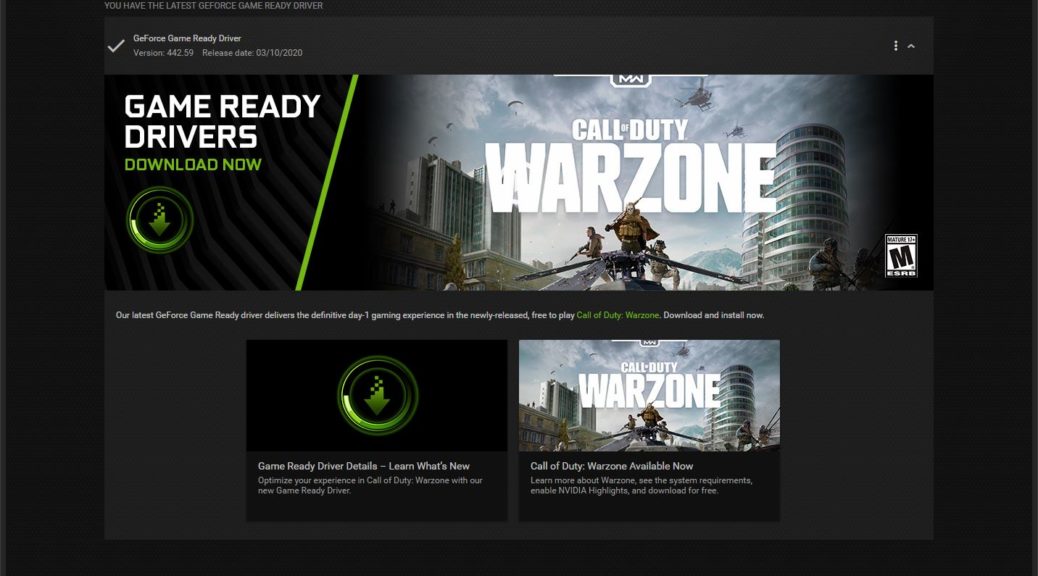
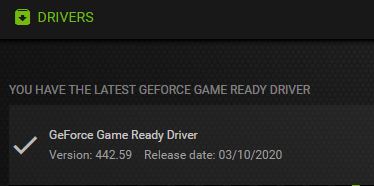
I’ve seen it before, and I’ll probably see it again. I just updated my production desktop to the latest GeForce driver, and it threw a BSOD. It’s one of the “mystery codes,” too: SYSTEM_EXCEPTION_THREAD_NOT_HANDLED. But when I say that the latest GeForce 442.59 may cause BSOD I already know what’s causing it. There’s a bug in the driver installer (not the driver) that causes a crash when it finishes the install. Thus, the driver itself is properly installed and working, as this GeForce snippet clearly shows:

Latest GeForce 442.59 May Cause BSOD.driver-ok

This snippet from GeForce Experience shows the latest driver version — 442.59 — is properly installed and working. Also shows yesterday’s date.

If Latest GeForce 442.59 May Cause BSOD, So What?

Yeah, it’s kind of disturbing — upsetting, even — to see your PC go down in flames with a BSOD. But as BSOD’s go, this one’s fairly benign. It would’ve bothered me a lot more if I hadn’t seen a run of these same BSODs in 2018 and 2019, right at the end of the GeForce driver install. Thus, I post this blog as a public service to warn others who may be keeping their GeForce drivers up-to-date. Before you do the install, close all open applications and save your work. If you’re seriously concerned, make an image backup just before running the driver install. But since the net result is a new and working driver, I’m inclined simply to say “Here they go again.” And of course, to let my readers know that they too may fall prey to this gotcha.

OTOH, you could decide to skip this update and wait and see if the next one fails to provoke a BSOD. I’m happy to keep plugging away at this stuff, and will update this blog when the next driver comes out. If it throws another BSOD I’ll let you know. If it doesn’t, ditto. Stay tuned!

[Note added 3/19/2020, afternoon] I just installed version 442.74 on my production PC. It got all the way through the install without a glitch, and asked me if I wanted to reboot. I was otherwise engaged so I did not. Just rebooted a minute or two ago, and everything concluded successfully. One can hope it’s because the installer issue — whatever it may have been — is fixed, or no longer an issue. Done!

Facebooklinkedin
Facebooklinkedin

{WED} DISM /Resetbase Bites Back

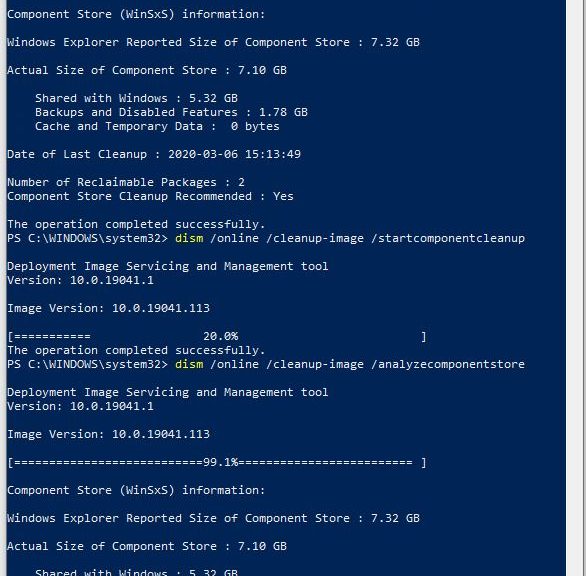
I’m a profound fan of the DISM (Deployment Image Servicing and Management) command. But I found myself surprised by the behavior of the /resetbase parameter today. For the record, the complete command syntax is DISM /online /cleanup-image /startcomponentcleanup /resetbase. Silly me: I understood that /resetbase would not allow changes to the base established. But I thought the /startcomponentcleanup would run first, and then the base would be reset. Wrong! Today, I tried it on my Surface Pro 3, and DISM /resetbase bites back: the two reclaimable packages I thought would be cleaned up are now frozen into my runtime image. Sigh. Here’s some illustrative PowerShell output, made after I’d already used the /resetbase option:
DISM /Resetbase Bites Back.ps-sequence

Notice that even though I ran a /startcomponentcleanup command between a pair of /analyzecomponentstore commands, the 2 reclaimable packages cheerfully persist. Sigh.
[Click image for full-sized view.]

Normally, running the dism /online /cleanup-image /startcomponentcleanup command would result in the second /analyzecomponentstore output reciting zero reclaimable packages, and no recommendation for component store cleanup. But I have no one but myself to blame for this, because I ran the /resetbase myself, not knowing it would freeze first and then fail to clean up at all. That’s why I like playing with test machines: not much real harm results even when things don’t work. Or when they don’t work the way I expect them to…

If DISM /Resetbase Bites Back, What to Do?

Not much, actually. I can either restore my most recent backup and do things right, or I can wait for 2004 and start afresh after that feature upgrade. Doing things right means: run dism /online /cleanup-image /startcomponentcleanup on the restored OS, then run the /resetbase version of that command to freeze the cleaned-up component store. I’m not sure it’s worth the effort, what with 2004 due out in the next month or two. OTOH, the Surface Pro 3 is a test machine and I won’t lose anything except time if I restore the latest Macrium backup, apply pending updates, and try again (the right way).

But now I know something important: if you want to use the /resetbase option in DISM, you should run the DISM /online /cleanup-image /startcomponentcleanup command first. That will clean up anything reclaimable. Then, when the number of reclaimable packages is zero, use the /resetbase option. Now, I know. Hopefully, you too can learn from my mistake. And so it goes, here in Windows-World!

Facebooklinkedin
Facebooklinkedin

{WED} Offline Samsung NWP2850 Misconfiguration Fix

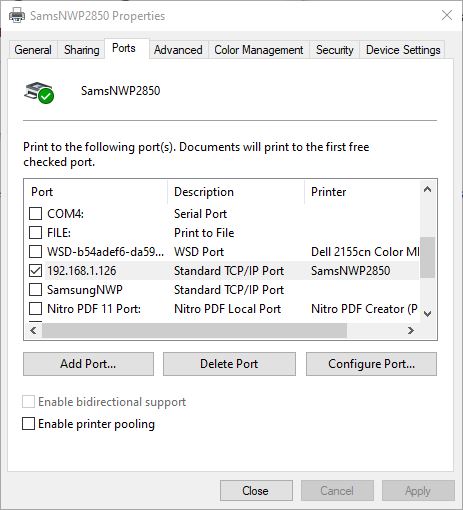
If only I knew why this happens, I’d be happier living with this occasional gotcha. Alas, it seems that some Windows Update items reset the TCP port associated with my Samsung monochrome laser printer (NWP2850). When that happens, the printer shows up offline. Bizarrely, Printers and Devices reports the device as offline but offers no further help. I’ve learned to visit the right-click item named “Printer properties” when that happens. Resetting its IP port usually brings the printer back online. That’s what I offer up here, as an offline Samsung NWP2850 misconfiguration fix. Here’s what that properties window looks like with its Ports tab on display:

Offline Samsung NWP2850 Misconfiguration Fix.ports

From time to time a port named “SamsungNWP” with no IP address shows up checked here. This screencap shows the correct assignment.

What Is the Offline Samsung NWP2850 Misconfiguration Fix?

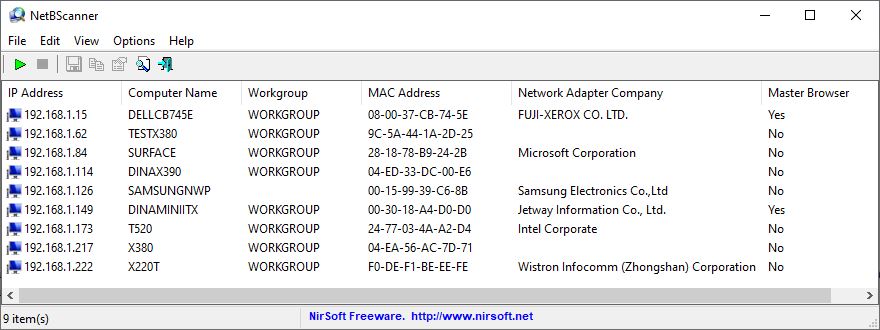
First, I have to rigure out the IP address assigned to my Samsung printer. NWP stands for “networked printer” BTW, so I have to scan my local network to find its current IP address assignment. For that purpose, I use NirSoft’s excellent NetBScanner. It produces a listing that tells me just what I need to know, as shown here:

Offline Samsung NWP2850 Misconfiguration Fix.netbscan

The Samsung printer shows up about half-way down the list at IP address 192.168.1.126. That’s why I checked the corresponding box in the previous window.
[Click item for full-sized view.]

It’s nice to run into a simple network problem that’s easy to fix in Windows 10. If only, if only, I didn’t have to run into it so often! But that’s the way things go sometimes. I’ve learned to live with it.

Facebooklinkedin
Facebooklinkedin

{WED} Updating Realtek UAD Audio Drivers

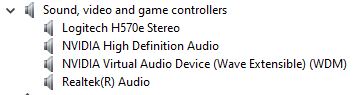
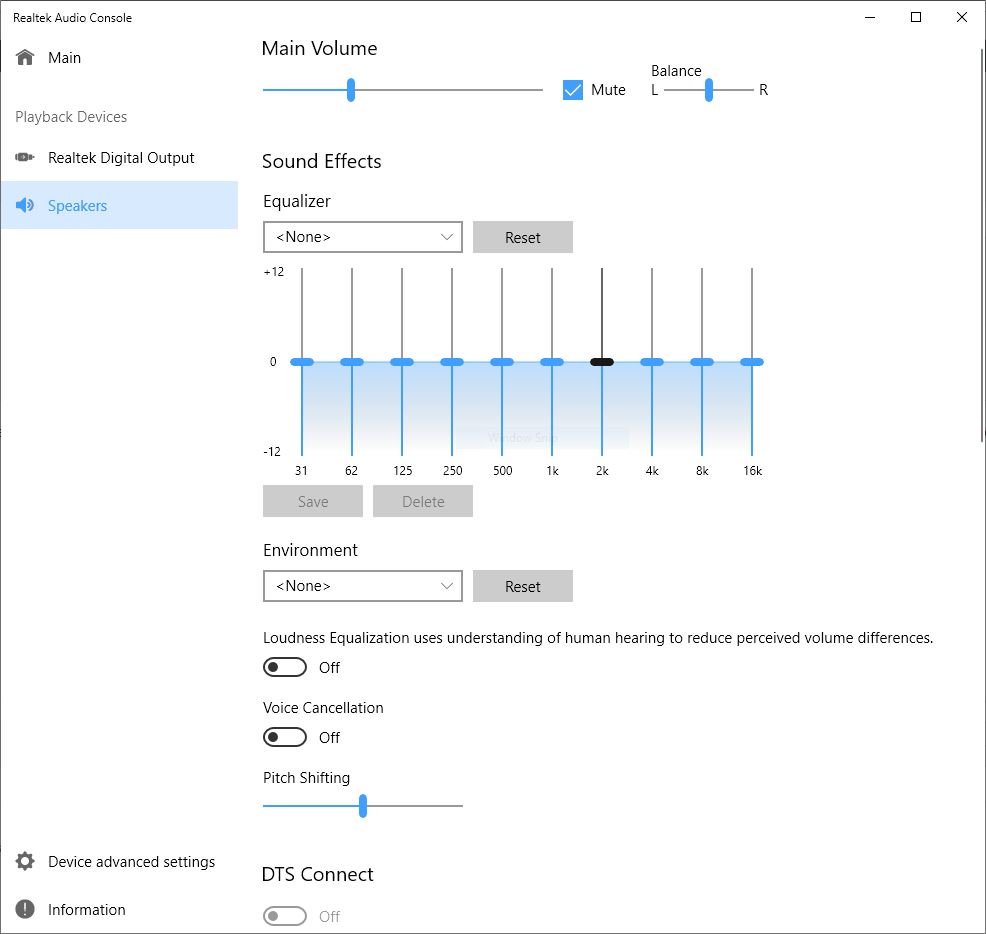
I’ve learned the hard way that working with Realtek Universal Audio Driver (UAD) drivers can be interesting. I’ve accidentally switched back from the “Realtek(R) Audio” drivers shown in first screencap for this story to the Realtek HD Audio drivers more than once. But alas, only the “Realtek (R) Audio” drivers work with the Realtek Audio Console UWP app (see next image following). That’s why I wrote today’s post on the topic of updating Realtek UAD Audio Drivers. There are several steps involved, and a couple of (usually reliable) sources to which I turn for driver downloads. Read on for those details please!

Updating Realtek UAD Audio Drivers.realtek-audio

The name of the driver says nothing about UAD. You must simply recognize that the name “Realtek (R) Audio” signifies that a UAD driver is present and running.

Updating Realtek UAD Audio Drivers.console

Simply put, one MUST install the UAD (Realtek(R)) driver to use this UWP app.
[Click image for full-sized view.]

Updating Realtek UAD Audio Drivers 1: The UAD Driver Itself

I use the excellent French Station-Drivers website to grab my UAD drivers. There, Realtek Audio gets its own landing page. It’s still a bit of a slog to get to the right driver from there. I’ll explain this as a sequence of steps for my particular motherboard, which comes from Asrock:

1. Click on Realtek High Definition Audio (HDA/UAD)

2. Click on Drivers (UAD).

3. Click on the name of your motherboard (or system) maker. (In my case, that’s Asrock.)

4. Examine the listings to find the highest-numbered drivers version (at bottom of list; in my case, that’s 8890.1).

5. Click on that version link, then click “Download” on the resulting web page.

This will grab a ZIP file that you can use to unpack and install the driver. Personally, I prefer to right-click the driver inside Device Manager, and point the “Update driver” option at the folder location where I unzipped the download file contents. Why? Because the Realtek installer requires not one, but two (2!), reboots to do its thing. I can use my right-click technique to update the driver without rebooting at all. Do what you like best on your PC(s), though.

Updating Realtek UAD Drivers 2: The Software Components

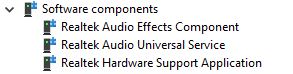
If you open the category in Device Manager named Software Components, you should see something like the next screencap, which shows three (3) additional Realtek software components. You can update the first two of these three items. I grab them from DriverHub, by searching for them by name. That is, I search on “Realtek Audio Effects Component” and “Realtek Audio Universal Service” and download the corresponding ZIP files. Right-clicking those drivers in Device Manager, to point the driver update function at the contents of those ZIP files works fine to update them, too.

Updating Realtek UAD Audio Drivers.sw-comp

Only the first two of these three drivers get updates, for whatever reason. Thus, that’s all you need look for.

I do this once every six months or so, unless I see a news or other online info item (perhaps at TenForums, which I visit more or less daily) to tell me an update is available sooner. And that’s how I keep my Realtek UAD audio driver and supporting items up-to-date!

Facebooklinkedin
Facebooklinkedin

{WED} Older Lenovos Need Utility Clean-up

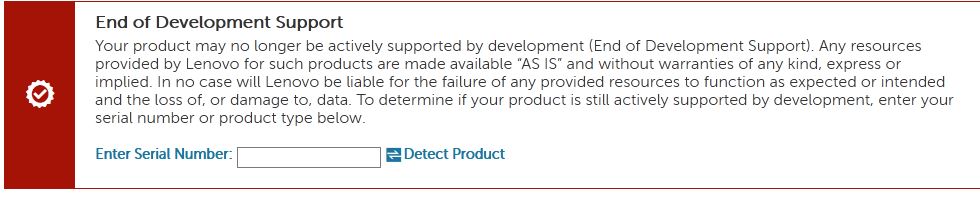
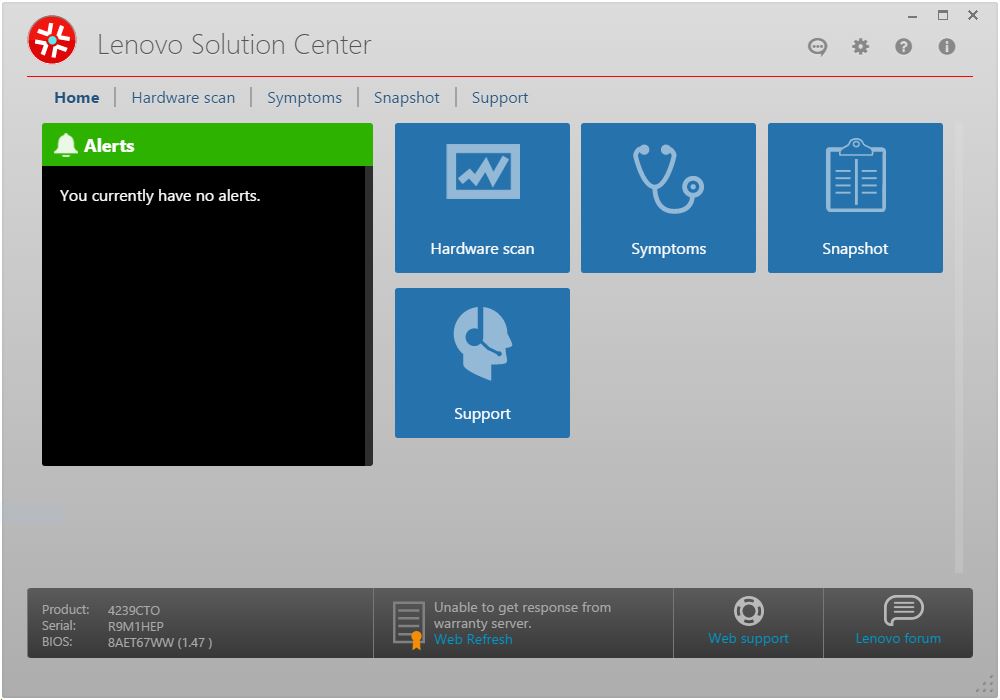
Poking around on my two old Lenovo laptops today, I noticed several of their vendor-supplied utilities are passe. Indeed, now that Lenovo offers its Vantage UWP caretaker app, many older ThinkVantage tools are obsolete. That’s why I assert that older Lenovos need utility clean-up. Lenovo itself will happily let you download and install Vantage on any of its PCs. But it doesn’t automatically remove the older stuff when you do. In fact, if you check information pages at Lenovo (URLs below) for the following items, you’ll see what I mean:

+ (HT501246) Lenovo Quick Optimizer

+ (PD022501) Lenovo Solution Center

+ (DS105970) Lenovo System Interface Foundation

+ (DS012808) Lenovo System Update

+ Thinkpad Settings Dependency

+ ThinkVantage Fingerprint Software*

Note: all of the preceding items, except for the last one, can be safely uninstalled. Happily, the Lenovo Vantage UWP app supersedes all of them (except for the Fingerprint software, which must be at version 6.0 or higher for Windows 10 users). Likewise, do NOT uninstall Lenovo Service Bridge: it remains necessary to report your Lenovo PC’s serial and model number info back to the Lenovo servers.

Older Lenovos Need Utility Clean-up.SolutionCenter

The old-fangled Solution Center and its various brethren are all now longer under developer support. Most of them can go.
[Click image for full-sized view.]

Why Do Older Lenovos Need Utility Clean-up?

Good question! Apparently, Lenovo left it to device owners to root out these older items (except for the Fingerprint Software, which you must keep if you have an older fingerprint reader and want to keep using it). Methinks they should’ve offered a clean-up utility. Better yet, the Lenovo Vantage installer should look for these passe items and offer to uninstall them as part of its install process. I’ll be communicating this back to Lenovo, in hope that they might listen to — and possibly even heed — this plea. We’ll see.

What About Newer Lenovos? Do They Need Clean-up, too?

I checked my newer Lenovos, of which I have four: two 2018-vintage X380 Yogas, 1 2018 vintage X1 Extreme, and 1 2019 vintage X390 Yoga. All had the older System Update utility installed, except for the 2019 X390 Yoga. Consequently, I did a bit of clean-up on those newer laptops, too. All’s well now, though.


Facebooklinkedin
Facebooklinkedin

{WED} Some Errors Need Fixing; Others Are Hiccups

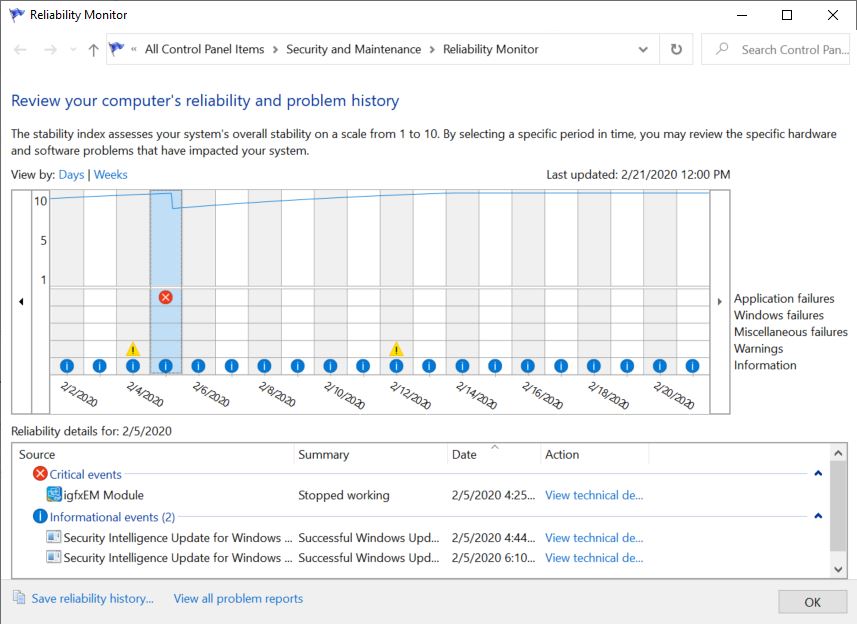
From time to time I check in the Reliability Monitor on my Windows 10 PCs. It gives me an excellent sense of PC health, and points me at causes when errors occur. Take my compact road laptop as an example: it’s a 2018 Lenovo X380 Yoga with an i7-8650U CPU, 16 GB RAM, and a 1 TB NVMe SSD. An entirely capable, reasonably fast, and incredibly stable machine. I was surprised recently, in fact, to see a driver error show up on that machine. As you can see in the screencap that follows, the faulting item is the igfxEM Module. That is the name that Intel gives to the software that drives the Intel UHD Graphics 620 built into the CPU chip itself. Upon seeing this error, I was reminded that some errors need fixing; others are hiccups. I soon learned that this one was an apparent hiccup.

Some Errors Need Fixing; Others Are Hiccups.devmgr

When some that starts with “igfx” pops up, I know it refers to “Intel graphics,” that being the company’s standard abbreviation.
[Click image for full-sized view.]

Deciding on Some Errors Need Fixing; Others Are Hiccups

Windows update didn’t think I needed a new Intel graphics driver. Nor did the new UWP app named Intel Driver & Support Assistant. Ditto for the Lenovo Vantage UWP app, which does a pretty good job of keeping up with drivers, too. Thus, there’s no new driver to replace the offending item.

But because it happened exactly once and hasn’t recurred in the past two weeks, I’m convinced this particular error represents a hiccup rather than an ongoing problem in need of fixing. So I’ve concluded that there’s nothing further to do here — except, as always, to keep an occasional eye on Reliability Monitor. It’ll let me know if and when the situation changes.

Some Errors Need Fixing; Others Are Hiccups.intel-d&sa

Intel’s new Driver & Support Assistant works inside a web browser and seems faster and more capable than it’s application predecessor.

SideNote: Running Reliability Monitor

Once upon a time, I could type “reli” into the search box in the Start menu, and the Reliability Monitor would run. No more, not since 1809 or thereabouts. Now, I type “perfmon /rel” into the search box instead. That still works. Or, if you prefer, try “reliability” spelled all the way out. That should produce the “View reliability history” control panel item. The long way around is to click Control Panel → Security & Maintenance → Maintenance → View reliability history. I wish my old method still worked: typing four chars beats typing 12. But that’s the way things go sometimes, here in Windows-World!

Facebooklinkedin
Facebooklinkedin

{WED} Future Win10 Driver Updates All Optional

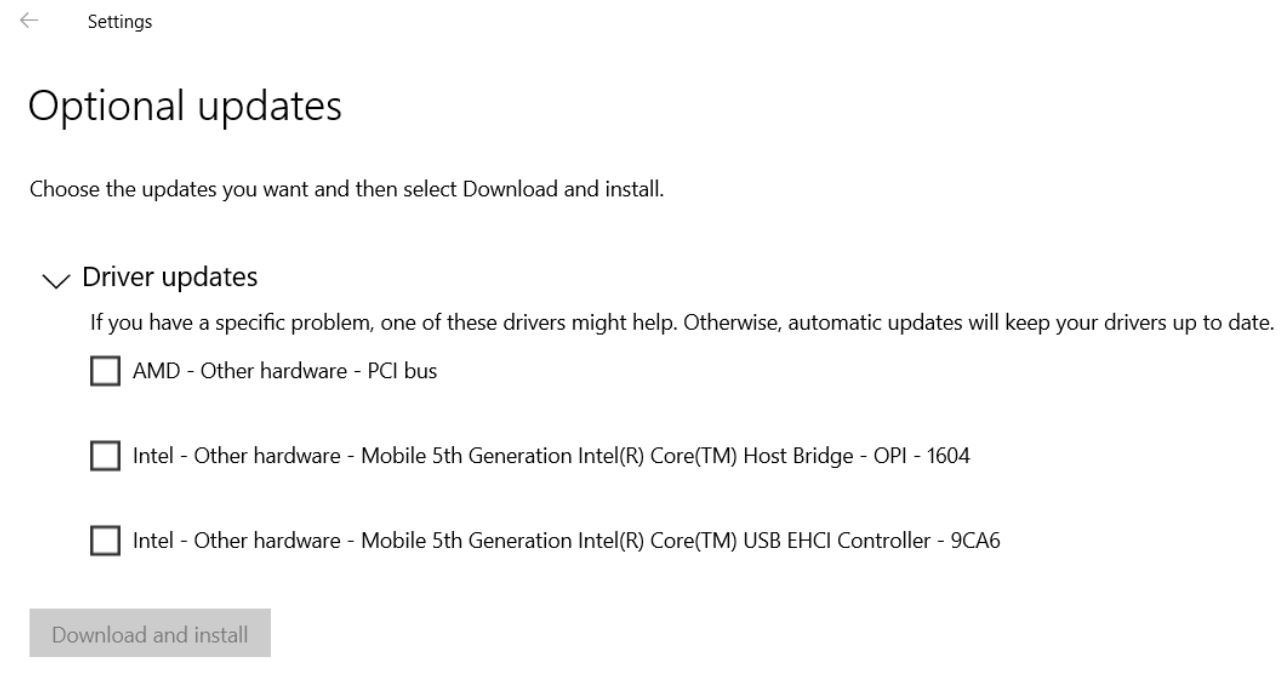
Here’s an interesting tidbit from the MS Hardware Dev Center, posted February 18. It comes from Senior Program Manager Kevin Tremblay who focuses on Windows OneCore (OS kernel, methinks) and “device enablement” (LinkedIn Profile). Going forward, device driver updates for Windows 10 will always show up in Windows Update as “Optional updates.” Because future Win10 updates all optional now, that means users must initiate such updates manually. In fact, working through the process means:

1. Clicking Optional Updates

2. Checking boxes next to one or more available device driver updates

3. Clicking a “Download and install” button on the Optional updates page to initiate (and approve) those activities.

Here’s what a sample Drive updates window looks like, showing the checkboxes and the “Download and install” button. I’ve already made use of this feature myself on Fast Ring Insider Preview test machines, and can confirm it works as it’s supposed to from personal experience.

Future Win10 Driver Updates All Optional.example

Going forward, Win10 users will have to acquiese and participate actively, before WU will install device drivers on their PCs.
[Click image for full-sized view.]

If Future Win10 Driver Updates All Optional, Then What?

Previous Win10 feature updates have come in for qvetching, criticism, and occasional cries of anguish because of updates installed automatically. They could show up, without prior warning for users. This denies them the opportunity to refuse, or to take preventive measures (a backup image to restore should something go sideways, for example). As far as device drivers go, this is now off the table. Good on Microsoft, for making this change. Because drivers are a perennial and predictable source for post-update instability, this new approach provides a way to avoid trouble, rather than having to clean up a post-update mess. But wait? Isn’t this the way things worked in Windows 7 and 8.x versions. What was once old, is now new again, it seems. A welcome bit of news nevertheless!

Facebooklinkedin
Facebooklinkedin