Category Archives: Remote Desktop (RDP)

Canary Jump Sows Predictable Chaos

After recently clean installing the 2021-vintage Lenovo ThinkPad X12 Detachable Tablet Gen 1 I decided to leave it running a production build.  That means I needed a new Canary channel test machine. So this morning, I upgraded the 2025-vintage ThinkPad P16 Gen 3 to that Insider Preview level. Unsurprisingly, this “Canary jump” sows predictable chaos. Let me tell you what happened, and what I did to recover…

Why Say: Canary Jump Sows Predictable Chaos?

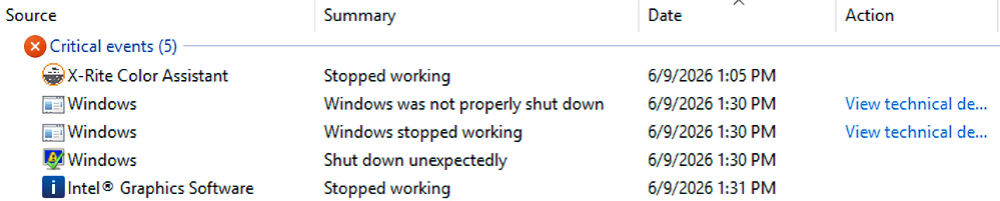
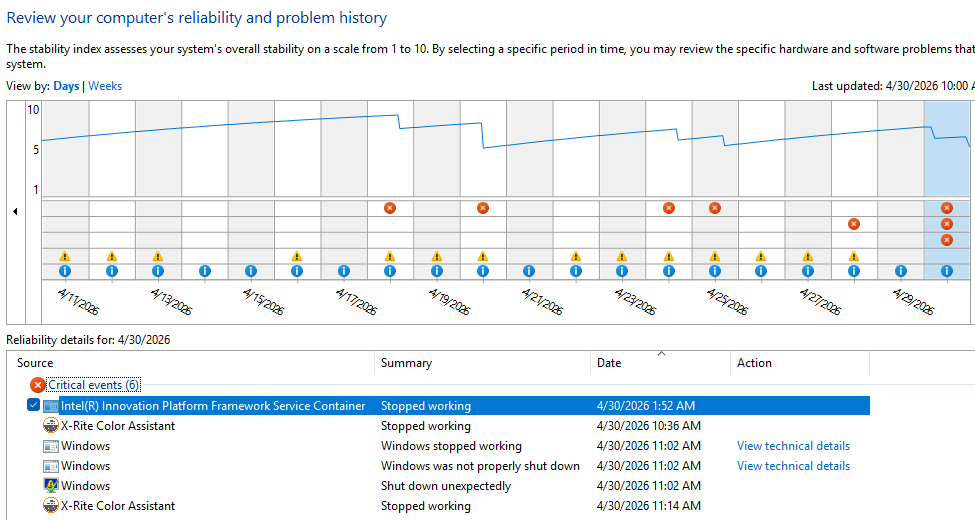
No sooner did I reboot into Canary Build 26300.8246 than did all hell start breaking loose. As is my usual practice, I remoted into that PC from my Flo6 desktop — but not for long. In under less than a minute the PC crashed, and threw a slew of interesting “Critical events” as it went down. You can see them depicted in the lead-in screencap.

Of the 6 items in that list, numbers two through five are relevant. That’s because all cluster in the same minute (11:02 AM) and all are related to my remote session failing, then Windows crashing. The X-Rite Color event simply reflects the program’s unhappiness with running in a remote session (it appears again as item 6, when I start my next remote session).

The others are worth visiting in a little more detail:
• Windows stopped working comes from a bugcheck. Copilot tells me this is most likely owing to firmware or driver issues between the laptop and this bleeding edge release
• This provoked the “not properly shut down” as Windows crashed
• It culminates in the “shut down unexpectedly” as Windows turned itself off
At the start of this sequence an illegal memory reference kicked things off. This is why firmware and drivers are suspects: they’re the most likely perpetrators of such untoward acts.

Chaos Cleanup on Aisle 7!

I now understand my cleanup, had it been performed before upgrading to Canary, might have prevented the crash that occurred. I visited Lenovo Vantage, found a new UEFI update, and installed it. I ran Intel DSA, found four new drivers, and installed them. I ran the NVIDIA app, found new driver version 596.36, and installed it, too.

Now the P16G3 laptop seems to be purring right along. I’ll take it as a lesson learned (and probably re-learned) that it’s a good idea to update firmware and drivers before making major OS changes. Now that I actually stop to THINK about it, that makes pretty good sense. Even in Windows-World, it’s better to plan and aim before firing…

Facebooklinkedin
Facebooklinkedin

Power Outages Mung LAN Addressing

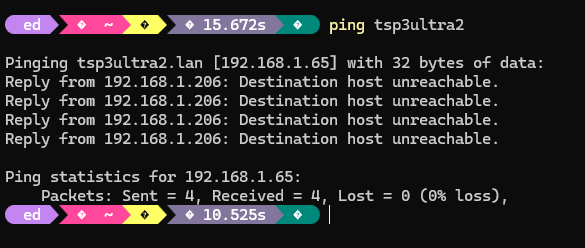
With clear skies yesterday, our house nevertheless took two power hits yesterday. The first lasted 15 minutes, the second 11 (had to reset certain appliance clocks both times). When I tried to remote into the ThinkStation P3 Ultra this morning, RDP wouldn’t connect. So I tried pinging the host name (Tsp3Ultra2) and got “destination host unreachable.” Pretty conclusive proof that power outages mung LAN addressing, since that very string worked fine yesterday.

If Power Outages Mung LAN Addressing, Then?

For the time being I’ve got Advanced IP Scanner open, and am using the “Tools” option for each network node to call Remote Desktop Connection. That tells me which PC I’m trying to get at, and uses its IP address to make things work. Good enough for now, I guess.

I’ve observed that the name table will gradually correct itself over a 24-hour period. Since our last outage happened just before 5 PM yesterday, that means I can return to using machine names for remote access later this evening. In the meantime, I have a decent workaround.

A quick check tells me that only some PCs were affected by the outage. Not surprisingly, the laptops (kept alive by batteries durng the outage) retain their machine name-to-address relationships. The desktops and mini-PCs (except Flo6, which is on a UPS) have all been renumbered.

Here in Windows-World, it’s always something. Yesterday, it was a quick pair of power glitches. Who knows what’ll hit me today?

Note Added Next Day

As I had suspected (or hoped), the machine names are now all working again. As is typical here at Chez Tittel, a 24-hour period is long enough for DHCP to work itself into usable shape. Now I know that a power glitch (or two) can upset that delicate balance. I’ll probably be reminded again sometime soon, now that thunderstorm season here in Central Texas is getting started. This time, I think the glitch came from construction work at the edge of our neighborhood where power goes from overhead to underground lines.


Facebooklinkedin
Facebooklinkedin

Ongoing Reboot Issues Affect RDP

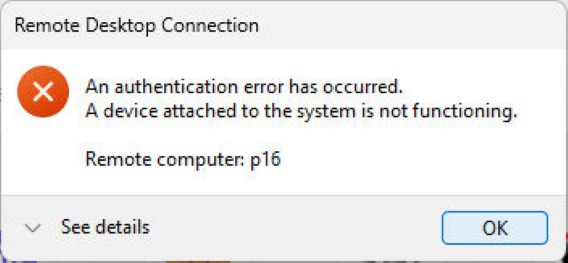
I’m still struggling with reboot issues on Flo6. Lately, I have to go through the infamous “new CPU detection” alert, then deny it, before I get into Windows 11. After multiple such reboots just now, I elected to stay logged in and get some work done. No such luck: my ongoing reboot issues affect RDP. On the way to a working session, I got the mysterious error window you see as the lead-in graphic.

Why Do Ongoing Reboot Issues Affect RDP?

It seems that multiple successive reboots in Windows 11 can impact RDP. This can lead to stale RDP capability caches, stale virtual device handles, TPM/Hello falling shy of full initialization, mismatched channel GUIDs, and more. In short, things get shook up and need to settle down.

What’s interesting — and amusing — about this error is that it’s not really an error. Closer inspection reveals it carries error and extended error codes that are null (0x0) in value. And indeed, right after the error window popped up, an RDP session into P16  opened up and worked like a champ.

What Happened Here?

Though it’s reported as an authentication error, it actually occurred during virtual channel negotiation between Flo6 and P16. Naturally, that indicates both devices were working just fine, thanks, and trying to get together. Copilot speculates — and I concur — that the most likely culprit is a Windows Hello redirection problem. (That’s mostly guaranteed by my turning fTPM off on one boot to kick start that process, then turning it back on.)

Boy howdy, things do sometimes get strange here in Windows-World, though. On the whole, I’d rather have a bogus error that fixes itself (or isn’t really an error) than have a serious glitch that requires further troubleshooting. I’ve had enough of that already today, thanks very much!

Facebooklinkedin
Facebooklinkedin

Another Take On Failed RDP Login Fix

Last Friday, I packed up the tiny but nifty Lenovo ThinkCentre Neo 50q to ship it back to North Carolina. Then, I stood the small but mighty ThinkStation P3 Ultra Gen2 up in its place. When I tried to RDP into that machine to catch it up with changes since it went dark in early January, it wouldn’t let me log in with my usual MSA. “I’ve seen this before,” I thought, as I recalled my Feb 19 blog on this very topic. That previous fix had changed the folder name for my user account and I wanted to avoid that on the P3Ultra2 if possible. So, I took another take on failed RDP login fix and came up with something better. Let me explain…

Details: Another Take on Failed RDP Login Fix

The P3 Ultra2 had been healthy after its identity‑stack cleanup, TPM reseal, and scheduled‑task repairs. Local login worked. The system was stable. Nothing in the logs suggested trouble. But RDP refused to authenticate. Every attempt failed with the same unhelpful message: “The credentials did not work.” The username was correct. The password was correct. The account was enabled. The SID matched. The machine was healthy. Yet RDP would not accept the credentials under any circumstances.

When this kind of failure presents, there’s usually some mismatch between the local Windows identity and the identity info RDP uses for remote validation. TL;DR version: that was exactly what went wrong.

Why Correct Credentials Failed RDP Validation

The key understanding requires knowing how RDP handles MSAs. When a user signs into a Windows PC locally, her or she can use Windows Hello, a PIN, or security tokens. That said, RDP cannot use any of these for remote login validation. Indeed, RDP requires a local NT password hash stored in the SAM on the target PC. If no such hash exists, RDP can’t validate user login input, even if the supplied password for an MSA is correct and current.

Here’s what went wrong on P3Ultra2: the MSA acccount had never generated a local password hash. From the first login, Windows 11 used Hello-based authentication. Alas, that means the SAM never got a password hash for that account. Locally, things worked as expected (because Hello could — and did — work with cloud based authentication). RDP could find no password hash and thus could not authenticate.

The Fix Is In, and Dead Easy

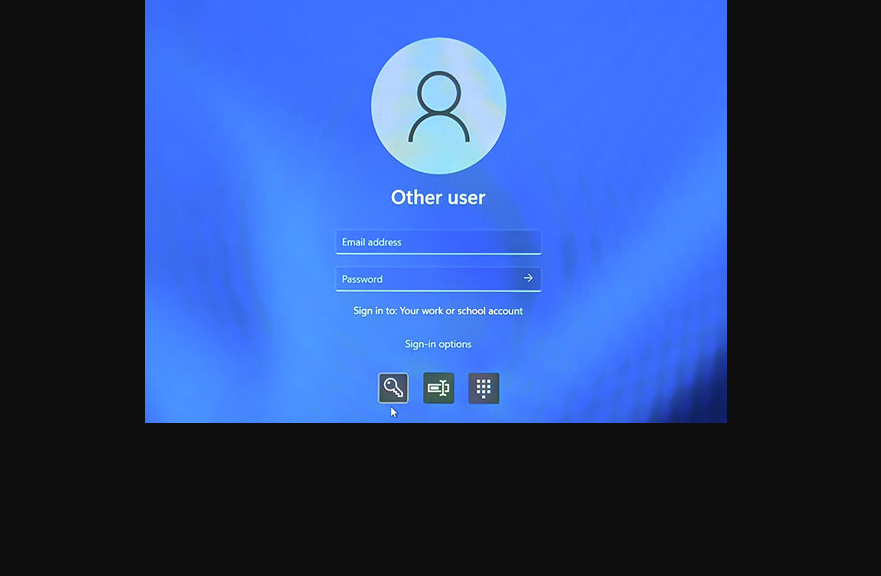
All I had to do was to sit down in front of the P3Ultra2 and force it to use the password for a single login. I did so at the lock screen by clicking the password icon (middle position in lead-in graphic) and then typing in the account password.

As soon as I did that, Windows automatically generated the NT password hash for that MSA. With that value now available, RDP immediately opened its remote access doors on my next try to get into P3Ultra2 through the Remote Desktop Connection App. Problem solved.

Sometimes, problems in Windows-World are huge and hairy. Sometimes, they’re astoundingly simple — as long as you can figure out what’s really going on. This particular RDP thing fell into the latter category. I’m glad I now understand, and gladder still it’s fixed.

Facebooklinkedin
Facebooklinkedin

Fixing Failed MSA Remote Login

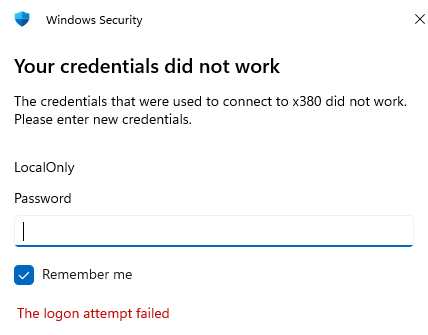
Every so often, I run into Windows 11 behavior odd enough to make me scratch my head. Occasionally, I’ll observe that my Microsoft Account (MSA) logins work perfectly at the local console. But they fail constantly if used within Remote Desktop Connection. The error? A familiar one: ‘Your credentials did not work. The logon attempt failed.’ Today, I’ll explain what worked for me when fixing failed MSA remote login.

In the meantime, I’d been working around this issue by setting up a Local account named “LocalOnly.” You can see it mentioned in the lead-in graphic for this blog post. If my upcoming technique doesn’t restore your MSA’s remote access as it did mine, you can use a local account to remote into a balky remote host if your MSA won’t work.

Refusal of Known, Good, Working Login

You may see this message while trying to RDP into a Windows 11 machine using an MSA. If so, you know how frustrating it is. Especially when you know those credentials are correct, and you can use them locally, no problem. What gives?

As it turns out, the answer lies in a complex and sometimes fragile identity stack that underpins Windows 11’s user authentication . Let’s unpack what’s going on under that hood.

Windows 11’s identity model for MSAs is built on three interdependent layers:

  1. SAM (Security Account Manager) – The local account database. It stores user SIDs (Security Identifiers) & basic account metadata.
  2. WAM (Web Account Manager) – The token broker that handles cloud authentication for MSAs. It’s responsible for storing and refreshing tokens so services like RDP can validate your identity.
  3. Ngc (Next Generation Credentials) – This layer handles Windows Hello and TPM-tied credentials, like PINs & biometric logins.

When all these layers are working and cooperating, things go swimmingly. Sometime though, particularly on Insider builds where MS is messing with this identity stack, things can get weird. Over time changes can mean an MSA works locally but not remotely.

A Swicheroo Is Key to Fixing Failed MSA Remote Login

Here’s what was happening on my ThinkPad X380 Yoga. I could log in locally using my MSA. But RDP logins would consistently get refused with the error message that serves as the lead-in graphic. After ruling out more obvious causes (e.g. network issues, RDP settings, firewall rules) I thought about the situation. Because local login worked, SAM and Ngc layers were probably OK. That presented WAM as a likely cause.

The fix, then, was simple. I rebuilt the WAM token cache, to make sure all pieces harmonized. Here’s what I did:

1. Log in locally using MSA
2. Visit Settings > Accounts > Your info
3. Change to “Sign in with a local account instead”
4. Sign out, or Reboot PC
5. Login locally using local account name/pwd
6. Visit Settings > Accounts > Your info
7. Change to “Log in with a Microsoft account”
8. Reboot PC

The switcheroo undid the link between the MSA and the account, made it local, then re-established a new connection. That completely rebuilds the whole infrastructure, including the WAM.

After that switcheroo (MSA > Local > MSA) RDP worked fine from my Flo6 primary desktop into the X380. The odds are good this technique will work for you, if you get caught in this situation. Here in Windows-World, a switcheroo sometimes works wonders. It did here, anyway!


Facebooklinkedin
Facebooklinkedin

Odd Restart Following KB5074109

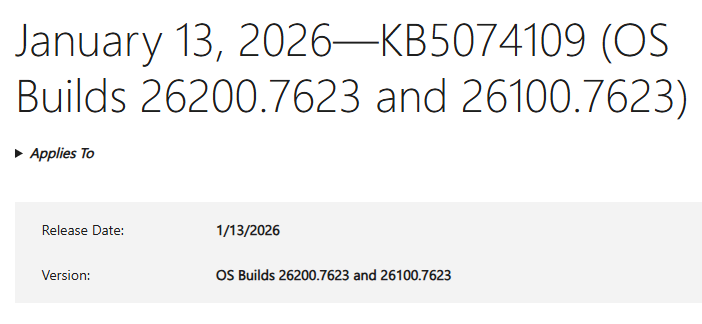
Yesterday was Patch Tuesday. This morning, I checked over the fleet to make sure all had gone well. With one exception — the Lenovo ThinkPad P16 Gen1 — it had. But the P16 showed me a restart behavior I’d never seen before.  Indeed, I can only observe this machine experienced an odd restart following KB5074109. Let me explain what happened…

Delineating Odd Restart Following KB5074109

Some of this oddity is no doubt self-induced. I fired off the restart command in Windows Update through an RDP session. That closed the remote desktop session on the client. On the P16 host, the logged-in Windows session kept running. The desktop stayed visible, and the Start menu popped up in response to the usual cursor activity. But apps didn’t work, and I couldn’t open settings to fire off the restart command again. Even more interestingly, the power button in the Start menu didn’t work either. How to force a restart?

WinKey-X let me open an administrative Windows Terminal session. From there I used shutdown /r /f /t 0, where /r tells Windows to restart, /f summarily kills any open apps that might otherwise block restart (seemed like a good idea to me, given circumstances), and /t 0 tells shutdown to do its thing right away (in 0 seconds, that is).

That did the trick! The P16 transitioned into an “Updates underway” screen that let me know the pending updates were being applied. Then it restarted, finished the post-GUI update process, and took me to the desktop.

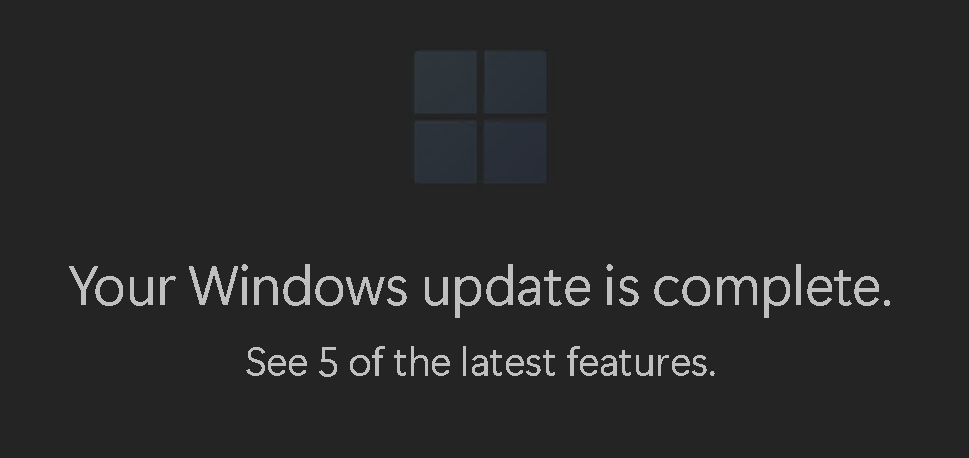
How do I know it worked? Edge popped up the now-customary post update browser window as the P16 finished booting to the desktop:

Problem solved, I guess. I’m not sure what caused this strange behavior. I didn’t see this on any of my other updated PCs or VMs, But then I didn’t have RDP sessions open into them at the time, either. Just another niggling little mystery here in Windows-World. Just another normal day…

Facebooklinkedin
Facebooklinkedin

Screen Change Breaks Advanced IP Scanner

Ooo wee ooo… Things got weird here at Chez Tittel this week. On Tuesday, I blogged about moving my Main display from left-hand monitor (1) to right-hand monitor (2). It gives improved visibility to the notification area. Alas, that screen priority change breaks Advanced IP Scanner, a favorite remote access monitoring and management tool of mine. Buckle up, kids: this is how the weirdness crept in…

How Screen Change Breaks Advanced IP Scanner

It drove me crazy, in fact. After the switchover, if I ran Advanced IP Scanner (I’ll abbreviate it as AIS from now on), it would launch. I’d see the window open briefly, and move to the right of my right-hand screen. Any attempts to bring it back into a visible spot on either monitor didn’t work. And it showed up on the Taskbar thumbnail as an empty white box.

Only when I went back to Settings > System > Display and reset the left-hand monitor as “Main display” did AIS reappear in viewable form. I’ve seen some quirks and oddities in my 30-plus year history with Windows, but this one ranks right up there near the top.

Because I have to choose between using AIS and easier access to the Notification area, I’m going with AIS (and have restored (1) as the main display). Why? Because I’m always messing with other PCs on my LAN and I like to remote into them. AIS makes it dead simple to open a Remote Desktop Connection into them via their current IP address. Local address tables get flaky when, as I often do, I switch units between Wi-Fi and wired Ethernet. So I’m choosing convenience over visibility.

And boy howdy, is that the way things sometimes go here in Windows-World. All I can say is “Happy Friday!”

Facebooklinkedin
Facebooklinkedin

Welcome RDP Session Handling Change

I’m not sure when the change I’m about to document happened, but I just noticed it this morning. Last night before heading off to bed, I put my production desktop to sleep. At the time, I had 3 RDP sessions running elsewhere on my LAN. When I logged in this morning, instead of finding 3 Remote Desktop Connection prompts to re-establish those sessions, I found login prompts on lock screens into those sessions instead. This is a welcome RDP session handling change, as far as I can tell. I’m glad to see it.

Why Say: Welcome RDP Session Handling Change

As you can see, the lock screen snippet in the lead-in graphic shows my LocalOnly account. That’s a — you guessed it — purely local Windows account I use to establish RDP sessions into Windows 11 PCs that won’t let me log in using my preferred Microsoft Account (MSA).

When I saw that show up inside a Remote Desktop Connection session window (or three) this morning, I knew what it meant. It meant that MS kept the remote session ready to re-start, even though the client half of that session (my production desktop) had been asleep. That’s both good and convenient.

Copilot Sheds More Light

Copilot says that recent builds like 26200.6901 (what I’m running on the Flo6 right now) offer persistent RDP sessions across sleep/wake cycles. Instead of summary disconnection — the way things used to work — they now lock open RDP sessions (which is why I had to log back into them) and preserve memory state and open windows.

Good to know! This is what I call a nice surprise in Windows-World. Glad to see that MS has made this change: it makes my job easier.

Facebooklinkedin
Facebooklinkedin

Latest Beta CU Keeps Remote MSA Login Glitch

OK, then. I just logged into the ThinkPad X380 Yoga, where I run the Windows 11 Beta Channel Insider Previews.  I’ve been forced to remote into that laptop using a local account for months. But just now, I got fooled by a successful MSA login to Office immediately after login on that PC. I thought the MSA issue was fixed, but I thought wrong. The Remote Desktop Connection used my LocalOnly account to set up that remote session, after which the MSA worked fine to login through MS to access Office. Despite my hopes to the contrary, the latest Beta CU keeps remote MSA login glitch. Sigh.

Showing Latest Beta CU Fixes Remote MSA Login Glitch

If you look at the lead-in graphic, you’ll see two important things. One, Office asking me if I want to stay signed in. Two, it’s showing the account that stays that way if I agree (“Yes”) is an MSA. For the record, that is an old, expired MSA whose mail server/domain got turned off in 2024, so I don’t mind sharing it publicly. But as I explained, that’s not the same account that Remote Desktop Connection used to make the RDP connection in the first place. I got fooled!

The interesting thing, of course, is that RDP (via the Remote Desktop Connection, aka mstsc.exe) is still cannot resolve MSA lookups to the MS authentication servers during login. I’m still getting an invalid credentials error. I’ve also seen “unable to contact LSA” (Local Security Authority) errors as well. Sigh again.

Even though I tried an MSA, the error message still shows the local account.

With the update to Build 26120.6780 in the wake of KB5067103, that problem seems to persist. But, I’ve been through this on-again, off-again ability to use MSA logins for RDP for some time now. So I’m wondering: when will MS fix this thing? That’s the way things go with Insider Previews, here in Windows-World. As long as I can work around it, that’s OK!

Facebooklinkedin
Facebooklinkedin

Remote Desktop Connection LSA Error

Over the past couple of years, I’ve noticed that establishing an RDP session from my primary desktop to other PCs sometimes fails under specific circumstances. I’m researching a story about this for Mayank Pamar at WindowsLatest, so keep an eye out for that opus. It’ll probably hit next week. When I attempt to get into some of my Windows 11 PCs (the only kind of physical PC I have any more), my login will occasionally be refused if I use a Microsoft Account (MSA). Indeed I’ll see a Remote Desktop Connection LSA error that reads “The Local Security Authority cannot be contacted.”

What Causes Remote Desktop Connection LSA Error?

Interestingly, there are a number of possible causes. Some are easy to fix, others fall on third parties. Here’s a partial list:

  • OS can’t validate credentials, particularly MSA logins (the most common and obvious reason, but one users cannot easily fix themselves)
  • Secure channel negotiation (to exchange credentials) fails
  • Time sync or DNS resolution fails
  • Credential policies are somehow misconfigured

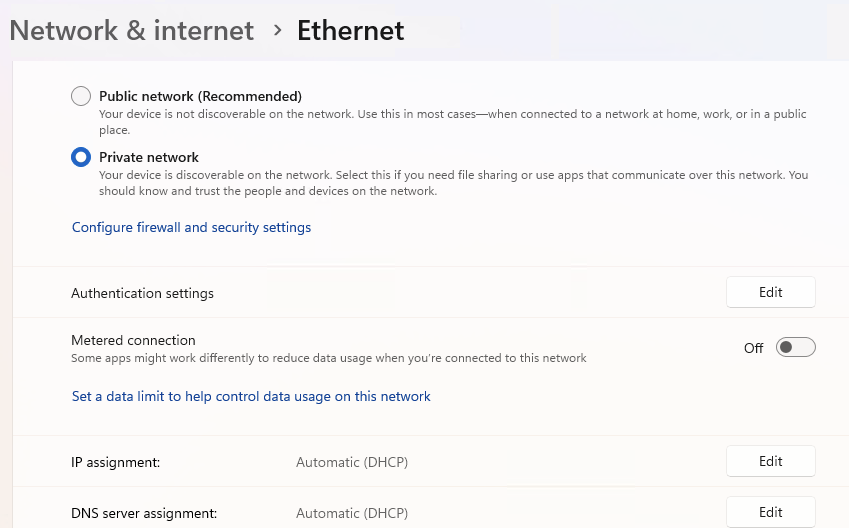
Time sync and DNS stuff is probably the most approachable, so they’re worth trying. For the former that means Settings > Time & Language > Date & time > Sync now (under Additional Settings). For the latter, it’s only meaningful if using manual DHCP assignment, in which case Setting > Network & Internet > Ethernet or Wi-Fi > Edit DNS Settings > define preferred and backup DNS server addresses. Most users will get their DNS server assignments via DHCP.

The other items are a bit more convoluted. I’ll get to them in my upcoming story. Here in this brief blog, I’ll “leave them as an exercise for the reader” in the classic ploy used to avoid heavy lifting in so many, many textbooks I’ve read over the years…

A Typical (and Useful) Workaround

If I can’t get into a PC using my MSA, I’ll set up a local account on the affected machine with admin privileges and use that to RDP into the machine instead. This might cause issues on machines where you want or need access to account-speicific files or data (e.g. the associated C:\users\<name> folder hierarchy). But otherwise it works OK. In a small and unscientific survey of my local fleet, I’ve had to do this on just under half the machines (4 out of 9), most of which are running Insider Preview releases (and thus, have their foibles).

Here in Windows-World, if you can’t do things the way you want to, you must sometimes do them some other way. Obtaining RDP access to some of my test and experimental PCs puts me in those shoes from time to time. So it goes!

Facebooklinkedin
Facebooklinkedin