Yesterday, I found myself revising a story for ComputerWorld. The topic: cleaning up Windows driver bloat using DriverStore Explorer, aka RAPR.exe. Along the way I found myself wanting to count the drivers in that store, and to identify duplicates for possible removal. Performing what I’m calling Copilot assisted RAPR analysis, I had it craft some Powershell for me. Came in really handy, so I’ll explain and illustrate what I used…
Enumerating Copilot Assisted RAPR Analysis Items
I used two one-liner PowerShell commands, plus one script, to do the following:
- Provide a count for the number of drivers in the store (found in C:\Windows\System32\DriverStore\FileRepository)
- Display the total file size of the store’s contents (same place)
- Enumerate and identify the duplicates in the store (script)
These items are helpful because running the first two one-liners let me quickly count items and obtain their overall file size. Handy for before and after comparisons. The script was useful because it let me identify duplicates in the store, which RAPR does not always remove when you use the “Select (Old Drivers)” and “Delete Driver(s)” buttons for clean-up purposes.
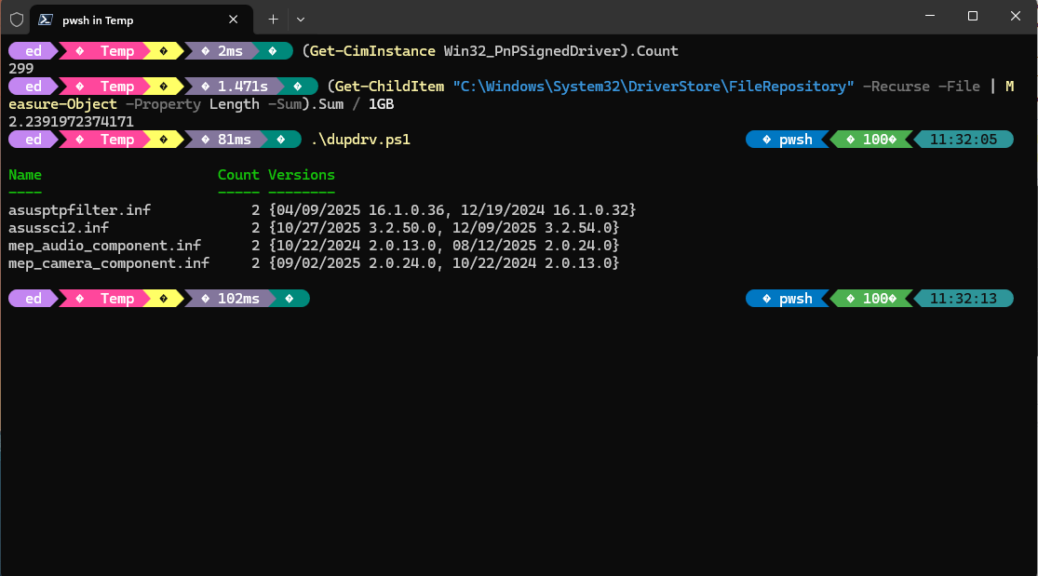
If you look at the lead-in screenshot it shows the one-liners for making a count and getting size verbatim, and calls a script named dupdrv.ps1. The results also appear as well. These all represent post-cleanup results, FWIW.
PowerShell Details: One-Liners and Script
To obtain the count, PowerShell runs through all instances of signed PnP drivers in the store, and tots them up:
(Get-CimInstance Win32_PnPSignedDriver).Count
To get the size of the overall DriverStore, PowerShell examines each file, gets its size, adds it to a growing sum, then shows it in GB units:
(Get-ChildItem "C:\Windows\System32\DriverStore\FileRepository" -Recurse -File | Measure-Object -Property Length -Sum).Sum / 1GB
The script is longer and a little more complicated. Basically, it iterates through all files in the DriverStore, builds a table of unique entries by name, and counts all instances it finds. It reports only on instances that have counts of 2 or more (indicating duplicates).
pnputil /enum-drivers |

Select-String "Published Name","Original Name","Provider Name","Driver Version" |

ForEach-Object {

if ($_.ToString() -match "Published Name\s*:\s*(.*)") { $pub = $matches[1] }

if ($_.ToString() -match "Original Name\s*:\s*(.*)") { $inf = $matches[1] }

if ($_.ToString() -match "Driver Version\s*:\s*(.*)") { $ver = $matches[1] }

if ($pub -and $inf -and $ver) {

[PSCustomObject]@{

PublishedName = $pub

InfName = $inf

Version = $ver

}

$pub = $inf = $ver = $null

}

} |

Group-Object InfName |

Where-Object { $_.Count -gt 1 } |

Select-Object Name, Count, @{n="Versions";e={$_.Group.Version}}
These tools come in nice and handy when using RAPR to clean up a driver store. Indeed, they even extend its capabilities beyond finding old and obsolete drivers. They also identify duplicates as well. Sometimes, those too can be cleaned up. Good thing that trying to delete a driver in actual use in RAPR won’t succeed unless the “Force Deletion” option is checked. I don’t recommend using that unless you know you must for some good reason. I certainly didn’t need that here.
Benefiting from Copilot Assist
For updating this story, Copilot made it faster, easier and more convenient for me to do what I needed to anyway. That’s good. But it also let me step beyond what I’d been able to do by way of driver debloating in the past, and tackle duplicate elements as well. That’s about as good as things ever get, here in Windows-World. I’m jazzed!


Nice Ed.
Thanks!