
Over the weekend, I transported one of my ThinkPad P16 Mobile workstations to a neighbor’s house. When I unpacked the unit from its knapsack, I noticed that it was pretty warm (and so was the interior of the bag). “What’s up with that?” I wondered. I’d closed the lid, but hadn’t shut the unit down. That was on me, as a little bit of investigating clued me into what’s needed when it comes to avoiding excess laptop power drain. Let me explain…
Power Options Key to Avoiding Excess Laptop Power Drain
Here’s the skinny: by default, my ThinkPad P16 Mobile Workstations go into S0 sleep but maintain network connection. Here’s how the powercfg /a command reports that state:
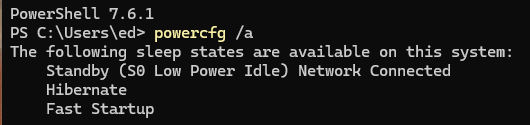 Basically, the network connection stays up even though the unit itself is mostly idle. Alas, when moving the unit by walking down the street, I’m entering and exiting WiFi domains at a pretty serious clip. Indeed, I’d bet big money that on Arbor Drive, not a single house has less than one active WiFi domain (I’ve got 4, if you count low- and high-bandwidth channels for SSIDs separately). That kept the NIC kinda busy and didn’t really idle the machine at all.
Hence the item shown as the lead-in graphic for this blog post. If you go into Power Options you can change the “Close Lid” setting to hibernate. That means the network connection goes quiet when the lid is closed, and the usual network traffic that might otherwise wake the machine does likewise.
Moving Around Makes Network Connection Iffy
If a laptop is on the move, making or using network connections is a chancy business. My neighbors may have SSIDs galore, but that doesn’t mean they’re sharing passwords with me. And it looks like most of them are smart enough to require WPA3-Personal these days, so guessing isn’t productive, either.
My point is that the network connection doesn’t really do anything except waste battery power when a laptop is on the move. For transport, that means the “Hibernate when lid is closed” setting shown above makes the most sense. That’s why it’s now my preferred move, before I shove the laptop into a knapsack or briefcase from now on.
All I need to do is remember to switch from hibernate to sleep when I get somwhere I plan to be (or work) for a while, and it’s all good. Here in Windows-World, responding to local conditions is a must, especially when it comes to conserving laptop battery life.


Welcome to the world of Modern Standby.
It’s been around for a while. Let me check some older Lenovo laptops…looks like 2020-2022 is a hard boundary for S0 vs S3. All my Lenovos older than 2020, plus my B550 2022 motherboards are still on S3. Everything else here (newer than 2022) is S0.
Go figure!
–Ed–
I highly recommend unchecking Fast Startup.
True enough. But it didn’t occur to me in the context of lid closed. Am I missing an important connection? If so, please explain…
Cheers,
–Ed–