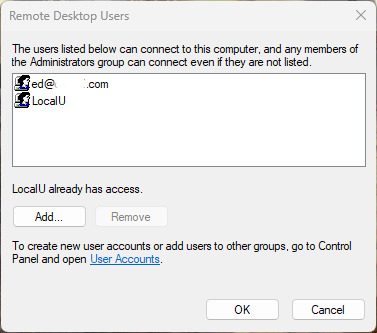
Here’s an interesting Windows 11 gotcha I ran into after a recent repair install on RyzenOfc. Remote Desktop worked perfectly with a local administrator account, but my usual Microsoft account refused a known-good password. The eventual fix was surprisingly simple: I had to log into RyzenOfc locally with that Microsoft account and its password once. Hence this post’s title: repair install requires local logins for working RDP.
That local login triggered the familiar “Setting a few things up…” sequence. After Windows finished its abbreviated OOBE-style setup, the same Microsoft account immediately worked for RDP from Flo6. Along the way, PowerShell provided some useful clues about what had survived the repair install and what had not.
Why Repair Install Requires Local Logins
From the get-go, I could RDP from Flo6 into RyzenOfc using the local administrator account LocalU. That eliminated a long list of suspects. The network path worked, Remote Desktop was enabled, and the target system was accepting RDP connections. Indeed, the failure was specific to my Microsoft account.
Windows returned the wonderfully nonspecific message “Your credentials did not work.” I knew the password was correct, so I started by examining the accounts RyzenOfc knew about.
PowerShell Exposes 2 MSAs
This command listed the local account records and their origins:
Get-CimInstance Win32_UserAccount -Filter "LocalAccount=True" |

Select-Object Name, Caption, SID, Disabled
The interesting entries were ed and etitt. Both showed up as MicrosoftAccount identities (aka MSAs). I already knew etitt belonged to an old, obsolete Microsoft account. That made ed, with SID ending in -1002, the account of interest. In fact, that’s my current go-to user account.
Next I checked RDP and administrator group membership:
Get-LocalGroupMember -Group "Remote Desktop Users"
Get-LocalGroupMember -Group “Administrators”
That produced another important clue. RYZENOFC\ed was already a member of Remote Desktop Users. RYZENOFC\etitt and LocalU were administrators. Thus the ed account did not lack RDP permission. Adding it to Administrators would have treated the symptom as a permissions problem when the evidence pointed elsewhere.
Missing Profile = Smoking Gun
I then looked at the account objects more closely:
Get-LocalUser |

Select-Object Name, SID, PrincipalSource, Enabled, LastLogon
Both ed and etitt were enabled and identified as MicrosoftAccount principals. But a query for their Windows profiles changed the picture:
Get-CimInstance Win32_UserProfile |
Where-Object SID -in @(
‘S-1-5-21-144170778-2336474949-3120614169-1001’,
‘S-1-5-21-144170778-2336474949-3120614169-1002’) |
Select-Object LocalPath, SID, Loaded, LastUseTime
Only the old etitt identity appeared, mapped to C:\Users\etitt. There was no Win32_UserProfile entry for ed. RyzenOfc knew that ed existed and even knew it was allowed to use Remote Desktop, but Windows had not yet initialized that user environment following the repair install.
Local Login Closes the Loop
That observation reminded me of something important: I had not logged into RyzenOfc with the ed@edtittel.com/password combination since performing a repair install a couple of weeks earlier. I had been relying on Windows Hello rather than forcing a conventional password login.
So I did exactly that at RyzenOfc. I selected the ed account, chose password sign-in, and supplied the known-good Microsoft account password. Windows responded with “Setting a few things up…” and went through the familiar first-login setup sequence.
That message explained a lot. The Microsoft account registration had survived, but Windows still needed to finish initializing the user’s post-repair environment. The password-based sign-in also gave Windows a fresh interactive authentication event for that Microsoft account on the target PC.
THEN, RDP Gets to Workin’
Windows Hello and a Microsoft account password are related to the same identity, but they are not interchangeable credentials. A Hello PIN is tied to the device and protected through Windows Hello mechanisms. An ordinary RDP connection using a Microsoft account password needs the target Windows installation to be able to validate that password-based identity.
Microsoft documentation describes Windows Hello as using cryptographic keys, while Microsoft community reports describe RDP failures after setup when password-based sign-in has not been established locally. Those reports also describe a successful local password login as restoring RDP password authentication.
That matches my RyzenOfc experience. Once the local login completed account and profile setup, I returned to Flo6 and connected using the ed Microsoft account. This time RDP accepted the same password it had rejected before.
Here Cometh the Lesson
The practical takeaway is straightforward. After a Windows repair install, don’t assume a preserved Microsoft account is fully ready for every authentication path just because Windows still lists it.
If RDP works with a local administrator but rejects a known-good Microsoft account password, check the account source, Remote Desktop Users membership, and Win32_UserProfile state before changing security policy. If the Microsoft-account profile has not been initialized, perform one local interactive login using the actual password rather than the PIN.
In my case, that little “Setting a few things up…” message told the story. Windows was finishing work the repair install had left pending. Once it completed, RDP was back in business. Here in Windows-World, I count that as a win!

