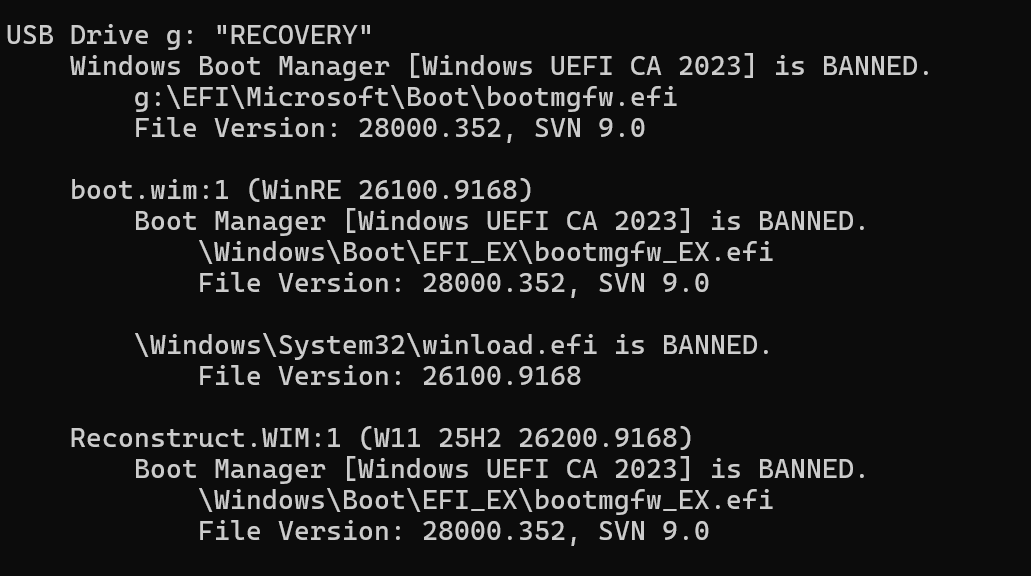
If you’ve been following Microsoft’s ongoing Secure Boot shenanigans, you already know the company has been rolling out a series of Secure Boot certificate revocations. This is a deliberate effort to invalidate boot signatures tied to older, potentially vulnerable boot components. The practical consequence is both important and easy to overlook. Boot media you created even last month may now carry BANNED boot files. That’s what had me doing the Recovery Drive rebuild this morning, in fact. Let me explain…but first look at the lead-in graphic from Garlin’s check_bootmedia script to see why I’m doing it.
Why I’m Doing the Recovery Drive Rebuild
The lead-in screencap shows the results of the Garlin script against the Recovery (G:) disk I built after last month’s Patch Tuesday (August 11). As you can see, it’s sadly out of date, BANNED across the board.
Alas, after this month’s Patch Tuesday (September 8) the G: drive features a boot manager or Windows Recovery Environment image signed with certificates that on Microsoft’s revocation list. On a fully-patched system with current DBX (Forbidden Signatures Database) entries loaded into firmware, that old recovery drive simply will not boot.
It fails Secure Boot validation with a “Secure Boot Violation” error from UEFI, leaving you with nothing but a blinking cursor when you need help most. Fortunately, a community member named Garlin created a PowerShell script called check_bootmedia.ps1 that diagnoses your boot media in seconds and tells you exactly which files are ALLOWED and which are BANNED. I’ve been running it across machines in my lab, and the results on my production desktop (named) Flo6 tell a very clear story.
Before the Rebuild: BANNED Rules!
Working from last month’s Recovery (G:) UFD, I ran Garlin’s check_bootmedia.ps1 against it. The output was unambiguous,but not in a good way. It appears as the lead-in graphic above. Indeed, this script reports that Flo6’s existing recovery drive is running WinRE.wim at build 26100.9168, with a File Version of 28000.352 and a SVN (Security Version Number) of 9.0. Every boot file examined — the boot manager and the WinRE image alike, comes back flagged as BANNED.
That designation is not positive: it means those files carry Secure Boot signatures that Microsoft has since explicitly revoked. Any PC with current DBX entries loaded into its UEFI firmware would refuse to execute those files at boot time. In other words, if Flo6 hit a serious failure tomorrow and I reached for that recovery drive, it simply wouldn’t boot on a fully-patched machine. Not acceptable!
After the Rebuild: ALLOWED Everywhere
I rebuilt Flo6’s recovery drive using the built-in Windows “Create a recovery drive” wizard. This requires no third-party tools, nor manual WIM manipulation, just theRecoveryDrive.exeutility. Once that process finished, I ran check_bootmedia.ps1 again. Take a look:
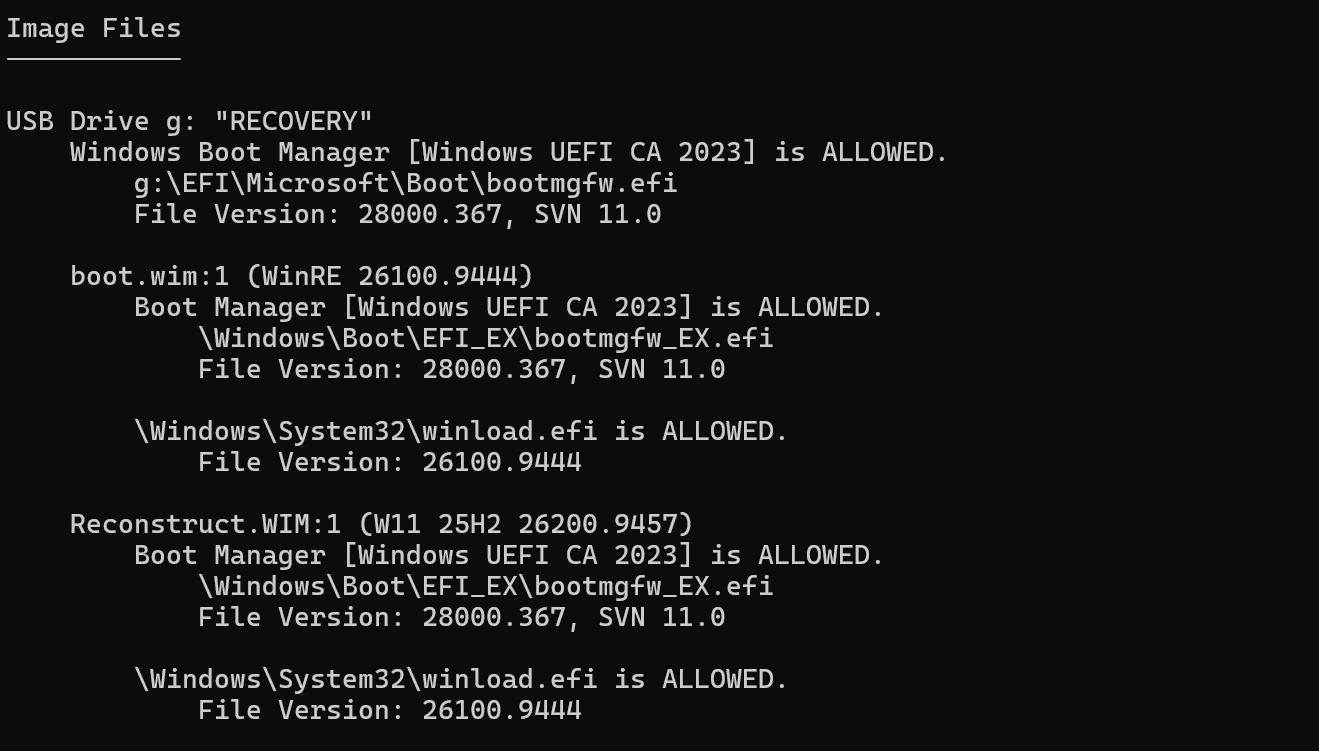
Everything that was BANNED before, is now ALLOWED. Good!
The transformation was total. The new drive reports WinRE.wim build 26100.9444, File Version 28000.367, and SVN 11.0. Every boot file now shows ALLOWED. The drive is clean, current, and will boot cleanly on any fully-patched Secure Boot system. The SVN jump from 9.0 to 11.0 is especially noteworthy: that’s two full security version increments, reflecting two distinct rounds of certificate revocations that have rolled through since the original image was created. Each SVN increment represents a deliberate decision by Microsoft to bar an entire generation of signed boot binaries from executing. Flo6’s old drive had missed both of them.
Why Did This Take SOOOOOOOOOO Long?
The recovery drive rebuild on Flo6 took well over an hour. If you’ve ever watched the progress bar crawl through a drive creation and wondered whether something was wrong, the answer is almost certainly: no, this is normal. Sigh. Here’s why.
These three main contributors to that long interval are worth understanding:
- USB write speed. Flo6’s target drive is a SanDisk SDC2340 UFD. Even though it’s a USB 3.x device, flash writes, especially the large, sequential writes that a
WinRE.wimdeployment demands are constrained by the drive’s NAND controller throughput and its write-endurance headroom. Consumer-grade flash storage routinely delivers sustained write speeds at a fraction of the peak specifications. Those rated speeds represent brief burst perfor-mance under ideal conditions, not multi-gigabyte sequential writes the wizard performs. - WinRE.wim compression and decompression. The Windows Recovery Environment image is stored in compressed WIM format. The wizard decompresses it, processes its contents, and then recompresses it to the target drive. That’s a full double-pass operation.Thus, it’s CPU-intensive on the decompression side, and I/O-intensive on both sides. This step alone accounts for the majority of the elapsed time on most systems.
- Verification. The wizard doesn’t just write and walk away. It verifies written blocks after the write completes. That adds another full sequential read pass across the whole drive. On a slow UFD, that additional pass adds 15 to 25 minutes by itself.
On a faster USB 3.2 Gen 2 drive with a quality controller (something like a Samsung Flash Drive or a Kingston DataTraveler Max) the same operation takes 15 to 20 minutes. On Flo6’s SanDisk SDC2340, over an hour is entirely too normal. Slow, but not broken.
Check Your Boot Media!
Here’s my recommendation. After any Windows Update CU, run Garlin’s check_bootmedia.ps1 against every bootable UFD you have. A recovery drive that passed muster six months ago may now carry BANNED files. That’s because the DBX doesn’t stop growing, and Microsoft shows no sign of slowing its revocation cadence.
The fix, as Flo6 demonstrates, is simply to rebuild. It costs you a USB drive, an hour of clock time, and nothing else. Flo6 is my production desktop, but the same process and the same stakes apply to every Windows 10 and Windows 11 PC you manage.
Maintaining a current, bootable recovery drive is table-stakes Windows hygiene. Also, it’s the kind of thing that feels unnecessary right until it’s the only thing that matters. Now, thanks to Garlin’s script, you have a fast, reliable way to prove yours is good. There’s no excuse not to check. Here in Windows-World, I call those “marching orders.” Start walking…

