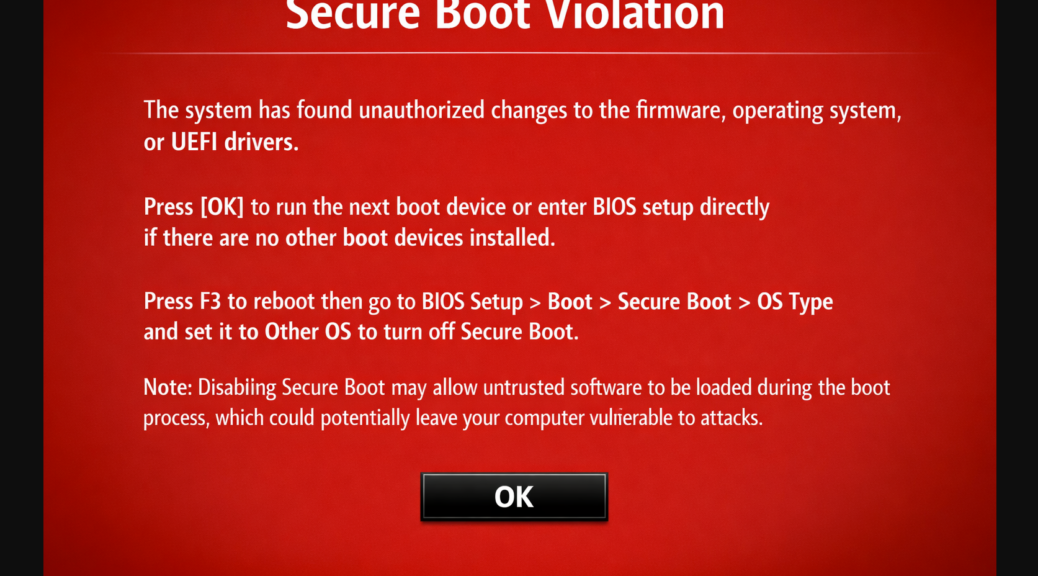
During the repair process for the X12 Hybrid Tablet (see Friday’s blog for details), I got to the point where I was ready to reboot after a couple of repairs. Those involved (1) running bcdboot to rebuild my boot files from scratch, and (2) telling Garlin’s update_UEFI... script to emplace SkuSiPolicy.P7b. After a first reboot, the boot screen showed red error text for a Secure Boot mismatch error (reporting that what’s in firmware differs from what wants to run). After a second reboot, the system came up clean with no errors at all. Indeed, that’s what’s supposed to happen and why I claim that two reboots are better than one!
To begin, it’s worth noting what those two steps actually do. Running bcdboot rebuilt the EFI System Partition boot files and restored a working Windows Boot Manager entry. The Garlin script then installed the production-variant SkuSiPolicy.p7b, which writes itself as a UEFI firmware variable enforcing production-level Secure Boot signing rules — rules stricter than the defaults many machines ship with. Consequently, the UEFI firmware suddenly had new staged SVN values sitting alongside the existing committed values in NVRAM. The first reboot is, therefore, where things got genuinely interesting.
Exploring Why Two Reboots ARE Better Than One: First Reboot
When the X12 attempted its first boot after the script ran, the firmware compared the newly staged SVN (Security Version Number) values against whatever was already written into UEFI NVRAM. Naturally, they didn’t match — because the new policy was not yet committed. That mismatch triggered the Secure Boot error you see mocked up as the lead-in graphic. However, and this is the critical part, that same first boot is exactly when Windows Boot Manager wrote the new SVN values out to the UEFI NVRAM, permanently committing the production policy into the chip’s non-volatile storage. The error, in other words, was not a failure. In fact, it was the system doing its job exactly as designed. The Secure Boot commit phase looks alarming on the surface; nonetheless, it is entirely intentional behavior.
Microsoft engineered this two-phase mechanism deliberately so that a mid-commit crash or power loss cannot brick the machine. Old NVRAM values stay valid until the new ones are fully written and confirmed. As a result, if the lights go out halfway through the commit, the firmware simply falls back to the previous known-good state. It is a genuinely elegant safety net (one that I have come to deeply appreciate after years of watching less careful UEFI implementations leave machines unbootable).
Reboot Two: Verifying a Clean Bill of Health
Furthermore, once the X12 had committed the new values on reboot one, the second reboot was simply the verification phase. With the NVRAM now holding the freshly committed data, the firmware ran its Secure Boot checks again. This time, FirmwareSVN, BootManagerSVN, and StagedSVN all agreed — and the machine booted clean, no error, no complaint. Running Get-SecureBootSVN from an elevated PowerShell prompt confirmed the result:
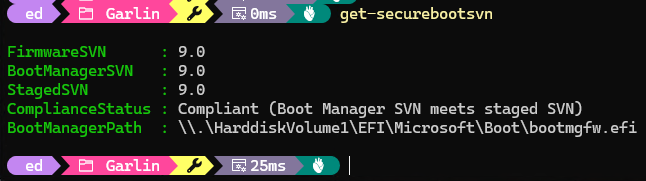
At this time, in fact, 9.0 is the current maximum enforced SVN — so this is a perfect result, not merely a passing grade. All three values align, and the ComplianceStatus line says exactly what you want it to say. The Secure Boot commit phase had done its work on reboot one; verification simply confirmed it on reboot two. The X12 was, in every sense, fully compliant with proper Secure Boot policy.
Two Reboots Makes a Pattern…
Moreover, this two-reboot pattern is not unique to my ThinkPad X12 repair scenario. It is the same deliberate mechanism Windows uses for DBX enforcement updates such as KB5012170. Microsoft designed it this way intentionally — if the machine loses power or crashes mid-commit, the old NVRAM values remain valid until the new ones are fully written and confirmed by a clean second boot.
IMO, the mismatch error on reboot one is a feature, not a bug. The Secure Boot commit phase genuinely requires two boots to complete safelyIndeed, that’s by design, not by accident. So next time you see a Secure Boot mismatch error on the first reboot after a repair or a policy update — don’t panic, don’t reach for the BIOS reset jumper, and definitely don’t call Microsoft support just yet. Just reboot again. Chances are, you’ll be greeted by a perfectly clean boot and Secure Boot status check outputs that make you smile.
Here in Windows-World, we take those smiles as we can get them, cheerfully and with good humor. Once the panic subsides, that is…

