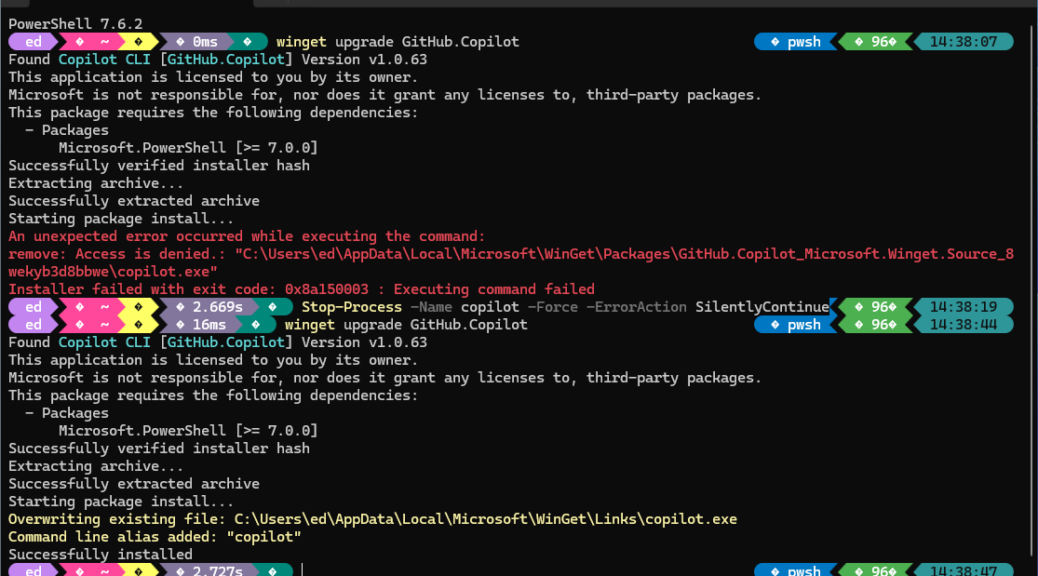
By design, the WinGet package manager is pretty conservative about working on apps that are running. With Copilot now active on my desktop most of the time, and even accessible in Windows Terminal (or rather, Intelligent Terminal) this goes double. Yesterday, in fact, my attempt at a WinGet Copilot CLI upgrade gets interesting when it fails with an “access denied” error message. Let’s figure this out, and apply a dead-easy fix.
What to Do When WinGet Copilot CLI Update Gets Interesting
You can see the first Winget failure, the fix, and a successful upgrade in series in the lead-in screencap. That fix provides a way to get Copilot out of the way so WinGet can do its thing without the possibility of messing anything up. Figure that Copilot is nearly always on my systems these days into your consideration and the runtime context.
That fix is:
Stop-Process -Name Copilot -Force -ErrorAction SilentlyContinue
Now, let me explain what’s going on, and this fix does the trick.
Why the First WinGet Upgrade Failed
The root cause is straightforward Windows behavior. The operating system won’t let any process overwrite a running executable. If you had an active terminal session that loaded the Copilot CLI — or any background shell or process that previously invoked it — the old copilot.exe is locked. The installer cannot swap in the new binary, so it fails, and reports explanatory error info.
This is not a WinGet bug. But WinGet could arguably handle it more gracefully. It could detect running processes before the upgrade begins and warn the user. Instead, it downloads everything, then fails at the last step. That may be disconcerting, or perhaps even frustrating, but it’s easily fixed.
The Fix: Kill All Copilot Processes, Then Retry
The fix is a two-step sequence. First, kill any running Copilot processes. Then retry the WinGet upgrade. In PowerShell, do that by running these two commands in sequence:
Stop-Process -Name copilot -Force -ErrorAction SilentlyContinue
winget upgrade GitHub.Copilot
[Note the first two lines are actually a one-liner with a spillover resulting from local formatting; run as a single command.] That’s what the screenshot at the top of this post illustrates. The first command runs cleanly even if no matching process exists. The
-ErrorAction SilentlyContinue flag does that by design and intent.
The second winget upgrade command then finds the package again, verifies the hash, extracts the archive, and this time completes successfully. You will see two confirmations appear: “Overwriting existing file” for the WinGet Links path, and “Command line alias added: ‘copilot’.” Then, finally: “Successfully installed.”
Noteworthy Postscript
A couple of additional observations from this experience deserve mention. First, note that Copilot CLI lists Microsoft.PowerShell (version 7.0.0 or later) as a required dependency. If you have not yet upgraded to PowerShell 7.x, WinGet may attempt to pull that in first. In this case, PowerShell 7.6.2.0 was already current, so that dependency check passed instantly.
Second, if you run WinGet from within VS Code’s integrated terminal, Windows Terminal, or any shell that has previously invoked gh copilot, (gh = GitHub, and is the target for copilot requests in a shell environment) you may hit this exact error. Opening a completely fresh PowerShell window before running the upgrade is often enough to sidestep the issue entirely. In that case, no Stop-Process is needed.
Third, this pattern is not unique to Copilot CLI. Any WinGet-managed package that ships as a standalone executable can run into this same locked-file problem during upgrades. Ditto for Web browsers (e.g. Chrome, Edge, Firefox, etc.) which many users, including your humble correspondent, tend to leave running all the time. For browsers the update may fail, it may not run at all, or you may need to “Relaunch” the browser so the updater applies that change file.
A Predictable Bump in the Road
WinGet is a solid package manager. It delivers smooth, hands-off upgrades nearly all the time. When it stumbles — as it did here — its error messages are descriptive enough for a quick diagnosis and fix.
One command to kill the offending process, a second WinGet command to retry, and you’re done. It is a minor contortion, but now you know that two-step. Here in Windows World, it’s good to keep tools current. To that end, don’t let a transient file lock slow you down. Fixed!

