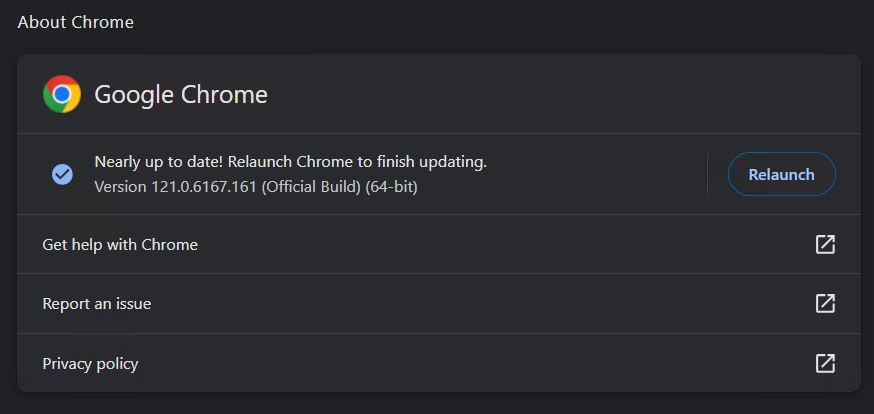
As far as I can tell, I’ve been blogging here about the Windows Package Manager — Winget, that is — since May 2022. Indeed it’s received regular mention ever since (nearly a third of all posts). I finally observed the other day that winget won’t update a browser with any of its processes running on the target PC. Also the browsers I use (Chrome, Firefox, Edge) still make you “Relaunch” to complete any update. This includes instances when Winget updates them successfully. Hence my assertion: Winget browser updates may be curious. And I mean both in terms of effect and outcome.
If Winget Browser Updates May Be Curious, Then?
It doesn’t stop me from trying, but the update doesn’t happen at all when any related process is running. Thus, for example, if any chrome.exe items show up in Task Manager>Details view, winget breezes past the update package and does nothing. Ditto for Firefox and Edge. But it’s a good flag for me to jump into each one’s Help>About facililty which is usually more than happy to update from insider the browser itself. And again, to request a “Relaunch” when that process comes to its conclusion.
It’s all part of the learning process in working with winget to keep Windows up-to-date. Sometimes — indeed nearly all the time — winget handles update packages quite nicely on its own. At other times (less often) winget acts as a sentinel to warn me that an update is available, which I then must figure out how to install.
Here’s a short list of such programs above and beyond the browsers already mentioned: Kindle for Windows, Discord, certain EA game executables, Teams Classic, Windows Terminal (now fixed), and even Winget itself from time to time. But gosh, it’s always fun to see what’s out there and what happens when winget wrangles update packages. It’s made my life ever so much more interesting (and updates easier) since it emerged in 2022.


Interesting point about Winget skipping updates entirely if any chrome.exe process is running—I’ve noticed the same thing and it’s a bit frustrating. I also find it ironic that even when Winget does manage to update, you still get that “Relaunch” prompt, so it’s not exactly a seamless automation. The Help > About workaround is a good tip, but it kind of defeats the purpose of using a package manager in the first place.
WinGet is deliberately conservative when applying updates. It won’t stop and restart the application, to permit the update to occur. Given that situation, if an application is open, it just skips around. I can’t say I like it, but I can say I understand what it’s doing and why. Hope that makes sense, and thanks for your input/feedback.
–Ed–
I’ve run into that exact same issue with background `chrome.exe` processes silently blocking my Winget updates. It’s frustrating to think you’ve updated everything, only to realize you still have to manually go to Help > About and relaunch the browser anyway. Honestly, at that point, it almost feels faster to just let the browsers handle their own updates from the start.
I agree. Thanks for sharing your perspective. -e-
I’ve run into this exact same issue with Winget refusing to update Firefox when there’s a background process still hanging around in Task Manager. Honestly, it’s usually just faster to open the Help > About menu directly instead of trying to hunt down and kill all those active executable instances first. The fact that you still have to relaunch the browser anyway really defeats the convenience of using a package manager for these specific apps.
Totally agree: if you have to relaunch the browser (and mostly, you do) why bother? It’s just another one of the charming things about Windows app updates, eh?
Thanks for posting,
–Ed–
It’s definitely annoying when Winget silently skips Chrome or Firefox just because a background process is still running in the Task Manager. I usually end up doing the Help > About route too, since it actually forces the update and prompts the relaunch right there. It kind of defeats the convenience of using a package manager for browsers, but at least there’s an easy workaround.
The browser behavior makes process state an important part of update automation, not just package availability. A failed winget update can be less a packaging problem than a signal that a background browser process, helper, or open window is still active. Clear pre-update messaging and a post-close retry can make the outcome easier to understand. It is also worth distinguishing an update that is blocked by a running process from one that has actually failed, so maintenance reports do not blur those two cases.
You make some good points. I’ll communicate this stuff to Demiotrius Nelon and his team the next time we communicate. You might also want to post a feedback hub suggestion along the same lines. Thanks for sharing,
–Ed–