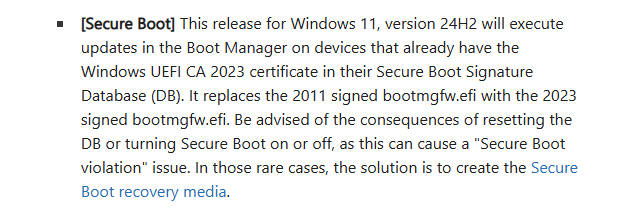
Just when I’d more or less given up, along comes KB5074105 on January 29. In its “Normal rollout” fork, the first item to appear is entitled [Secure Boot]. That item (partly depicted above) also explicitly mentions boot manager updates for UEFI CA 2023. And indeed, after I installed and rebooted from that update, I was finally, finally able to get Secure Boot working on the Flo6 desktop. It ain’t necessarily easy or quick, but KB5074105 brings on Secure Boot capability to at least some machines that need it.
With Some Effort, KB5074105 Brings On Secure Boot
You’d think it would be as easy as falling off a log to get Secure Boot (SB) working after the update. You’d be wrong. I had to go through eight (8!) steps after that to set things to rights:
1. Reboot into UEFI and enable Secure Boot
After KB5074105 updated the boot binaries, I could finally toggle Secure Boot ON without triggering a pre‑GOP (graphics output protocol) stall. This was the first sign the trust chain was now compatible with the 2023 CA.
2. Switch Secure Boot Mode to Custom
This exposed the key‑management interface, allowing me to directly manipulate PK, KEK, db, and dbx. Standard mode hides these controls.
3. Install the factory default Secure Boot keys
Reloaded the OEM/Microsoft default PK, KEK, db, and dbx. This rebuilt the entire Secure Boot hierarchy from a known‑good, signed set.
4. Save and reboot to exit Setup Mode
Once the keys were installed, the firmware left Setup Mode and re‑entered User Mode, meaning Secure Boot enforcement was now active.
5. Boot Windows with Secure Boot enabled
Windows successfully validated its updated boot chain (thanks to KB5074105) and completed a full boot under Secure Boot for the first time on Flo6.
And That’s Still NOT the End of the Ride…
6. Rebuild the TPM trust state
Because Secure Boot changed the PCR profile, Windows had to re‑establish TPM‑sealed secrets. This required signing in with my password and letting Windows reseal keys.
7. Reprovision Windows Hello for each MSA
Both my primary and secondary MSAs needed fresh Hello containers because the TPM and Secure Boot trust anchors had changed. Each account required a password login followed by PIN setup.
8. Rebuild WAM tokens for Store/Xbox/MSA services
Once Hello was re‑established, the MS Web Account Manager (WAM) regenerated its token sets. This cleared the Xbox PIN loop and restored cloud‑service authentication. Indeed WAM allows apps to silently authenticate using Hello-based credentials.
A lot of this is new to me, because I’ve never had to set up SB on a PC before. My other PCs from Lenovo and Dell have done a fine job of doing it for me. This is the first time I’ve done it for myself… and it’s been much more of an adventure than I expected. Wow!


At some point, you may end up doing a fresh Windows11 install, assuming you don’t brick your pc in the meantime by messing around with areas of Windows that should be left alone.