Category Archives: Tips, Tricks and Tweaks

Want to know how to make the most out of your Windows 7 system?
Here we share the things we have learned for what to do (and what not to do) to make Windows 7 perform at its best.

Wonky Word Launches Standard Windows 10 Repair Drill

It just happens from time to time. Windows 10 goes off the beam. Applications act weird, or OS interface elements disappear or stop working. Over the years I’ve learned this is Windows’ way of telling me that something is damaged, broken, or missing behind the scenes. This morning I had issues trying to edit a revised Word file that Val Potter at ComputerWorld had sent back to me for a typical second pass. In this case, wonky Word launches standard Windows 10 repair drill. Luckily for me, things went back to normal after step 1. That seldom happens!

Whaddya Mean? Wonky Word launches standard Windows 10 Repair Drill

I have a standard sequence of things that I do when MS Office elements get weird or go off on me. Here ’tis (check your wonky app between each step so you know when to quit):

    1. Run sfc /scannow in an administrative PowerShell session
    2. Run dism /online /cleanup-image /scanhealth;
      If it reports any problems, replace that last item with /restorehealth as your next command
    3. Run Programs and Features from Control Panel, select Microsoft Office from the list of programs, and select Repair from the available options. Try the Quick Repair first. If that doesn’t work run the Online Repair instead. (See screen cap below. The online option can take 10-15 minutes to complete, depending on Internet download speeds.)
    4. Use the Microsoft Support and Recovery Assistant to attempt Office repairs (link below)
    5. Get the MS Office Uninstall Support Tool to completely remove all traces of MS Office from your PC (link also below).

If things still aren’t working after Online Repair, you’ll want to download the Microsoft Support and Recovery Assistant. Try its MS Office repair facilities next. If that still doesn’t work, download the MS Office Uninstall Support Tool. Use it to completely uninstall Office from your PC. After that, of course, you’ll need to reinstall it all over again.

When All Else Fails, Uninstall/Reinstall Generally Works

As a last ditch attempt to get Office working, I’ve never had a complete uninstall/reinstall fail on a Windows PC. The only exception is when the OS itself was damaged or corrupted. If it worked for me then, it should work for you now, too. My fervent hope is that you don’t have to take things that far down the list!

Please note: steps 1 and 2 are generally the first two steps for any kind of repair attempts when Windows gets wonky. SFC stands for “System File Checker.” If it finds any damaged or missing system files it replaces them, as it did for me on my temporarily deranged PC. And again, that was enough to set things back to rights. When I checked Word and found it working again, I knew my drill sequence had ended.

If Word hadn’t been working again, I’d have gone onto the next step. Step 2 calls the Deployment Image Servicing and Management utility and checks the contents of the Windows component store (aka WinSxS) with scanhealth. If repairs are needed, restorehealth replaces questionable component store elements with known good working copies.

Facebooklinkedin
Facebooklinkedin

Patch My PC Updater Is Worth Checking Out

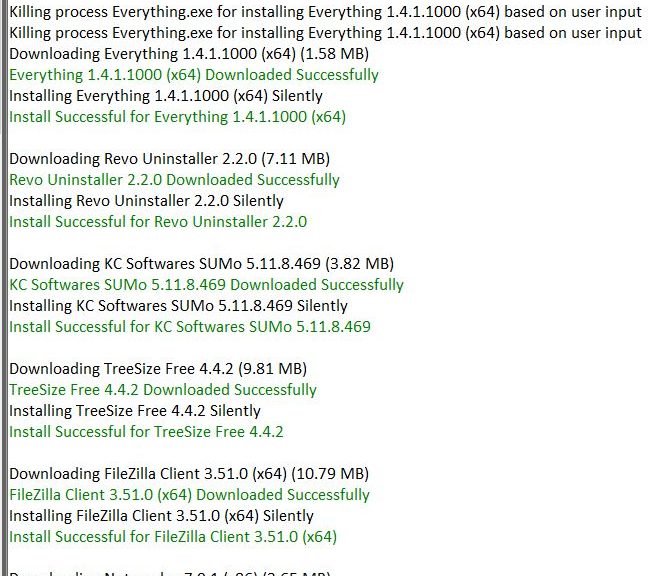
Thanks to Tim Fisher at LifeWire, I’ve found a reasonable facsimile for the late lamented Secunia Personal Software Inspector (PSI). It’s called Patch My PC Updater and it does pretty much everything you’d want such a tool to do: scans your PC, inventories installed applications, identifies those that are out of date, and goes off on its own to update them for you. Like Secunia PSI, it’s also free. The lead-in graphic for this story shows all 9 out-of-date programs on a test PC. It also illustrates nicely why Patch My PC Updater is worth checking out.

Grab It to See If Patch My PC Updater Is Worth Checking Out

You’ll find a download link at https://patchmypc.com/home-updater. Commercial versions that plug into SCCM and InTune are also available for IT-level use. The program works from a USB drive — that is, the executable is portable and need not be installed on target PCs.

Before learning about Patch My PC Updater, I had been using a version of KC Software’s SuMO for application updates. But although that program is good at scanning PCs it is less than stellar at handling the update part. Its automation is negligible too. That’s because it requires users to follow update links and handle updates manually for at least some of the out-of-date programs it finds.

All in all, Patch My PC Updater is fast, accurate and covers nearly everything I’ve got installed. Hence, my recommendation that you check it out. If you don’t like it, you can return to Tim Fisher’s LifeWire story and check out 8 more other similar packages he recommends (it also mentions SuMO but puts it in last place).

Updating Applications Goes Better with Expert Help

Whichever tool you choose to keep up with Windows applications, it’s useful to run one at least monthly. That way, you can be sure that you’re getting new features and functions as they get added. Perhaps more importantly, you’ll also be keeping up with security patches and fixes, if other sources of intelligence aren’t already tracking your software more closely for you.

Facebooklinkedin
Facebooklinkedin

Unresponsive Start Menu Gets Easy Fix

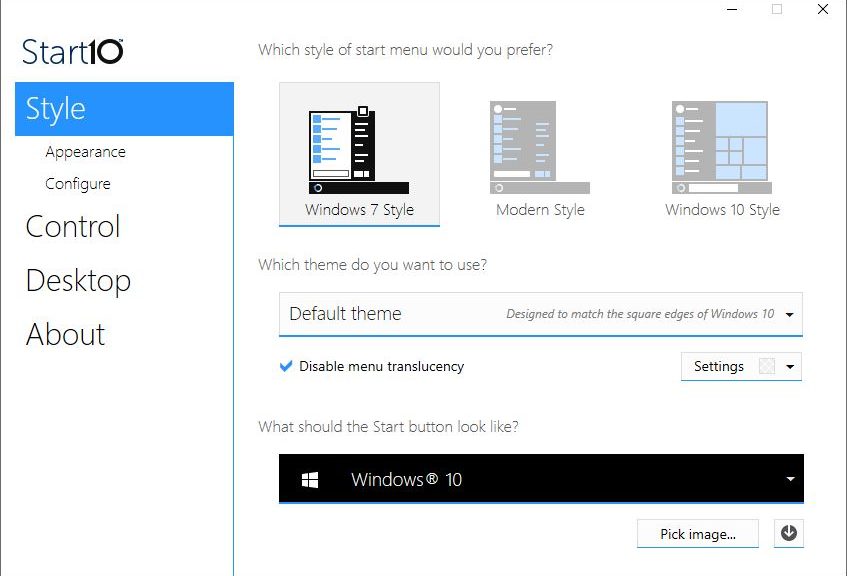
First, an admission: I’m a long time user of Stardock Software’s Start10 program. In fact, when I first started using this tool, it was called Start8, in keeping with the version of Windows then in vogue. I think my problem may be related to an unwanted interaction between Start10 and the default Windows 10 Start Menu. Nevertheless, I’m happy to report that an unresponsive Start Menu gets easy fix. Let me elaborate…

Unresponsive Start Menu Gets Easy Fix Explained

I don’t have this problem on unaltered Windows 10 installations where Start10 is absent. That’s what make me think it results from some kind of unwanted or unplanned interaction. I’ve checked the Start10 forums and can’t find any other reports of the same kind, but that’s neither here nor there.

On machines running Start10, when this happens I simply launch Task Manager. Then I right click the Windows Explorer entry beneath the Processes tab. When the resulting pop-up menu appears, one of its options reads “Restart.” When selected, this restarts the primary Explorer process. Among other things, it handles the task bar and the default Start Menu.

Following that restart operation, my access to the default Start Menu is restored. If I’m using Start10, why do I still need the default start menu? Simple: there are some programs and searches (such as using the string “reli” to launch the Reliability Monitor) that work in the default Start Menu but not in Start 10. Thus, I do have the occasional reason to dive into that default instead of sticking solely to Start10’s capabilities.

My old friend and former partner at Win10.Guru, Kari the Finn always said “If there’s a built-in tool or utility in the OS, there’s no reason to use a third-party tool.” Let’s just say that I’ve recently been reminded that he had good reasons to make that assertion. Even so, I remain a fan of third-party tools in general, and a fan of Start10 in particular. I’ve just had to learn to work around this particular issue. Cheers!

Facebooklinkedin
Facebooklinkedin

Implicit Perils When Multiple Accounts Get Interlinked

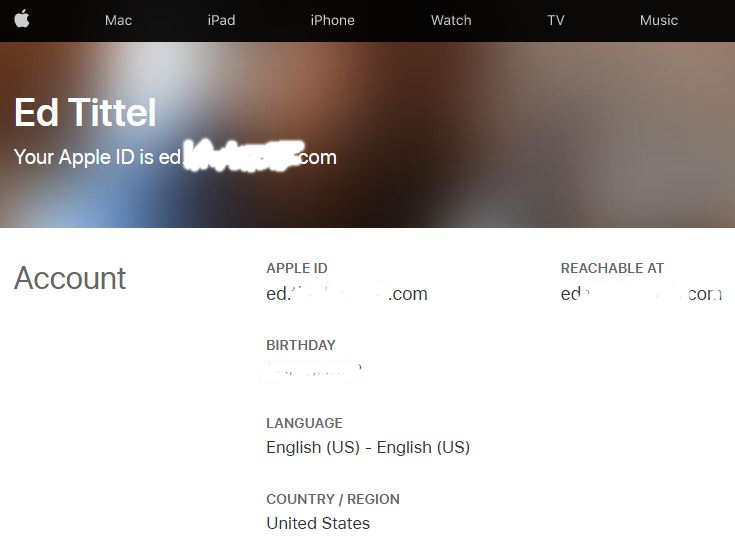
I went through an interesting adventure this weekend. I found myself trying but unable to reset the password for my Apple ID account — or so I thought, anyway. It wasn’t until I spent a couple of hours trying to fix things on my own that I gave up and turned to Apple Support instead. To my relief, the support rep recognized my problem more or less instantly. He showed me that I had logged into different accounts for iCloud and the Apple Store. Then he explained there are implicit perils when multiple accounts get interlinked in that way.

What Are the Implicit Perils When Multiple Accounts Get Interlinked?

Long, long story short when I was trying to change my password for one account I ended up changing it for another. The iCloud account took precedence over the Apple ID account for whatever reason. I didn’t see any visual cues to tell me that’s what I was doing. Thus, it took a call to tech support to clear up my misunderstanding.

Now, though, things have been set straight. I’ve got known usable passwords for both Apple accounts and have disentangled use of the two IDs on my iPhone which caused that immensely frustrating and bizarre set of symptoms and circumstances.

One More Thing, Though…

Right now, I can use my credentials on Firefox to access appleid.apple.com. But those same credentials don’t work on Chrome. I’m mystified and mortified, but I have no earthly idea why this is happening. Aha! Internet research tells me it’s likely a cookies or history issue (apparently old cached credentials trump newly entered ones at the keyboard). Just another wonderful aspect of living large as a digital person, I guess.

I swear! Sometimes I spend more time digging through login and credentialing issues to access accounts than I actually spend using those accounts directly. Sigh.

Facebooklinkedin
Facebooklinkedin

Hard Disks Remain Useful PC Storage Devices

Hmmm. I just read a disturbing story over at Gizmodo. Something of a rant from Sam Rutherford, it explains “Why I’m Finally Getting Rid of All My HDDs Forever.” I’ve been following his work for some time, and he usually has intelligent and useful things to say. This time, though, I’m opposed to his position. In fact, I still firmly believe that hard disks remain useful PC storage devices. Quick count: I have at least 10 of them here in my office, at capacities ranging from 1 TB to 8 TB.

Why Say: Hard Disks Remain Useful PC Storage Devices?

If I understand his complaint, Mr. Rutherford is giving up on HDDs (Hard Disk Drives) because several of them gave up on him recently. One failure cost him 2 TB of data, some of it precious. I say: Boo hoo!

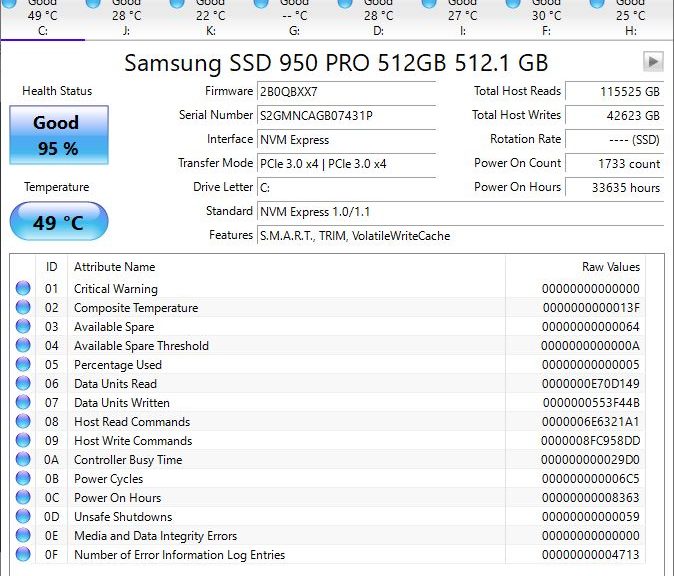
The lead-in graphic for this story comes from my production PC running a freeware program named CrystalDiskInfo. (Note: grab the Standard Edition: the others have ads and bundleware). Notice the top of that display lists Windows drives C:, J:, K:, G:, D:, I:, F:, and H:. In fact, all of them show blue dots and the word “Good” as well. These elements provide rude measures of disk health for both HDDs and SSDs. Of the 8 drives shown, 3 are SSDs, 4 are HDDs, and 1 is a so-called hybrid HDD; all are healthy.

Mr. Rutherford could have used this tool. Or used others like it, of which there are many (see these Carl Chao and WindowsReport survey pieces, for example). Then, he would have known his problem HDDs were headed for trouble before they failed. Plus, he himself admits he erred in not backing up the drive whose failure caused data loss. I check all my drives monthly (both SSDs and HDDs) looking for signs of impending trouble, as part of routine maintenance.

Backup, Backup and More Backup

SSDs are not mechanical devices, so they don’t suffer mechanical failures. Over the 10 years or so I’ve owned SSDs (perhaps a couple of dozen by now) not one has ever failed on me. Over the 36 years I’ve owned HDDs, I’ve had half-a-dozen fail out of the hundreds I’ve used. But it’s inevitable that I will suffer an SSD failure sometime, even though I’ve yet to experience one personally. Why? Because all devices fail, given enough time and use.

Personally, I think HDDs still have a place in my storage hierarchy. I just bought 2 8 TB drives earlier this year, for about $165 each. That’s way cheaper storage than even the cheapest of SSDs on today’s market, and much more capacity in a single device than I’d want to purchase in solid state form. (Note: a 7.68 TB Samsung 870 QVO SSD costs $750 at Newegg right now. Thus it aims at those with more money than sense, or those with cash-generating workflows that can actually cover such costs.)

The real secret to protecting data is multiple backups. I bought those 8 TB drives to back up all my other drives, so they’re my second local line of defense. I also pay for 5 TB of online storage at OneDrive and DropBox and have two extra copies of production OSes, key files and archives in the cloud as well. I backup my production PCs daily, my test PCs weekly, and key bits and pieces to the cloud weekly as well). Basta!

Facebooklinkedin
Facebooklinkedin

20H2 Alters Alt+Tab Experience

OK, then: I get it. When you run Windows 10 20H2 the OS does something different when Edge is running. Thus, when I say “20H2 alters Alt+Tab experience,” I mean that it goes through all open Edge tabs as you keep repeating that key combination. This is a little disconcerting, but something I guess I can get used to.

Exactly How 20H2 Alters Alt+Tab Experience

Prior to 20H2 if you had three applications open, striking Alt+Tab once would take you from the current application to whichever is next in the Windows sequence of open apps. Strike it again to get the third app, and again to cycle back to the start.

In 20H2, if one of the open apps is Edge, and it has multiple tabs open,  things change. When you get to Edge you’ll transition from the first (or currently) open tab, to the next tab in sequence. This  continues until you’d cycle back to the first tab you visited in this sequence.  Whatever comes up next will be the next app in the Windows sequence, at which point things continue as always.

A Possible Alt+Tab Gotcha?

Mayank Parmar, of Windows Latest, reports that some 20H2 users may find the Alt+Tab sequence disarranged after they upgrade to this new version. He doesn’t say if it applies to upgrades only, or if clean installs qualify as well. Either way, the symptoms are that the order of apps (and tabs) is inconsistent. In addition, stopping the Alt+Tab sequence on App 2 in a 1-2-3-4 sequence may drop the user into App 3, instead of App 2 as users expect it to do.

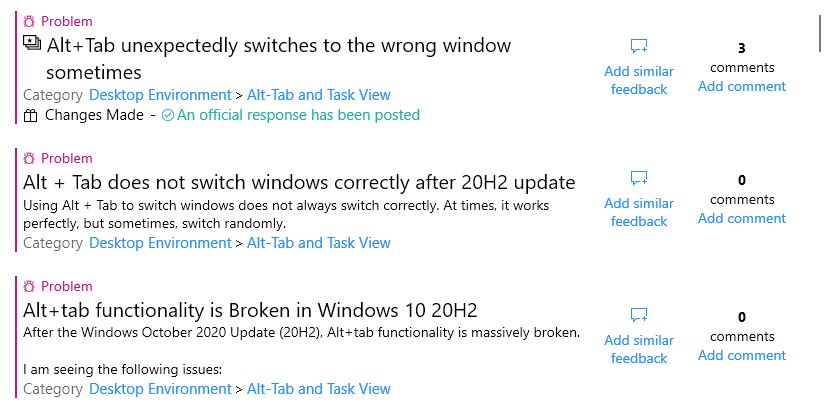
I haven’t been able to replicate this error on any of my 20H2 machines. But if you visit Feedback Hub and search on “Alt+Tab 20H2” you’ll see the top three resulting problem reports all talk their way around this issue. MS claims this has been addressed in Beta and Release Preview channel versions already. It’s not yet clear when that fix will make it to Windows Update, but it should be “coming soon.” Stay tuned, and I’ll let you know when that happens.

Facebooklinkedin
Facebooklinkedin

20H2 RDP Mystery Remains Unsolved Until …

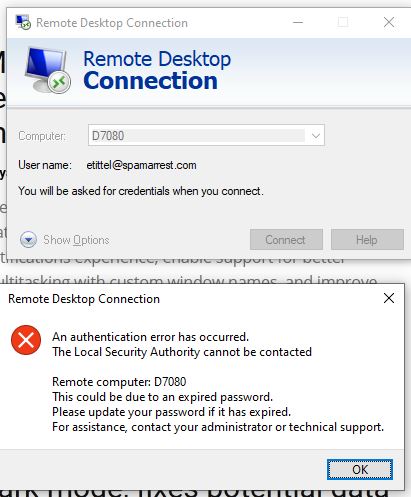
I’ve been raving about the SFF Dell Optiplex 7080 Micro a fair amount lately. I remain convinced it’s a good purchase and will be a great machine for long-term use. That said, there is the proverbial “one thing” that lets me know for all its glories, it’s still a Windows PC. I’ve been dealing with an RDP mystery — as shown in the lead-in graphic for this story — that actually affects RDP traffic in both directions. Its 20H2 RDP mystery remains unsolved, as all my troubleshooting efforts so far have failed.

Read on, though: I did eventually figure this out, and get RDP working. It turned out to be a basic and obvious oversight on my part. Sigh.

What Do You Mean: 20H2 RDP Mystery Remains Unsolved?

Despite chasing down a large laundry list of things to check and set, I get password related errors when trying to RDP into or out of the 7080 micro. The lead-in graphic shows what happens when I try to RDP into the box. When I try to RDP out of the box, I get an out-and-out invalid password (“may be expired” error) instead.

Obviously, something funky is up with authentication on this Win10 install, because when I try to access the device through the File Explorer network connection, I get a request for network credentials, too. Again, presenting valid credentials doesn’t work. I see a “not accessible” error message instead:

Here’s the list of what I’ve tried so far:

  1. Double-checked Remote Access is enabled.
  2. Relaxed all relevant settings in Advanced Network Sharing for Private, Guest/Public, and All Networks categories.
  3. Enabled all Remote Access checkboxes in Defender Firewall settings.
  4. Ran the Network Troubleshooter
  5. Ran the Microsoft Support and Recovery Assistant

It’s the Account, Stupid!

After noodling about with this for a couple of hours I realized that I had defined a local acount as admin. Worse yet, I had not promoted my Microsoft Account on the Optiplex 7080 Micro from ordinary user to administrator.

Because I was using my MS account credentials to attempt network login and access, I didn’t have permission to do the password lookups in LSASS needed to make the process work. Once I promoted that account to admin level, everything started working.

Sheesh! Talk about an obvious mistake. As with many problems with Windows 10, this one turns out to be entirely self-inflicted. At least, I know who to blame!


Facebooklinkedin
Facebooklinkedin

VPN Works Around Weird Credit Union Access Issue

Suddenly, the usual login prompt from my Credit Union, where my wife and I both bank, has become inaccessible on my local network. No PC, no browser, no nothing will open the login URL. Errors proliferate like mushrooms after the rain instead. What gives?

Credit Union Access Issue. VPN login works, other access doesn't.
VPN Works Around Weird Credit Union Access Issue. VPN login works, other access doesn’t.

I’ve been working in and around IP networks professionally since 1988, and with IP networks since 1979. I’ve seen many weird things, and now have another to add to that list. From my LAN right now, no PCs can login to our credit union on the web. Nobody, that is, unless I go through a VPN link. Otherwise, when we (my wife and I bank together) try to access the login page, a raft of error messages presents. Only the VPN works around weird credit union access issue, which throws up beacoup HTTP error codes. (Explanatory text verbatim from Wikipedia.):

400  Bad Request: The server cannot or will not process the request due to an apparent client error (e.g., malformed request syntax, size too large, invalid request message framing, or deceptive request routing).
401  Unauthorized: Similar to 403 Forbidden, but specifically for use when authentication is required and has failed or has not yet been provided.
403  Forbidden: The request contained valid data and was understood by the server, but the server is refusing action.
404  Not Found: The requested resource could not be found [(aka “File not found/Page not found”)].
501 Not Implemented: Server either does not recognize the request method, or it lacks the ability to fulfill the request.
502 Bad Gateway: The server was acting as a gateway or proxy and received an invalid response from the upstream server

How VPN Works Around Weird Credit Union Access Issue

I can only assume that the address resolution for the specific login URL is somehow malformed or invalid. Changing DNS server assignments at the Windows 10 clients (in the TCP v4 Interface properties) does not help. When I switch to VPN, though, that bypasses the local DNS infrastructure. That connection uses the VPN provider’s DNS infrastructure instead. Then, we have no problems accessing the bank URL.

Now, here’s where things get interesting. I can’t remember the login credentials for the Spectrum device that acts as a Wi-Fi AP and router at the network boundary. Thus, I can’t check the DNS situation on that device, which is where DHCP tells all my Windows 10 machines to get their DNS information from. I’ve got a call into Spectrum to see if they can help me break into my router without having to do a factory reset. In the meantime, we’re using the VPN to access the credit union stuff, and plain-vanilla networking for everything else. It’s strange and unfathomable, but at least there’s a workaround.

For Want of a Nail…

Last night, I drove to the nearby Spectrum outlet and swapped my Technicolor cable modem/VoIP device for an identical replacement unit. The theory was that something about this device was behind the issue. It was sheer hell trying to get back online because Spectrum’s activation drill requires providing account, password, and other identity characteristics. I keep all that stuff in Norton Password Vault, and I couldn’t get access to that info through my iPhone nor did I have another path onto the Internet to grab the necessary data. I eventually had to spend another 45 minutes on the phone with tech support as they FINALLY activated our Internet service, TV, and VoIP phone. Reminded me too much of Catch-22 “How can you see you’ve got flies in your eyes when you’ve got flies in your eyes?” Last night, I couldn’t see much of anything for far too long!

Because our son attends school online, doing without Internet is impossible. Thus, I ordered a 5G hotspot from Verizon last night, so we have a medium performing fallback. They tell me the hotspot I ordered delivers about 200 Mbps downstream and 25 Mbps upstream in our neighborhood. I’ll be finding out — and making sure the fallback works — when it shows up via USPS early next week. Sigh.

Router Reset Solves Resolution Hiccup [Added 1 Day Later]

With a little more time to think about what could cause my problem, I formulated a hypothesis about the cause — and a likely fix — for my troubles. All nodes on my LAN had an issue with that one specific URL. But neither the site operator nor my ISP could replicate that problem. Thus it had to be on the boundary between my LAN and the ISP’s aggregation network. That means only one possible culprit: the Spectrum router. It sits at my network boundary. It also provides DHCP to the nodes on the LAN and acts as the DNS server for all internal nodes.

“Aha” I thought, “I bet resetting the router will fix this issue because it reloads — or repopulates, rather — the DNS cache.” I was right. After powering off the router, letting it sit for a minute or two, then powering it back on, our name resolution issue was gone. Glad to have it fixed because it was deucedly inconvenient without credit union account access. Ultimately, it was the “VPN trick” that led me to the solution. Sigh again.

Facebooklinkedin
Facebooklinkedin

Audible Clues When 8TB Backup Drive Goes South

Audible Clues When 8TB Backup Drive Goes South when I don't hear the backup drive run.
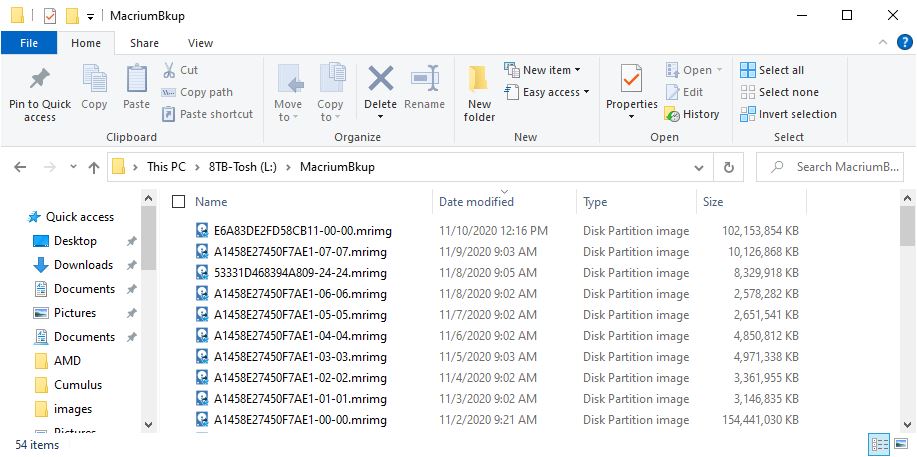
Except for November 10, all backups start just after 9 AM.
[Click image for full-sized view.]
This morning, I noticed something different just after 9 AM. That’s when the usual scheduled backup job on my production desktop fires off, and about 2 minutes later the drive starts clunking away. Check the timestamps for the Macrium Image (mrimg) files in the lead-in graphic in File Explorer. Except for today — November 10 — all the other jobs show a stamp in a range from 9:02 – 9:21 AM. What was different this morning? No drive clunking provided audible clues when 8TB backup drive goes south. And sure enough, when I checked Explorer at first, the drive was MIA. In fact, Disk Management showed a drive with neither GPT nor MBR disk layout.

After Audible Clues When 8TB Backup Drive Goes South, Time for Repairs

Luckily, I’ve got a commercial license for MiniTool Partition Wizard (MTPW). It includes both Data Recovery and Partition Recovery capabilities. So first, I let MTPW define the drive layout as GPT (as it must for a drive bigger than 2TB). Next, I ran the program’s Partition Recovery capability. About 30 seconds later, the drive’s contents were visible in the MTPW Partition Explorer. But I still had to assign a drive letter before repairs were complete. Immediately thereafter, I ran a manual image backup using Macrium Reflect to make up for the backup I’d missed along with the 8TB drive. As you can see from the most recent timestamp for the top file in the lead-in graphic, today’s belated backup is stored with all its predecessors.

A Bit of Insurance Against Recurrence

I also finally switched in my brand-new Wavlink USB 3.0 docking station (Model: ML-ST3334U) for the old Intatek unit I’d been using. Turns out the Inatek couldn’t handle even a 4 TB and and 8TB drive. Given that I’ve had problems with this dock before, I’d been waiting for the “next fault” to force the swap. I think that’s what happened this morning. I also think the Inatek can’t really handle ONE 8TB drive without power issues. The Wavlink, OTOH, is rated to handle 2 8TB drives. That’s why I bought it, and why I hope this means I won’t see my big backup drive go bye-bye again soon.

But weirder things have happened on my production PC, and may happen again. As we all know, that’s just the way things sometimes go (or go south) in Windows World. Count on me to keep you posted as and when such weirdness happens.

Facebooklinkedin
Facebooklinkedin

WU Gives 1903 Users Forced Upgrades

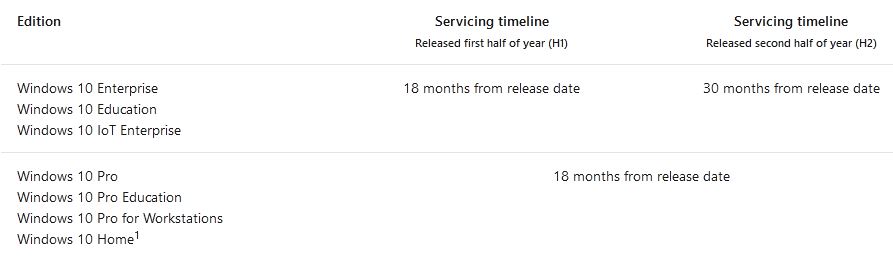
It’s not quite the apocalypse, but the end of support for Window 10 version 1903 is approaching on December 8, 2020. Thus, MS is now force upgrading PCs still running that OS through Windows Update (WU). Of course, 1903 has been out for some time, having gone GA in May 2019. It’s also been succeeded by three subsequent versions — namely 1909, 2004 and just recently 20H2. When end of support hits, MS stops issuing security updates, which makes machines running such an OS vulnerable to new security threats that won’t be patched. Not good! Time to upgrade then, which explains why WU gives 1903 users forced upgrades these days.

When WU Gives 1903 Users Forced Upgrades, Then What?

The funny thing is, Microsoft is upgrading these 1903 PCs to version 1909. What makes that funny is that this version (for Home and Pro users, anyway) will itself go out of support in May of next year (2021). Thus, those who go through an automatic upgrade through WU will have to repeat the process next May when 1909 itself runs into the same wall. Other,  newer ISO versions of Windows 10 are readily available through various sources. The Media Creation Tool for 20H2 is available through the Download Windows 10 page. Or, you can use AveYo’s excellent MediaCreationTool.bat script to access ISOs for most known Windows 10 versions. (I wrote about this for Win10.Guru on November 2, 2020.)

Given that 20H2 is still in the trickle-out process and hasn’t gone into wide distribution, it may make sense to upgrade from 1903 to 2004. In that case, you can use the afore-linked script to grab just what you need. Other good sources for 2004 include UUPdump.ml and the HeiDoc Microsoft Windows and Office ISO Download tool. Either one will also let you pick a version for the ISO you download, including 2004.

Moving Up from 1903

If you must upgrade from 1903 to some newer version — and I agree with Microsoft that it’s time to get cracking — I think 2004 makes most sense. Hopefully, these various sources for an ISO will help. And remember, to use an ISO for installation mount it as a virtual drive, then run the file named setup.exe from the root of that mounted drive to get the process underway. The Windows 10 Installer will do the rest. Cheers!

Facebooklinkedin
Facebooklinkedin