MediaMonkey recently taught me another lesson about package managers: version information has to agree at both ends. Otherwise, automation can outstrip itself. Indeed, I’ve just witnessed how truncated MediaMonkey version info fools winget into a looping update.
I had already run a broad WinGet update using winget upgrade –all –include-unknown. MediaMonkey was included and its update completed successfully. Later, though, WinGet proffered MediaMonkey again. That follow-on install also completed successfully, leaving me wondering why an already updated application looked stale.
How Truncated MediaMonkey Version Info Fools WinGet
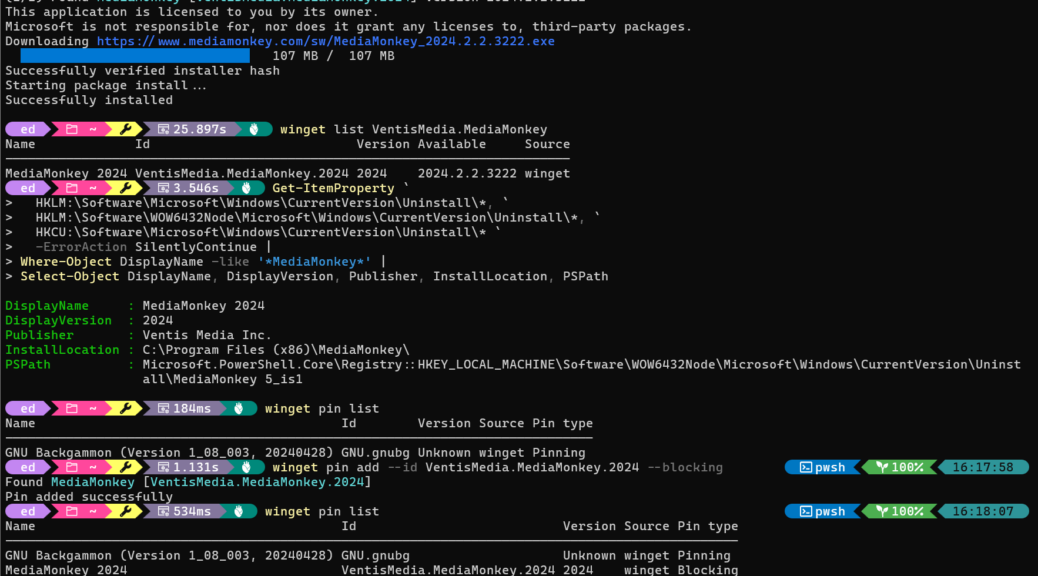
The lead-in screenshot makes a mismatch plain. WinGet identifies the package as VentisMedia.MediaMonkey.2024. Its list output reports the installed Version as “2024,” but Available is “2024.2.2.3222.” From WinGet’s perspective, those strings do not match.
A PowerShell registry query settles the question from the installed-software side. MediaMonkey 2024 records DisplayVersion simply as “2024.” The same entry identifies Ventis Media Inc. as Publisher and points to the 32-bit Program Files installation location.
Get-ItemProperty `

HKLM:\Software\Microsoft\Windows\CurrentVersion\Uninstall\*,

HKLM:\Software\WOW6432Node\Microsoft\Windows\CurrentVersion\Uninstall\*, `

HKCU:\Software\Microsoft\Windows\CurrentVersion\Uninstall\* `

-ErrorAction SilentlyContinue | `

Where-Object DisplayName -Like '*MediaMonkey*' | `

Select-Object DisplayName, DisplayVersion, Publisher, InstallLocation, PSPath
That is the crux of the problem. The installed application advertises “2024.” The WinGet package advertises “2024.2.2.3222.” Thus, WinGet continues to find the need to upgrade even after installing the latest package.
A Blocking Pin Breaks the Loop
Rather than let routine upgrade runs keep revisiting MediaMonkey, I added a blocking pin against the package ID:
winget pin add --id VentisMedia.MediaMonkey.2024 --blocking
The next winget pin list confirms the result. MediaMonkey 2024 appears with version 2024, source winget, and pin type Blocking.
That choice is deliberately stronger than an ordinary pin. Microsoft documents a blocking pin as preventing upgrades through both “winget upgrade –all” and a direct package upgrade. The package must be unpinned before a normal WinGet upgrade can proceed, although the force option can override this specific pin behavior.
Watch, Wait, Then Unpin When It’s Time
For now, blocking is exactly what I want. The installed MediaMonkey is current based on the package I just installed, while its reported version remains too broad and unspecific for WinGet to compare cleanly.
The next move is patience. I will periodically check MediaMonkey and the WinGet package metadata. When a genuine new release appears, I can remove the block, run the upgrade, and see whether the installed DisplayVersion finally reports a fully qualified build number.
If that happens, WinGet should again have comparable version strings to work with. If not, the blocking pin can go right back on.
Version Metadata Makes the Difference
Yesterday’s episode is a useful reminder that WinGet can only act on available version information. A successful install does not guarantee the application and package catalog describe the result identically.
Here, two command-line checks tell the whole story. First, winget list exposes the disagreement. Second, PowerShell confirms what Windows knows about MediaMonkey. Until those values line up, a blocking pin turns an annoying repeat upgrade into a controlled watch-and-wait problem. Case closed, at least for now. Here in Windows-World it’s been added to the list of things I must watch and remember. It’s a big and pretty active one, as Windows pros already know…

