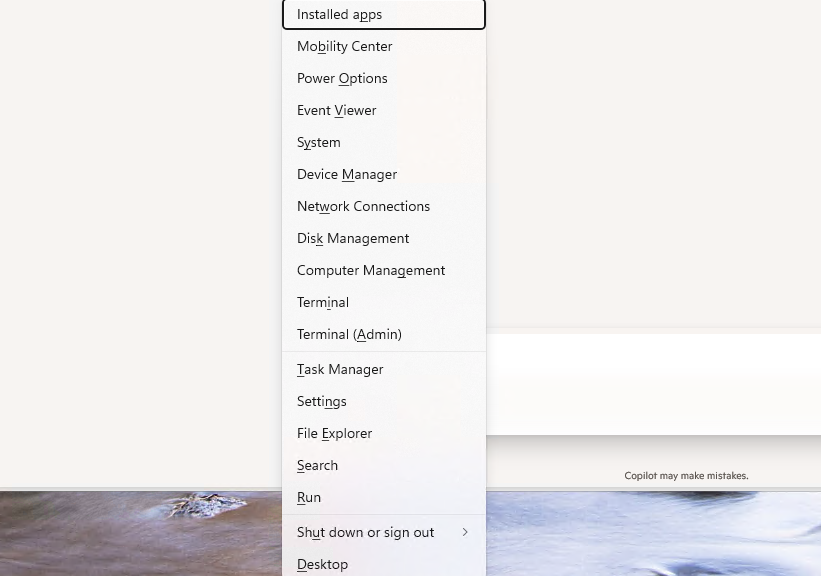
The Win+X menu — that little power‑user gem tucked behind the Start button — is a Windows feature you don’t think about much until it breaks. When it does, the symptoms can be maddening: missing entries, wrong icons, dead shortcuts, or menu items that don’t launch. I recently went through a repair of the Win+X system on my production desktop. That process revealed just how many layers contribute to this simple menu. Here’s a recap of how the issue was resolved in fixing WinKey+X menu change.
Getting Started: Fixing WinKey+X Menu Change
The first clue was that the Win+X menu wasn’t launching Windows Terminal correctly. Instead of opening a PowerShell or Terminal instance, it either did nothing or threw an error. That pointed to a problem in the Win+X shortcut groups. These reside beneath the user profile at:
%LOCALAPPDATA%\Microsoft\Windows\WinX
Windows organizes these shortcuts into GroupN folders (N = 1-3). Group3 is where Terminal and PowerShell entries live. When I opened that folder, those shortcuts were either missing or pointing to stale AppX registrations. This can happen after uninstalling or repairing Windows Terminal, or some profile migration wherein AppX package identities change.
Making Shortcuts Happen…
The next step meant rebuilding shortcuts manually. Windows Terminal doesn’t include .lnk files. Hence, I created fresh ones by right‑clicking the desktop and choosing New → Shortcut, and pointing them at the program. It lives under WindowsApps and includes current version info in its actual filename.
Because Windows Terminal’s AppX path changes with every update, hard‑coding its location isn’t smart. Thus, I used the stable execution alias: wt.exe
Once the shortcut was created, I renamed it to match canonical Win+X naming conventions:
Windows Terminal.lnk

Windows Terminal (Admin).lnk
Then I moved them into the Group3 folder. At this point, the shortcuts existed, but they were MIA on the menu. That’s because Win+X system caches entries and doesn’t refresh automatically. I forcibly rebuilt that cache by signing out and back in. After the next login, the menu finally displayed the new Terminal entries — but the icons were wrong.
What About Them Icons?
This led to the next discovery: Windows Terminal’s icon is stored inside its AppX manifest, not in a traditional .ico file. To fix them, I edited each shortcut’s properties and pointed the icon field to the stable Windows Terminal executable under Program Files. That exposed the correct embedded icon. Once updated, Win+X displayed the proper visuals.
The final step was cleaning up legacy entries. A repaired Microsoft Account caused Windows to resurrect old Win+X shortcuts from a now-defunct installation. Removing stale .lnk files from Group3 eliminated duplicates and restored the menu to a clean state.
By the end of the trail, Win+X worked again: correct icons, correct commands, and a clean set of shortcuts that launch reliably. The repair reinforced something I’ve seen before in Windows troubleshooting . A system often holds onto old paths, old identities, and old assumptions long after underlying components change or go away. Fixing things means understanding where Windows stores its info, and updating each layer one by one.
If your Win+X menu ever starts acting strangely, a careful rebuild of Group3 shortcuts may be exactly what brings it back to life. Here in Windows-World you can always try. It might work. And if it doesn’t, there’s always something else to try instead.

