Category Archives: Windows OS Musings

20H2 Alters Alt+Tab Experience

OK, then: I get it. When you run Windows 10 20H2 the OS does something different when Edge is running. Thus, when I say “20H2 alters Alt+Tab experience,” I mean that it goes through all open Edge tabs as you keep repeating that key combination. This is a little disconcerting, but something I guess I can get used to.

Exactly How 20H2 Alters Alt+Tab Experience

Prior to 20H2 if you had three applications open, striking Alt+Tab once would take you from the current application to whichever is next in the Windows sequence of open apps. Strike it again to get the third app, and again to cycle back to the start.

In 20H2, if one of the open apps is Edge, and it has multiple tabs open,  things change. When you get to Edge you’ll transition from the first (or currently) open tab, to the next tab in sequence. This  continues until you’d cycle back to the first tab you visited in this sequence.  Whatever comes up next will be the next app in the Windows sequence, at which point things continue as always.

A Possible Alt+Tab Gotcha?

Mayank Parmar, of Windows Latest, reports that some 20H2 users may find the Alt+Tab sequence disarranged after they upgrade to this new version. He doesn’t say if it applies to upgrades only, or if clean installs qualify as well. Either way, the symptoms are that the order of apps (and tabs) is inconsistent. In addition, stopping the Alt+Tab sequence on App 2 in a 1-2-3-4 sequence may drop the user into App 3, instead of App 2 as users expect it to do.

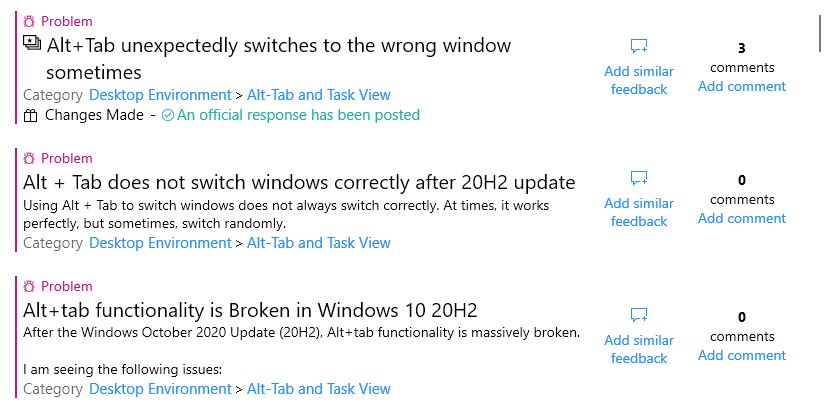
I haven’t been able to replicate this error on any of my 20H2 machines. But if you visit Feedback Hub and search on “Alt+Tab 20H2” you’ll see the top three resulting problem reports all talk their way around this issue. MS claims this has been addressed in Beta and Release Preview channel versions already. It’s not yet clear when that fix will make it to Windows Update, but it should be “coming soon.” Stay tuned, and I’ll let you know when that happens.

Facebooklinkedin
Facebooklinkedin

Pluton Enacts Prego CPU Philosophy

Here’s a blast from the past. In 1984, jarred spaghetti sauce maker Prego immortalized the phrase “It’s in there!” for its products. (Note: the link is to a YouTube copy of that very same TV advertisement.) But the tag line lives on, and comes with occasionally interesting applications. It helped me understand that Microsoft’s introduction of Pluton enacts Prego CPU philosophy.

What in Heck Does “Pluton Enacts Prego CPU Philosophy” Mean?

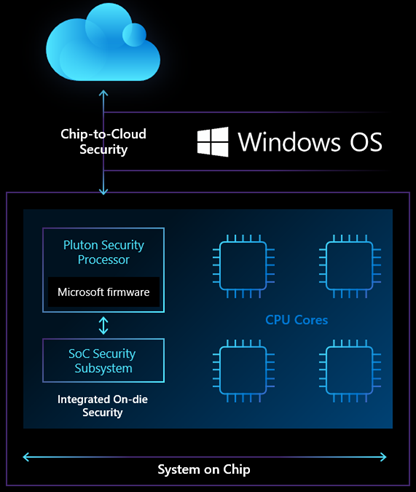
It means that functions currently associated with a separate chip called the “Trusted Platform Module” (aka TPM) move onboard the CPU die. That’s why I’m stuck on the Prego tag line “It’s in there!” It succinctly sums up what Pluton is and does.

On November 17, MS Director of Enterprise and OS Security David Weston wrote a post to the Microsoft Security blog. It explains Pluton nicely. The post is entitled “Meet the Microsoft Pluton processor — the security chip designed for the future of Windows PCs.” Therein, Weston reveals the notion of a ‘Pluton Processor’ as something of a misnomer — but a useful one.  Here’s what he says to help explain Pluton, already “pioneered in Xbox and Azure Sphere.” (Note: I added the emphasis in blue bolded text):

Our vision for the future of Windows PCs is security at the very core, built into the CPU, where hardware and software are tightly integrated in a unified approach designed to eliminate entire vectors of attack. This revolutionary security processor design will make it significantly more difficult for attackers to hide beneath the operating system, and improve our ability to guard against physical attacks, prevent the theft of credential and encryption keys, and provide the ability to recover from software bugs.

Thus, Pluton is not really a processor per se. It’s a set of circuitry included on the die and tightly integrated into the CPU itself. This prevents attacks on communications lanes between a physically disjoint TPM chip and the CPU.

There’s a Scare Factor There

Apparently, recent research shows that the bus interface between TPM and CPU “provides the ability to share information between the main CPU and security processor…” At the same time, “…it also provides an opportunity for attackers to steal or modify information in-transit using a physical attack.” (Note: the preceding link takes readers to a Pulse Security research paper. It explains how sniffing attacks against a TPM permit BitLocker key extraction, used to read an encrypted drive.)

The Pulse Security paper describes ways to boost security to foil such an attack. But MS apparently took the work very seriously. In fact, it introduced Pluton to make communications lanes between CPU and a security processor  impervious to attack.

Can Pluton Boost Windows PC Security?

Sure it can. It will indeed make sniffing attacks like those Pulse Security describes nearly impossible. And it should usher in a new, more secure approach to computing. This applies directly to handling “credentials, user identities, encryption keys, and personal data” (Weston’s words).

The real key, however, is that MS has all of Windows CPU makers on board with Pluton. That means AMD, Intel and Qualcomm . It will be interesting to see how long it takes for them to incorporate Pluton into their CPUs. We’ll wait awhile before the first Pluton-bearing chips hit the marketplace. I’m betting that Pluton will show up for both Windows Server and client OS chips as well (that’s not explicit in Weston’s post).

My best guess is that we’re probably two generations out. For all three makers of CPUs mentioned, it’s likely that their next-gen designs are too far along to incorporate the redesign and layout rework that incorporating a security facility on the die will require. That’s why it’s more likely two (or more) generations out, IMO. Stay tuned, and I’ll keep you posted.

Facebooklinkedin
Facebooklinkedin

20H2 RDP Mystery Remains Unsolved Until …

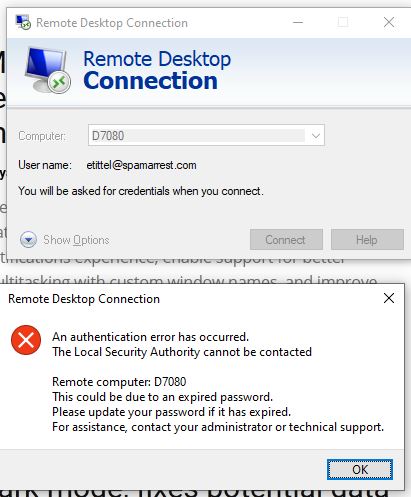
I’ve been raving about the SFF Dell Optiplex 7080 Micro a fair amount lately. I remain convinced it’s a good purchase and will be a great machine for long-term use. That said, there is the proverbial “one thing” that lets me know for all its glories, it’s still a Windows PC. I’ve been dealing with an RDP mystery — as shown in the lead-in graphic for this story — that actually affects RDP traffic in both directions. Its 20H2 RDP mystery remains unsolved, as all my troubleshooting efforts so far have failed.

Read on, though: I did eventually figure this out, and get RDP working. It turned out to be a basic and obvious oversight on my part. Sigh.

What Do You Mean: 20H2 RDP Mystery Remains Unsolved?

Despite chasing down a large laundry list of things to check and set, I get password related errors when trying to RDP into or out of the 7080 micro. The lead-in graphic shows what happens when I try to RDP into the box. When I try to RDP out of the box, I get an out-and-out invalid password (“may be expired” error) instead.

Obviously, something funky is up with authentication on this Win10 install, because when I try to access the device through the File Explorer network connection, I get a request for network credentials, too. Again, presenting valid credentials doesn’t work. I see a “not accessible” error message instead:

Here’s the list of what I’ve tried so far:

  1. Double-checked Remote Access is enabled.
  2. Relaxed all relevant settings in Advanced Network Sharing for Private, Guest/Public, and All Networks categories.
  3. Enabled all Remote Access checkboxes in Defender Firewall settings.
  4. Ran the Network Troubleshooter
  5. Ran the Microsoft Support and Recovery Assistant

It’s the Account, Stupid!

After noodling about with this for a couple of hours I realized that I had defined a local acount as admin. Worse yet, I had not promoted my Microsoft Account on the Optiplex 7080 Micro from ordinary user to administrator.

Because I was using my MS account credentials to attempt network login and access, I didn’t have permission to do the password lookups in LSASS needed to make the process work. Once I promoted that account to admin level, everything started working.

Sheesh! Talk about an obvious mistake. As with many problems with Windows 10, this one turns out to be entirely self-inflicted. At least, I know who to blame!


Facebooklinkedin
Facebooklinkedin

KB4589212 Offers Intel Microcode Updates

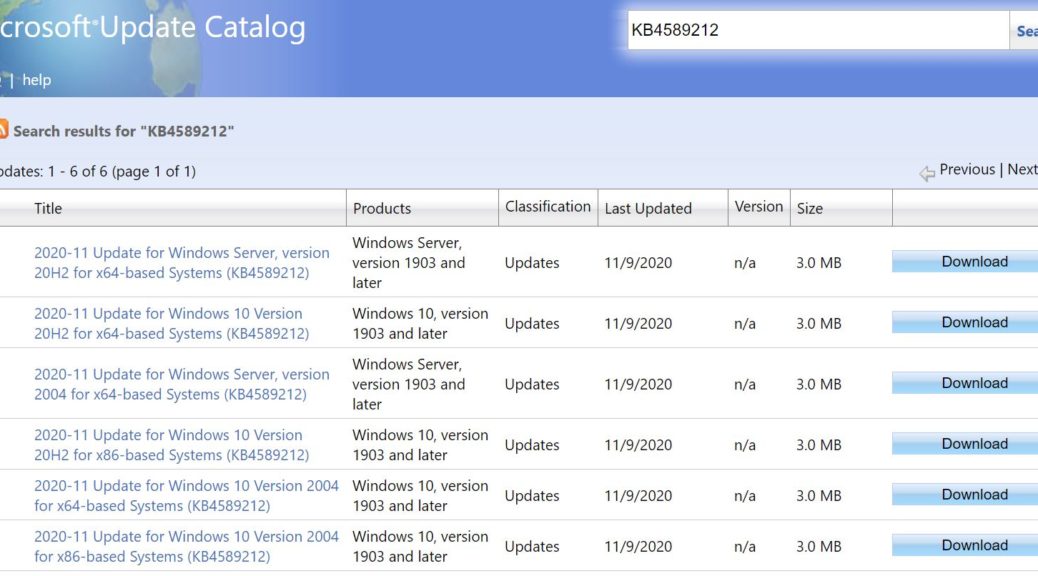
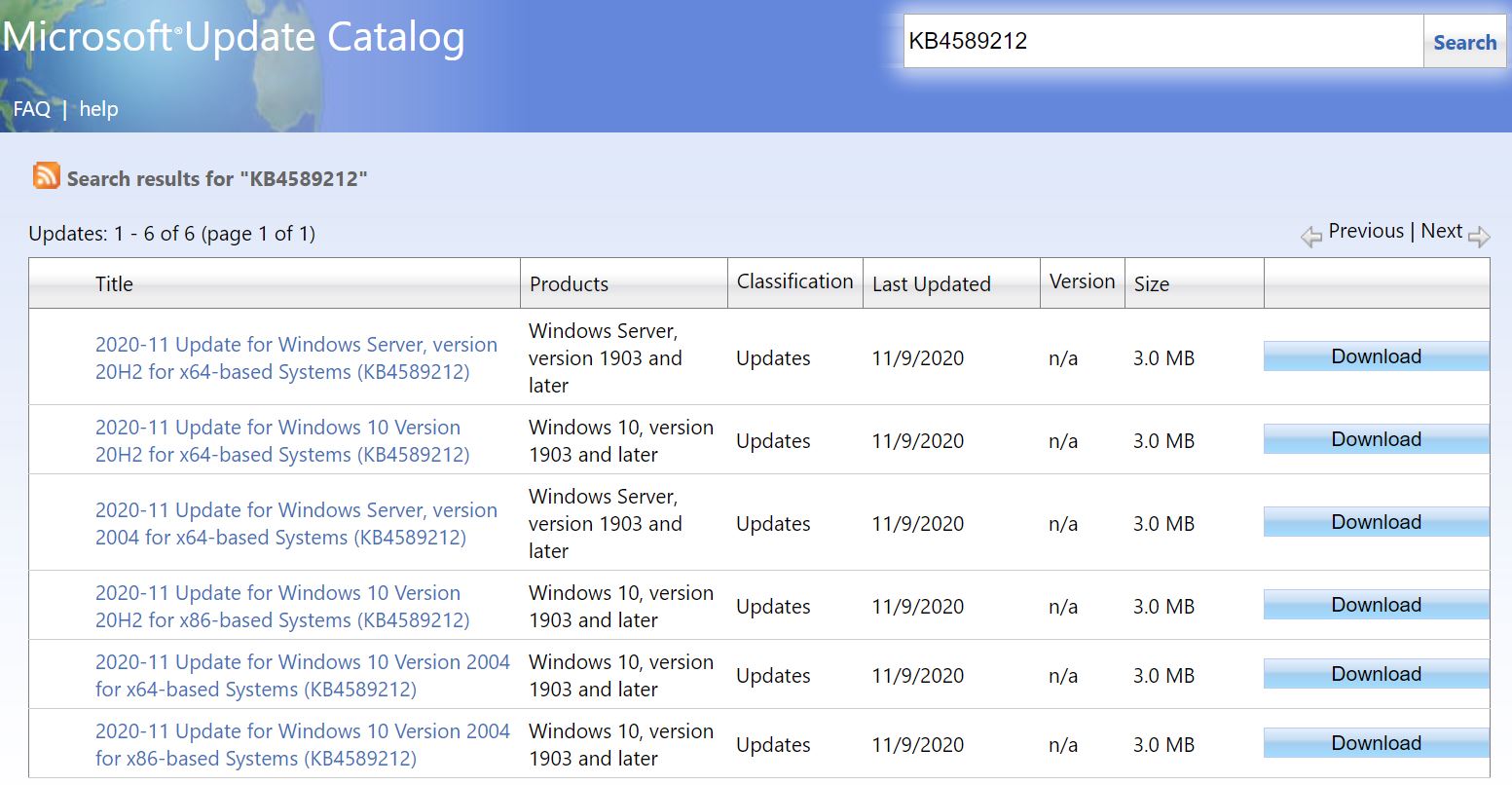
On November 10, Microsoft rolled out KB4589212. That support note is entitled “Intel microcode updates for Windows 10, version 2004 and 20H2, and Windows Server, version 2004 and 20H2.” It is currently available only from the Microsoft Update Catalog, where a search on KB4589212 provides links to related downloads. As you can see from the following screencap, KB4589212 offers Intel microcode updates as downloads that apply to Windows Server and Windows 10 for X64 and X86 systems, versions 20H2 and 2004.

KB4589212 Offers Intel Microcode Updates.catalog

If you read the note, you’ll see this update applies to all Intel processors back to Ivy Bridge (circa 2011-2012).
[Click image for full-sized view.]

If KB4589212 Offers Intel Microcode Updates, What’s Covered?

In addition to covering most Intel processors still in use back to Ivy Bridge (which is as old as anything I’ve got, from the 2012 mini-ITX box), this microcode update covers 7 different CVE items (3 from 2018, 2 from 2019, 3 from 2020). Here’s that table of items, plucked verbatim from the Microsoft Support note:

CVE number CVE title
CVE-2018-12126 Microarchitectural Store Buffer Data Sampling (MSBDS)
CVE-2018-12127 Microarchitectural Load Port Data Sampling (MLPDS)
CVE-2018-12130 Microarchitectural Fill Buffer Data Sampling (MFBDS)
CVE-2019-11091 Microarchitectural Data Sampling Uncacheable Memory (MDSUM)
CVE-2020-8695 Intel® Running Average Power Limit (RAPL) Interface
CVE-2020-8696 Vector Register Sampling active
CVE-2020-8698 Fast store forward predictor

I’ve run this on half-a-dozen different 20H2 PCs of all vintages from 2012 to 2019 with no ill effects. This one’s definitely worth downloading and installing sooner, rather than later. That said, note that microcode vulernabilities do require physical access to PCs to foist. Once foisted, though. they’re mostly indetectible and difficult to remove, too. Take no chances: schedule this update for your next maintenance window. You can access the CVE links in the preceding table to learn more about the vulnerabilities involved. In fact, the most recent CVE is fascinating: it decrypts data based on detailed voltage consumption over time simply by carefully monitoring and plotting CPU power usage. Zounds!

Facebooklinkedin
Facebooklinkedin

Audible Clues When 8TB Backup Drive Goes South

Audible Clues When 8TB Backup Drive Goes South when I don't hear the backup drive run.
Except for November 10, all backups start just after 9 AM.
[Click image for full-sized view.]
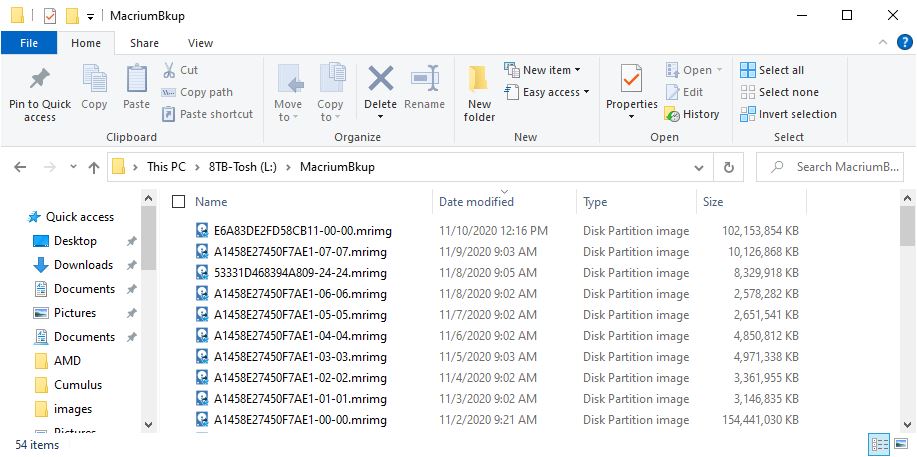
This morning, I noticed something different just after 9 AM. That’s when the usual scheduled backup job on my production desktop fires off, and about 2 minutes later the drive starts clunking away. Check the timestamps for the Macrium Image (mrimg) files in the lead-in graphic in File Explorer. Except for today — November 10 — all the other jobs show a stamp in a range from 9:02 – 9:21 AM. What was different this morning? No drive clunking provided audible clues when 8TB backup drive goes south. And sure enough, when I checked Explorer at first, the drive was MIA. In fact, Disk Management showed a drive with neither GPT nor MBR disk layout.

After Audible Clues When 8TB Backup Drive Goes South, Time for Repairs

Luckily, I’ve got a commercial license for MiniTool Partition Wizard (MTPW). It includes both Data Recovery and Partition Recovery capabilities. So first, I let MTPW define the drive layout as GPT (as it must for a drive bigger than 2TB). Next, I ran the program’s Partition Recovery capability. About 30 seconds later, the drive’s contents were visible in the MTPW Partition Explorer. But I still had to assign a drive letter before repairs were complete. Immediately thereafter, I ran a manual image backup using Macrium Reflect to make up for the backup I’d missed along with the 8TB drive. As you can see from the most recent timestamp for the top file in the lead-in graphic, today’s belated backup is stored with all its predecessors.

A Bit of Insurance Against Recurrence

I also finally switched in my brand-new Wavlink USB 3.0 docking station (Model: ML-ST3334U) for the old Intatek unit I’d been using. Turns out the Inatek couldn’t handle even a 4 TB and and 8TB drive. Given that I’ve had problems with this dock before, I’d been waiting for the “next fault” to force the swap. I think that’s what happened this morning. I also think the Inatek can’t really handle ONE 8TB drive without power issues. The Wavlink, OTOH, is rated to handle 2 8TB drives. That’s why I bought it, and why I hope this means I won’t see my big backup drive go bye-bye again soon.

But weirder things have happened on my production PC, and may happen again. As we all know, that’s just the way things sometimes go (or go south) in Windows World. Count on me to keep you posted as and when such weirdness happens.

Facebooklinkedin
Facebooklinkedin

Impatience Prompts Production PC Forced 20H2 Upgrade

Because Impatience Prompts Production PC Forced 20H2 Upgrade, that PC is now up-to-date.

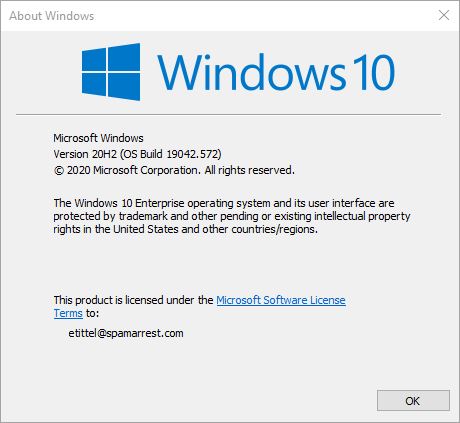
OK then, I admit it: I just flat-out got tired of waiting. It’s been 20 days since 20H2 went GA, and my production PC still hadn’t gotten “the offer” from Windows Update. Having long ago downloaded the ISO for 20H2 using the Media Creation Tool, I used it. The process took almost 40 minutes from start to finish. That’s much longer than it took my PCs that did get “the offer” to finish the task. At least 4 times as long. Right now, I’m pausing for this blog post. Next, I’ll do my usual post-upgrade cleanup, now that impatience prompts production PC forced 20H2 upgrade is done.

After Because Impatience Prompts Production PC Forced 20H2 Upgrade, Then What?

My usual post-upgrade cleanup routine of course. This consists of:

  1. Running TheBookIsClosed/Albacore’s Managed Disk Clean (mdiskclean.exe) utility to get rid of Windows.old and other stuff
  2. Using Josh Cell’s nifty (but increasingly dated) UnCleaner tool to get rid of about 310 MB of junk files.
  3. Running Macrium Reflect to capture an image of this pristine OS update
  4. Getting on with business as usual

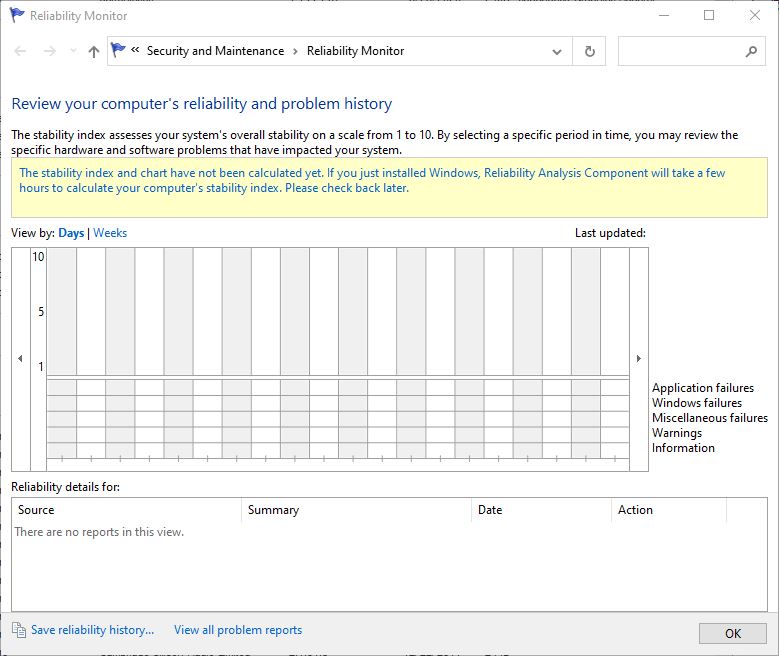
Just for grins, I ran DriverStore Explorer to see if it would find any outmoded drivers. As you’d expect, everything was ship-shape. Ditto for DISM ... /analyzecomponentstore, which tells me no updates since the GA date of October 22 have left old, orphaned packages behind. And because this kind of upgrade really is like starting over, Reliability Monitor gets a clean slate (in fact, it’s “dead empty” right now):

Right after a feature upgrade (which is what happens when you install from setup.exe), Reliability Monitor is devoid of data, and runs only forward from there.
[Click image for full-sized view.]

Status: 2004 to 20H2 Upgrades at Chez Tittel

This is the last and final machine to transition from 2004 to 20H2. My upgrades are done. One profound impetus for this change came from the three new Dell PCs — two review units, and one new purchase — that showed up over the past two weeks. All of those new 11th-gen PCs got “the offer” as soon as they booted up for the first time. I know that my production PC is solid and reliable and I’ve long since worked out any driver kinks on this machine. Seeing the Dell units transition painlessly (and incredibly quickly), I bet that the production PC would also get over the hump. But while it worked, I can’t say it was fast. But all too often that’s how things go here in Windows World. Stay tuned!


Facebooklinkedin
Facebooklinkedin

WU Gives 1903 Users Forced Upgrades

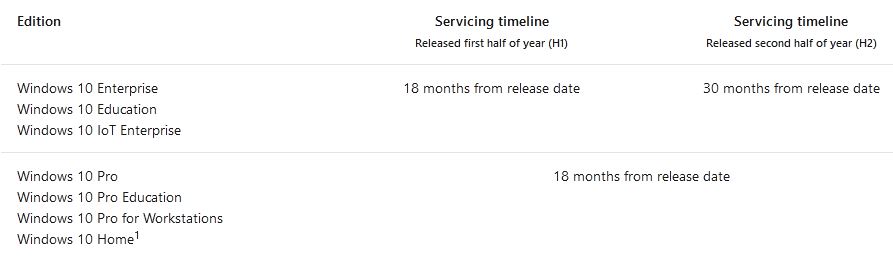
It’s not quite the apocalypse, but the end of support for Window 10 version 1903 is approaching on December 8, 2020. Thus, MS is now force upgrading PCs still running that OS through Windows Update (WU). Of course, 1903 has been out for some time, having gone GA in May 2019. It’s also been succeeded by three subsequent versions — namely 1909, 2004 and just recently 20H2. When end of support hits, MS stops issuing security updates, which makes machines running such an OS vulnerable to new security threats that won’t be patched. Not good! Time to upgrade then, which explains why WU gives 1903 users forced upgrades these days.

When WU Gives 1903 Users Forced Upgrades, Then What?

The funny thing is, Microsoft is upgrading these 1903 PCs to version 1909. What makes that funny is that this version (for Home and Pro users, anyway) will itself go out of support in May of next year (2021). Thus, those who go through an automatic upgrade through WU will have to repeat the process next May when 1909 itself runs into the same wall. Other,  newer ISO versions of Windows 10 are readily available through various sources. The Media Creation Tool for 20H2 is available through the Download Windows 10 page. Or, you can use AveYo’s excellent MediaCreationTool.bat script to access ISOs for most known Windows 10 versions. (I wrote about this for Win10.Guru on November 2, 2020.)

Given that 20H2 is still in the trickle-out process and hasn’t gone into wide distribution, it may make sense to upgrade from 1903 to 2004. In that case, you can use the afore-linked script to grab just what you need. Other good sources for 2004 include UUPdump.ml and the HeiDoc Microsoft Windows and Office ISO Download tool. Either one will also let you pick a version for the ISO you download, including 2004.

Moving Up from 1903

If you must upgrade from 1903 to some newer version — and I agree with Microsoft that it’s time to get cracking — I think 2004 makes most sense. Hopefully, these various sources for an ISO will help. And remember, to use an ISO for installation mount it as a virtual drive, then run the file named setup.exe from the root of that mounted drive to get the process underway. The Windows 10 Installer will do the rest. Cheers!

Facebooklinkedin
Facebooklinkedin

{WED} Certain Legit Tools Generate Windows Defender False Positives

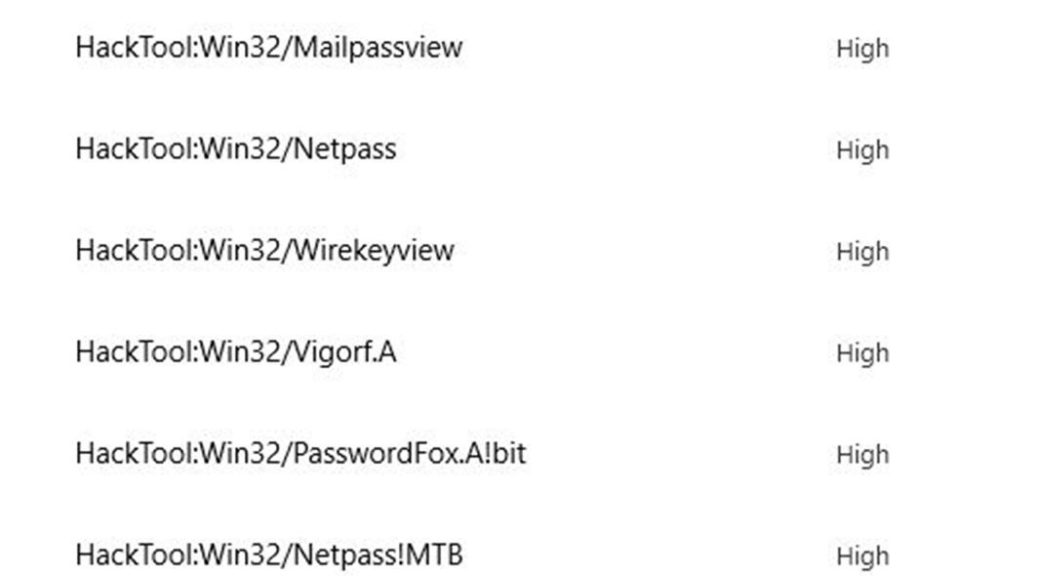
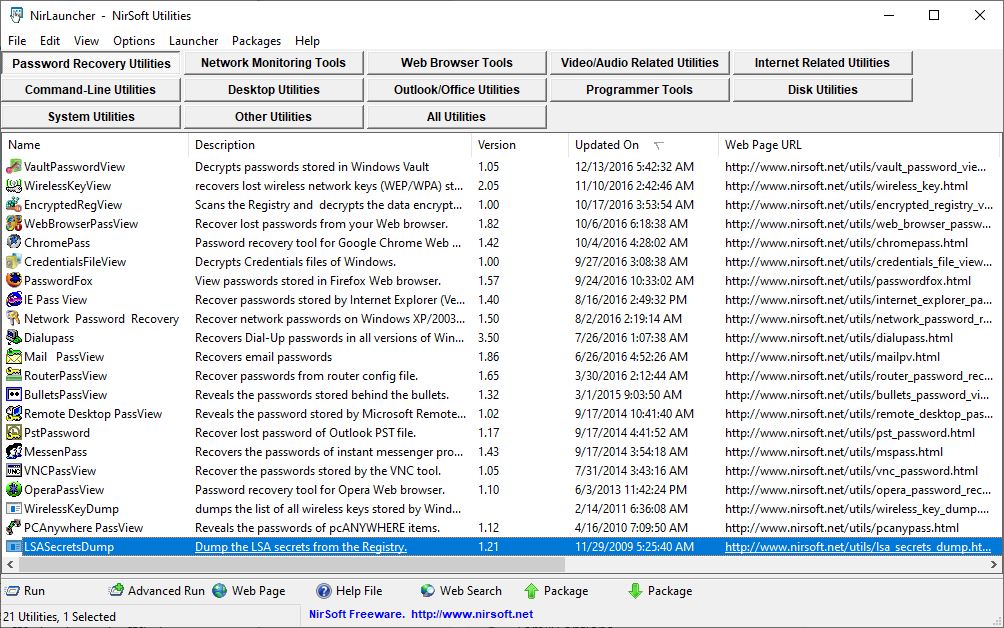
The other day, I had Windows Defender scan all of my disk drives. This action artificially provoked a performance alert on one of my Lenovo laptops. While it was running it reported 8 malware items on my D: (Data) drive. Please note: all of these are categorized as “HackTool” items. MS correlates them with specific malware items and known exploits.  After overcoming my initial alarm, I looked where those items were found. All resided under parent directory D:\NirLauncher. Immediately, certain things became clear. Every one of the suspect elements is a password sniffing and capture tool in Nir Sofer’s collection of Windows Utilities. In fact, he’s got a category within that collection of 200-plus tools called “Password Recovery Utilities,” which comprises 20 items (see below). All of them popped up here. Aha!

Certain Legit Tools Generate Windows Defender False Positives .NirSoftPwdUtils

Once it found these items, Defender forced me to have it ignore these threats to retain access to them.
[Click image for Full-Sized View.]

If Certain Legit Tools Generate Windows Defender False Positives, Then What?

Once Defender finds something suspect, you must remove that item from its clutches before you can use it again. That meant I had to open Windows Security → Virus & threat protection, then click on each item it found. Next, I clicked “See details,” and then explicitly told it to ignore each threat one at a time.

As you might expect, there’s a better way to deal with this kind of thing if you prepare in advance. If you click “Manage settings” inside the Virus & Threat protection pane, you’ll find an Exclusions setting right below Controlled folder access. Click “Add or remove exclusions” and you can instruct Defender to bypass specific files or folders. I simply added an exclusion for the D:\NirLauncher folder and it will now be ignored in future complete system scans (the Quick Scan option only accesses the Windows C: drive anyway).

Pre-emption Beats Reaction Whenever Possible

Currently, I use several utilities that Defender flags as threats. In addition to NirSoft’s password utilities (which NirLauncher includes amidst its collection of tools), I’ve had to exclude Gabe Topala’s System Information for Windows (siw.exe). In days of yore, before I started using Superfly’s ShowKeyPlus, I used a tool called Magic Jelly Bean Finder that likewise got flagged. I excluded it, too.

The moral of the story is this: if you’re planning to install (or copy standalone) tools that find passwords or keys, chances are pretty good that Defender will flag them as Hacktools. If you take steps to exclude them in advance, you can avoid having to “Ignore” them later on. But please: make sure you run any such software through VirusTotal to be doubly darn sure it’s safe before allowing it to take up residence on your PC. Such tools can indeed be used for malefic purposes, as well as legitimate ones. Be safe out there!

Facebooklinkedin
Facebooklinkedin

{WED} Old MDiskClean.exe Throws System.InvalidOperationException Error

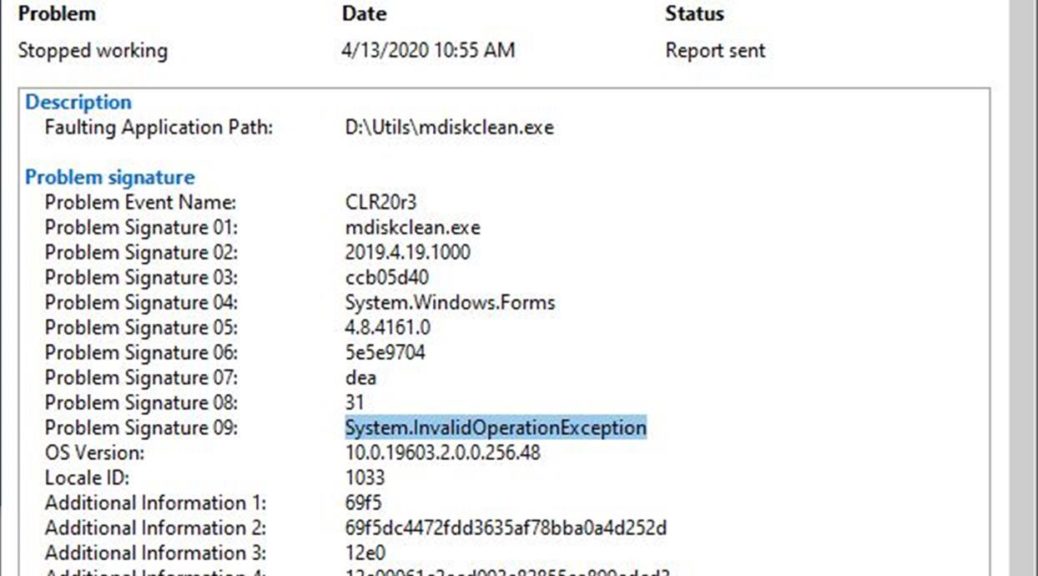
You know, there are more benefits to keeping software up-to-date than just avoiding security vulnerabilities. They even go beyond the pleasures of good housekeeping. When I couldn’t run Albacore’s excellent Disk Cleanup reaplacement (mdiskclean.exe) on my Lenovo X220 Tablet this morning, I started troubleshooting. Along the way, I found it ran just fine on my X380 Yoga (my other Fast Ring test machine). “Hmmm,” I said to myself, “let me compare the file dates.” And sure enough, I was running an April 2019 version of the project. However, the X380 was running a newer, May 2019 version. A quick online check confirmed that May 2019 is the latest and greatest version. Thus, I concluded that old MDiskClean.exe throws System.InvalidOperationException error. Those details appear in the lead-in graphic above.

If Old MDiskClean.exe Throws System.InvalidOperationException Error Then Update!

Indeed, my next move was to grab a copy of the current version. I replaced the old, outdated April 2019 version with the current May 2019 version. Then I ran the program again. This time, it worked like a charm. There was nary a trace in the Reliability Monitor of its passing, either. Sometimes, the easy fix is also the right fix. I’m glad to report that this is one of those times. The problem is solved.

Old MDiskClean.exe Throws System.InvalidOperationException Error.working

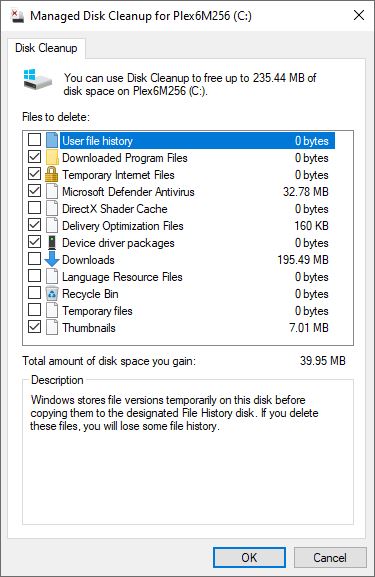
With the current (05.2019) version running and working, mdiskclean.exe looks exactly like Disk Cleanup, except it lets you show all available selections at the same time.

Disk Cleanup limits the display area to 5 items, so you have to scroll like mad to get through a big list.

If you should run into application level errors in Reliability Monitor, it’s smart to check the application itself first before taking troubleshooting further. In this case, that was as far as I needed to go. Had that not helped, my next move would have been to run the system file checker (sfc /scannow) and to perform a DISM componentstore health check (dism /online /cleanup-image /checkhealth). Normally, that would be as far as one would need to go at the application level. Beyond that, though, comes an in-place upgrade repair install (TenForums Tutorial) and finally a clean (re)install (TenForums tutorial). Glad I didn’t have to break out any of that heavy artillery. Cheers!

Facebooklinkedin
Facebooklinkedin

{WED} SP3 Dock USB Weirdness Well-Documented

I’ve still got a Surface Pro 3 kicking around. It includes an i7-4650U CPU, which the Intel Ark tells me was introduced in Q3’2013. When I bought that machine, I also bought the Surface Pro Dock, which granted me a hardwired Ethernet port, 2 each USB 2.0 and 3.0 ports, and a charging cradle. But it hasn’t been problem free. In fact, it’s kinda flaky. I keep a USB 3 drive plugged into the dock for backups and extra storage. But sometimes, the drive “goes away.” It simply drops off the PC. If I unplug the device, then plug it back in, or cycle the power, sometimes the device will reappear, and sometimes it won’t. This works on my external 2TB HDD, but not on my mSATA drives in their Sabrent enclosure. Researching things just now, I see SP3 Dock USB weirdness well-documented at Microsoft Answers and elsewhere. Sigh.

SP3 Dock USB Weirdness Well-Documented
Surface Pro 3 dock

The SP3 Dock has GbE, 2x USB3.0 & USB2.0 ports, plus Mini DisplayPort & audio in/out minijacks.

If SP3 Dock USB Weirdness Well-Documented, Then What?

Alas, when you’ve got known problems with hardware that’s this old there’s not much you can do about it. Checked to make sure I’ve got all the latest/current drivers and firmware (I do). Looked to third-party sources to see if any might address such issues (can’t find anything). Worked through the Dock Troubleshooting advice from MS Support, and there’s no relief there, either. Sigh again.

Now, I have to decide if I want to live with this or get rid of the device. I’m torn. I’d like to fix it, but I’m unable to work my way to a solution. I’ve been thinking about buying a Surface Book 3 when they come out, later this year (or perhaps next year). So there’s no need to be hasty. But it really bugs me when things don’t work like they should.

I’m open to suggestions. Anybody got any? If so, please comment here, or send me an email at ed at edtittel dot com (be sure to put Surface Pro 3 Dock in your subject line too, please).

Facebooklinkedin
Facebooklinkedin