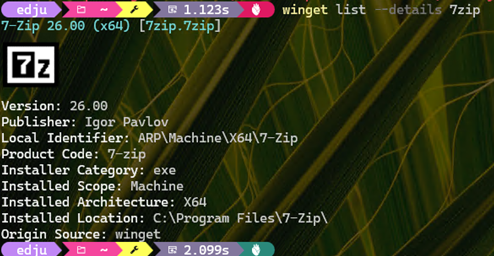
Thanks to numerous requests, I’m providing step-by-step instrux in this unusual second blog post for today. It’s based on something that made me unreasonably happy earlier this week. That is: WinGet can now display colorful package icons right inside Windows Terminal, rendered via sixel graphics. It’s a small visual upgrade that makes winget list –details output dramatically more readable. You get actual application icons inline with package data instead of a wall of monochrome text. But getting there requires a few specific steps. Here’s the complete recipe so you, too, can light up WinGet icons.
Why Must You Light Up WinGet Icons?
The current production version of WinGet is v1.28.220 as I write this post. The latest Preview version is v1.29.70-preview. Production is still catching up, so preview is a must for the moment. I imagine, though, that this will change with the next production version update. As with all moving targets, this one keeps changing along with everything else!
Step 1 — Get a Preview Version of Winget
Sixel icon support requires WinGet version 1.29.50-preview or later. The current stable release doesn’t include it. Check your version with winget -v. If you’re behind, try this first:
winget upgrade Microsoft.AppInstaller –source winget
If that doesn’t pick up the preview build, head to the microsoft/winget-cli releases page on GitHub, download the latest .msixbundle. If a double-click won’t install it, you can install it manually with Add-AppxPackage. Fair warning: on some machines the Microsoft Store installer handles dependencies automatically. On others, you’ll need to sideload VCLibs and Microsoft.UI.Xaml packages yourself.
Step 2 — Enable Sixels in Winget’s Settings (Not Terminal’s!)
This is the gotcha, and it got me for a short while. I confess: I mixed it up myself. The sixel toggle goes in WinGet‘s own settings file, NOT in Windows Terminal’s settings.json. Run winget settings to open the file. Add or merge a visual block so it looks like this:
{
“$schema”: “https://aka.ms/winget-settings.schema.json”,
“visual”: {
“enableSixels”: true,
“progressBar”: “rainbow”
}
}
The enableSixels: true setting tells WinGet to emit sixel graphics in its output. The progressBar key is optional —”rainbow“, “accent”, and “retro” work well (“sixel” works, but is hard to see). Any of these gives you graphical progress bars during installs, as a nice bonus.
Step 3 — Restart Terminal and Run It
Kill Terminal completely — not just close a tab. Right-click the taskbar icon and close the window, or kill the wt process outright. Relaunch. Then run:
winget list –details
Icons should appear for Win32 packages (exe/msi installers). MSIX packages won’t show icons — that’s a known limitation of the current pipeline, not a configuration error on your part. You can filter to a single package to test things quickly (I chose 7Zip, as it’s at the top of my ASCII sort order):
winget list –details 7zip
What to Expect
Not every package gets an icon. In my testing across two ThinkPads, icon coverage ranged from 26% to 31% of total installed packages. The dividing line is 100% correlated with installer category: Win32 packages (exe/msi) get icons, MSIX packages don’t. That’s an architectural gap Microsoft hasn’t bridged yet.
But what works, works beautifully. The icons are crisp, properly sized, and render instantly. It turns a dull text dump into something you can actually scan visually — which matters when you’re staring at 150+ installed packages trying to figure out what needs updating. Once you’ve got it set up, you won’t want to go back to the plain-text version. Cheers!

