After a fortunate accident decided me to clean install Windows 11 on the ThinkPad X12 Detachable Tablet, I had to continue the setup process. For me, that means installing a raft of apps and applications. “This time,” I thought, “Let’s try Winget’s export & import functions.” I did just that yesterday. I’m pleased to report that WinGet Export/Import aces app handling. Indeed I was able to handle 35-plus apps in under 20 minutes. Let me explain…
How WinGet Export/Import Aces App Handling
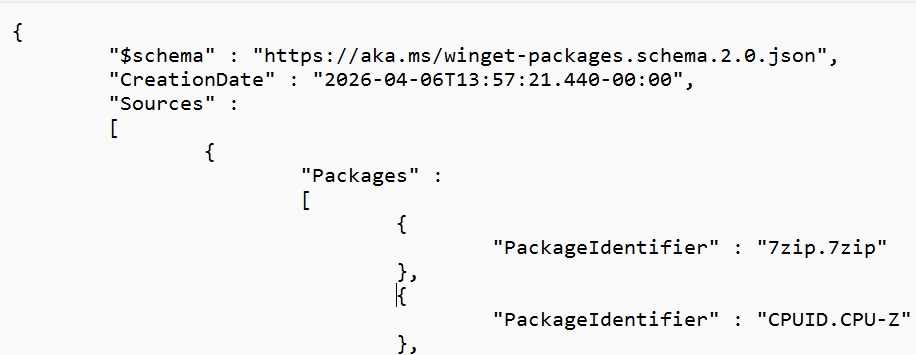
As with much else in the Windows Terminal/PowerShell environment, WinGet manages export/import operations using a .json (JavaScript Object Notation) file. It’s like XML, except more compact: human-readable, but less verbose.
Step 1 is to instruct the source PC (Flo6, in this case) to export its roster of installed packages. First I started off with a command to grab that roster, and stuff it into a .json file:
winget export -o Flo6-apps.json
Then, I opened that file in notepad to edit out stuff I didn’t want or need. In this case that includes lots of stuff that comes pre-installed on Windows anyway (e.g. Edge, PowerShell, and a bunch of other stuff). It also included apps I knew I wouldn’t want on the X12 (e.g. all the MSI motherboard stuff and utilities, Adobe Acrobat, NVIDIA software, older CrystalDiskX versions, and so forth).
Long Story Short: 58 to 36
By the time I trimmed everything, the number of entries in the .json file dropped from 58 to 36 (the export function skips apps for which WinGet packages don’t exist, so that trimmed the overall number down from 221 to 58 to start with). After that, it was just a matter of using the import function on the receiving X12 PC, like so:
Lessons Learned
Along the way I learned a few things, hopefully worth sharing. First and foremost, I learned to read the export JSON file carefully. I confess: I did miss a couple of things (e.g. MSI version of CPU-Z). I ended up having to do a little cleanup after the import completed. You could do better, by reading — and pruning — the export list more closely than I did.
I also had to do some followup on Windows Terminal/PowerShell setup. That meant adding a nerd font, changing from PS 5.1 to 7.x, and making sure OhMyPosh was working properly. Easily done, but takes a little while.
Now, I’m ready for my next adventure. Here in Windows-World there’s always a new one right around the corner.

