Windows Update pinged me yesterday, August 18, with a firmware notification: my MSI motherboard had a BIOS update available. My reaction was less “Great, let me install that…” and more “Wait! I just did.” The week before, I’d downloaded MSI’s latest BIOS package, copied it to a FAT32 USB drive, booted into MSI’s M-Flash utility, and flashed the thing the old-fashioned way. It worked perfectly. So why was Windows Update acting like none of that had ever happened? Thereby hangs the tale of the incredibly bogus MSI BIOS update. Here goes…
Hunting Down the Bogus MSI BIOS Update
The “bogus” here isn’t the update itself. Indeed, Windows Update found it and sought to deliver it. What was bogus was any awareness on WU’s part that I’d already installed it. When I flashed the BIOS using MSI’s UFD-based utility, that transaction happened entirely outside of Windows. No registry entry. Windows Update history records missing. No UEFI firmware capsule delivery for WU to track. As far as Windows Update was concerned, the update had never been applied, and it was doing its best to make sure I got it.
I confirmed the BIOS version in the UEFI settings. Indeed, it matched the version WU was offering. I checked Windows Update history: no entry for the flash, naturally. Optional updates, Driver updates: WU really wanted me to install this update. So I did, and of course it failed because MSI is smart enough to refuse a second install of the same UEFI version (I’ve had this happen on Lenovo PCs/laptops as well).
WU Remains Oblivious to OOB BIOS Updates
Windows Update tracks firmware updates it delivers itself. Typically, they come via UEFI firmware capsule updates. Those hand off to the firmware installer, and WU records the update in its history database. When you flash a BIOS using a manufacturer’s standalone tool (e.g. MSI’s M-Flash, a DOS-based utility, or a UFD flash from UEFI) Windows is completely out of the loop. There’s no handshake, no callback, no “hey, Ed already did this” signal.
The result: WU sees the target BIOS version, compares it against its own records (which show nothing). It concludes the update is needed. It’s not wrong, exactly. It just doesn’t know what it doesn’t know. And because the update failed anyway (I couldn’t figure out how to kill the pending item before it was applied, even with Copilot’s help) it appeared every time I checked updates in WU.
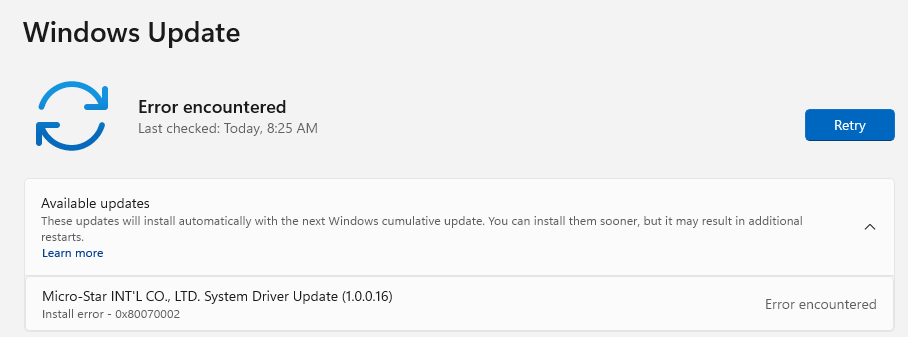
Until I hid the update it kept trying and failing to install after a mandatory restart. Vexatious!
PSWindowsUpdate Hides the Bogus Offer
For this case, the solution wasn’t to install the update again. Reflashing a BIOS that’s already current is unnecessary and might cause problems. The goal was to tell Windows Update, in terms it would respect, to quit offering that item. That’s a job for the PSWindowsUpdate module from the PowerShell Gallery.
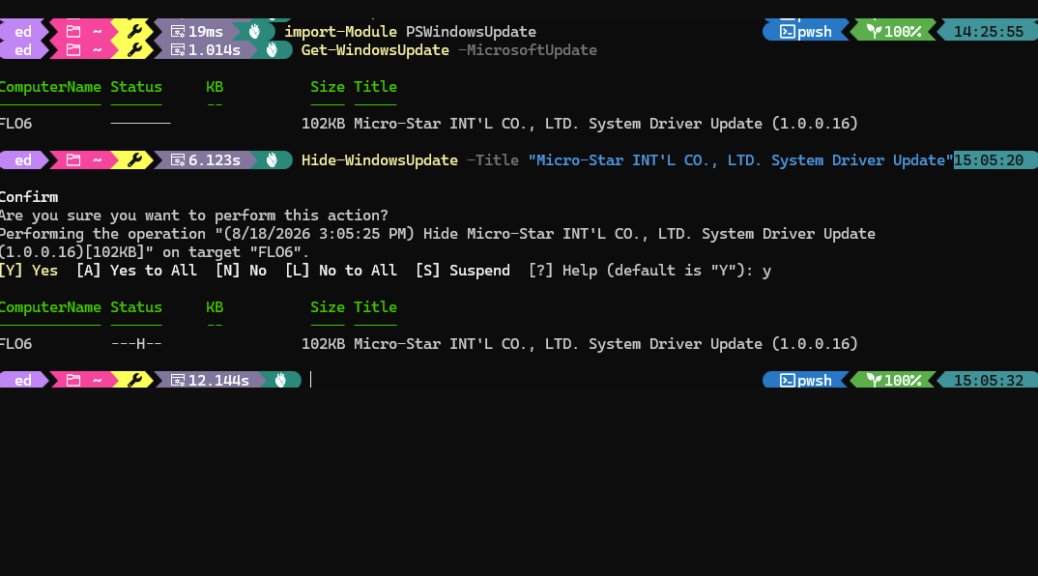
I imported the module, enumerated all pending updates to confirm the BIOS entry was there, and then hid it. The complete sequence is in the lead-in graphic, but here it is in text form for easy access (info following # is purely descriptive and need not be entered):
Import-Module PSWindowsUpdate #Invokes PSWU cmdlet set

Get-WindowsUpdate -MicrosoftUpdate #Calls WU for upd chk

Hide-WindowsUpdate -Title "Micro-Star..." #Hides MSI upd
You can use the Title or the KB number for an update to block it. Then you can use the Get-WindowsUpdate -MicrosoftUpdate -IsHidden cmdlet to show you if your efforts succeeded.
Problem Solved, Mostly
After running Hide-WindowsUpdate, Windows Update stopped flagging the firmware update. No more notifications, no more badge on the WU icon, no more politely worded insistence that I was a BIOS version behind. A quick recheck of Get-WindowsUpdate showed a clean list.
One thing: hiding an update using PSWindowsUpdate is reversible. You can unhide it later with Show-WindowsUpdate if you ever want WU to see it again. And if you’re in the opposite situation (WU is offering a BIOS you genuinely haven’t installed), the Install-WindowsUpdate cmdlet handles that well. Either way, PSWindowsUpdate gives you control that the standard WU interface simply doesn’t.
Here in Windows-World, it’s always something. This time, it was a weird and unwanted BIOS update. Whatever it may be next time, count on me to tell you about it, and how to work with, through, or around it as circumstances might require. Cheers!

