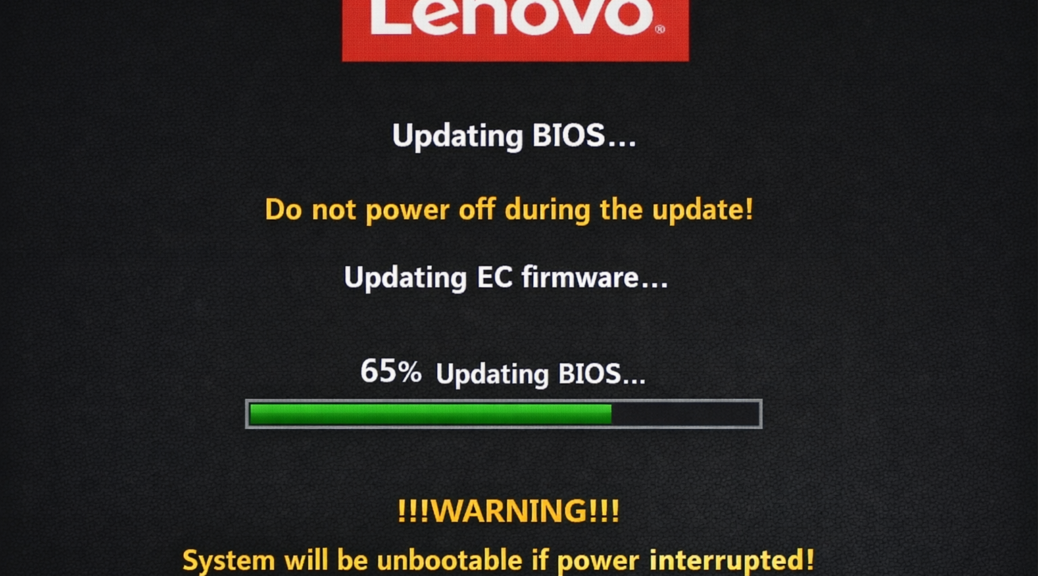
I’ve been dreading a recent moment for years. Whenever you update the BIOS (UEFI) in a PC or laptop, the maker usually throws dire warnings about maintaining power. The unthinkable happened to me this morning: the lights flickered, then went dark. And, as fate would have it, the Lenovo ThinkStation P3 Ultra Gen3 was in the middle of a firmware update (about 65% complete showing) as that happened. I was poleaxed, fearing a fully bricked PC. It wasn’t. The machine came back up cleanly, and I ended up dodging a BIOS bullet by design. I’ll explain…
Note: the lead-in graphic is a mock-up I put together. I didn’t capture the actual screen on my iPhone as it appeared.
Dodging a BIOS Bullet By Design
I was running a routine BIOS update as part of a routine Windows Update (WU) sequence. The firmware update screen had been up for a couple of minutes, progress bar inching along, and then — boom. A power fluctuation in my home office killed the display and dropped the machine cold. The Lenovo firmware screen itself had been displaying the standard warning in big, friendly (okay, slightly ominous) letters: “Do not power off or unplug the machine during the update.”
The progress bar was sitting at 65% when everything went black. That’s prime corruption territory — far enough in that the old BIOS image has been partially overwritten, but not far enough that the new one is complete and verified. If this had happened on an unprotected consumer board, I’d have been looking at a paperweight. Fortunately, on a workstation-class PC, this story gets a happier ending.
Why the P3 Ultra Gen3 Didn’t Brick
Here’s where things get interesting — and where Lenovo’s engineering team deserves credit. The P3 Ultra Gen3 didn’t survive by accident. It survived because its design planned for this event. Several overlapping layers of firmware resilience kicked in automatically. Let me break them down in basic terms:
- Dual BIOS / Backup BIOS Chip. Lenovo workstations — like many enterprise-class machines — carry a secondary, read-protected BIOS image alongside the primary one. Think of it as a golden master copy that the system keeps locked away. If the primary BIOS region shows corrupted at POST time, the firmware controller automatically detects the bad state and boots from the backup image. No user intervention required. The system just comes back up, potentially with the previous firmware version, but alive and functional.
- Flash BIOS Button / Crisis Recovery Mode. Some ThinkStation models — including variants in the P3 line — include a dedicated Flash BIOS Button on the chassis. In a true recovery scenario where even the backup region is compromised, you can create a crisis recovery USB drive and use that button to force-reflash the firmware from scratch, completely bypassing any need for a working BIOS. It’s the ejector seat of firmware recovery.
- UEFI Firmware Resilience (NIST SP 800-193 / Platform Firmware Resilience). This is the standards-level framework underpinning everything. NIST SP 800-193 defines a three-pillar architecture for firmware protection: Protect (prevent unauthorized modification), Detect (identify corruption or tampering), and Recover (restore a known-good state automatically). Lenovo has formally committed to this standard across its Think commercial product line, which means the recovery behavior I experienced wasn’t a happy accident — it was a tested, certified design outcome.
- Intel BIOS Guard. Underneath all of that sits Intel BIOS Guard, a hardware-enforced mechanism that prevents any unauthorized or incomplete writes to the BIOS flash storage from being committed without cryptographic verification. Even if a flash operation is interrupted mid-write, BIOS Guard’s atomic-write design means that an incomplete image cannot silently corrupt the chip’s protected regions without detection.
| “ThinkPads detect corruption of all primary BIOS code regions and recover the corrupted region by booting from the backup region, then restore the primary region with the verified binary in the backup.” — Lenovo BIOS Security Statement LEN-20208228 Feb 28, 2020 (no longer active: former URL https://www.lenovo.com/us/en/pdf/product_security/Lenovo_BIOS_Security_Statement_ 20200228.pdf) |
In short: these systems are built with layered defenses specifically because power failures, bad actors, and Murphy’s Law are all real things that happen to real machines in the real world.
What Does It All Come Down To?
Even with all of these protections in place, I’m not going to tell you to start flashing BIOS updates casually while thunderstorms roll in. Here’s what I’d recommend taking away from this little adventure:
- Use a UPS. Full stop. An uninterruptible power supply is the single most effective insurance policy for any workstation-class firmware update. Even a modest desktop UPS gives you the runtime buffer to either complete the flash cleanly or gracefully abort. My home office UPS setup failed me here — lesson painfully reinforced.
- Check your service manual for dual-BIOS and crisis recovery support before you update. Not every machine has these features. Know what your hardware can and cannot do before you find out the hard way. Lenovo’s support site documents this clearly for ThinkStation models.
- Use Lenovo Vantage or Lenovo System Update rather than manual executables. These tools handle pre-flight checks, staged delivery, and rollback behavior far more gracefully than dropping a raw executable and hoping for the best. They’re there for a reason — use them.
- Know where your Flash BIOS Button is before you ever need it. Locate it in your chassis documentation now, not while you’re in crisis mode at 11 PM staring at a dark screen.
PRO TIP: Before any major firmware update on a workstation, run Lenovo System Update to confirm you’re pulling the current validated image, verify your UPS is holding charge, and note the current BIOS version in case you need to reference it during a recovery. Two minutes of prep, potentially hours saved.
After a Moment of Blissful Relief, Thank the Engineers
Avoiding unplanned downtime is a major design goal in the ThinkStation P3 Ultra Gen3 ‘s design. Today’s tale of averted woe is as clear a demonstration of that design philosophy as you’re going to get outside a Lenovo engineering lab.
I hit what should have been a fatal event, and the machine shrugged it off through a combination of dual-BIOS architecture, Intel BIOS Guard, and NIST SP 800-193-compliant firmware resilience. That’s not marketing copy. That’s a machine doing things right. If you want to dig into the specifics for your own ThinkStation model — crisis recovery procedures, Flash BIOS Button location, and backup BIOS behavior — head over to Lenovo’s support site and pull up your model’s Hardware Maintenance Manual. It makes for surprisingly reassuring bedtime reading.
Here in Windows-World dodging bullets is something that happens occasionally. Today, I’ll gratefully accept a happy ending to what I thought might involve hours of recovery. Three cheers for the engineers!

